This supplementary document is to help you set up SSO for Tango portal with your OneLogin Identity Provider (IdP). You must first configure your IdP as an admin to create an entry for Tango portal Single Sign-On (SSO). Consult with your company’s IdP expert for the latest IdP configuration steps and instructions.
Note: This document was created in August 2024. We’re only providing a general guidance to get you started. For up-to-date procedure and screenshots, refer to your IdP documentation.
Disclaimer: Tango has no affiliation with OneLogin. Tango makes no warranty of any kind, whether express or implied, with regard to any third party products, third party content, or third party services. Tango will not be liable for loss damage, cost or expense, whatsoever resulting from this guide. This guide is provided as a courtesy. To confirm accuracy or completeness of this guide, please consult with OneLogin directly.
- An IdP account with admin permissions
- A Tango portal account with manage authentication permissions
To set up SSO with OneLogin OIDC for the Tango platform, you need an administrator account access to your IdP provider. Log in to your IdP and create and entry for the new SSO. Find out Connection display name, Client ID, and OpenID Connection ID Token Issuer URL in your IdP before continuing in Tango portal.
To set up OneLogin OIDC SSO:
-
Log in to OneLogin IdP.
-
Go to Applications.
-
Select OpenId Connect (OIDC) from the list of applications.
-
Enter a name for the application. Make sure the Visible in portal is turned on.
-
(Optional) Upload an image for Icon and enter a Description.
-
Click Save.
-
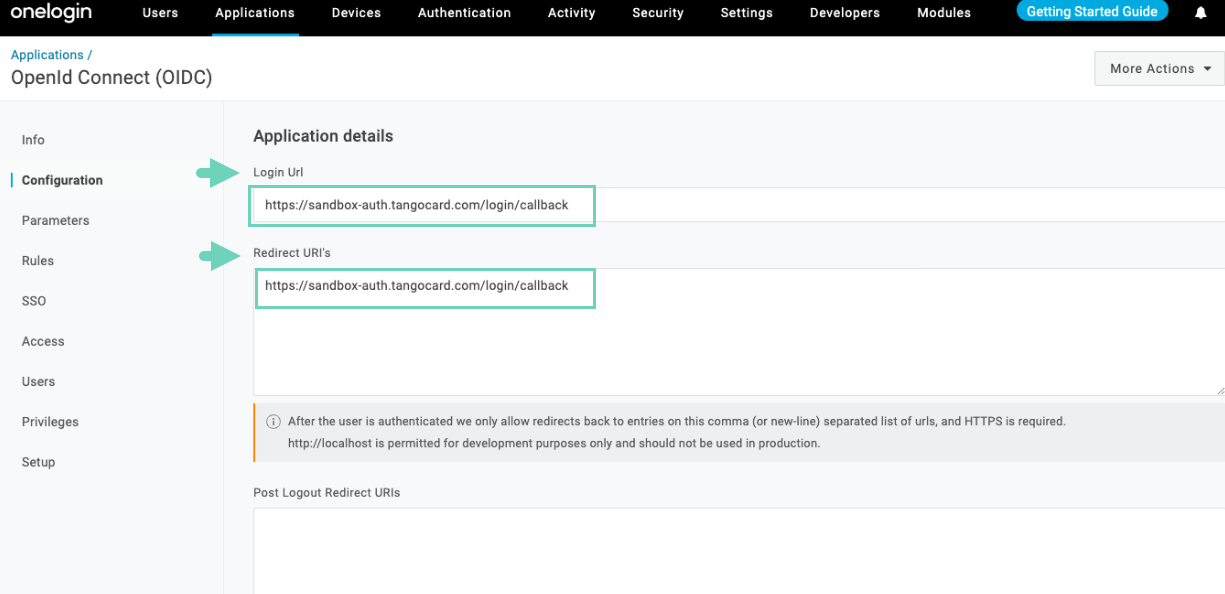
In the Configuration page, paste the Single Sign On URL from Tango Portal into Login URL and Redirect URI.
-
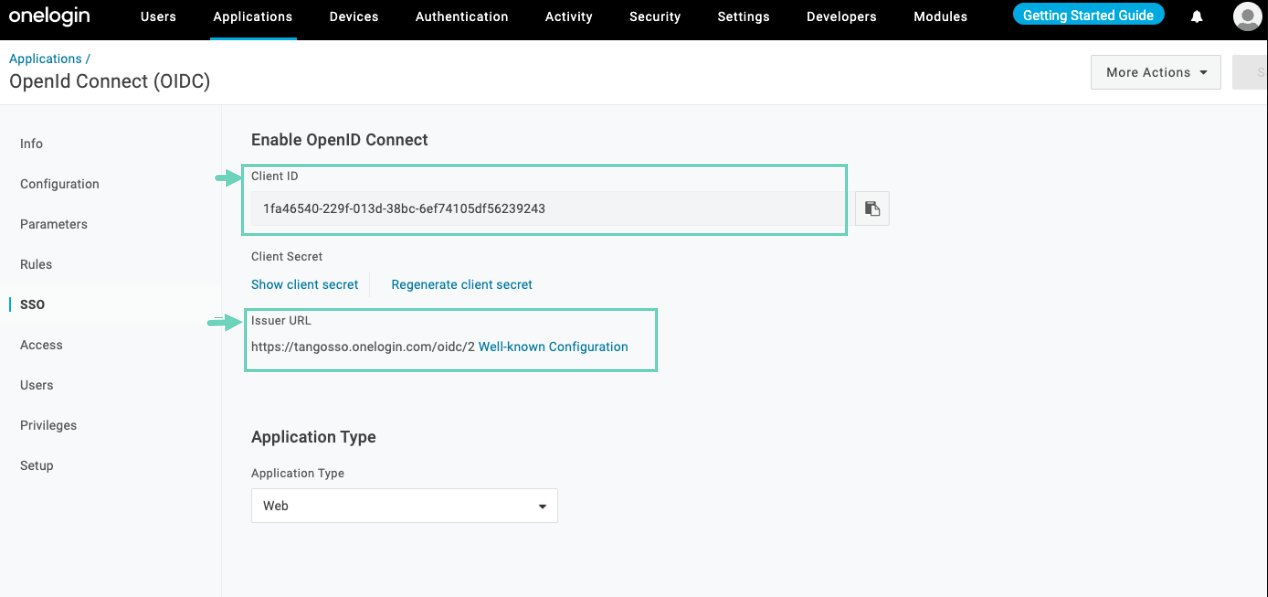
In the SSO page, copy Client ID and Issuer URL and paste them into Tango Portal. See Configure Tango portal.
-
Click Save.
-
Continue the SSO configuration in Tango Portal. See how to Add SSO connection in Tango portal.
To set up SSO with OneLogin SAML for the Tango platform, you need an administrator account access to your IdP provider. Log in to your IdP and create and entry for the new SSO. Find out Connection display name, Entity ID, and Metadata URL in your IdP before continuing to Tango portal.
To set up OneLogin SAML SSO:
-
Log in to OneLogin IdP.
-
Go to the Applications page.
-
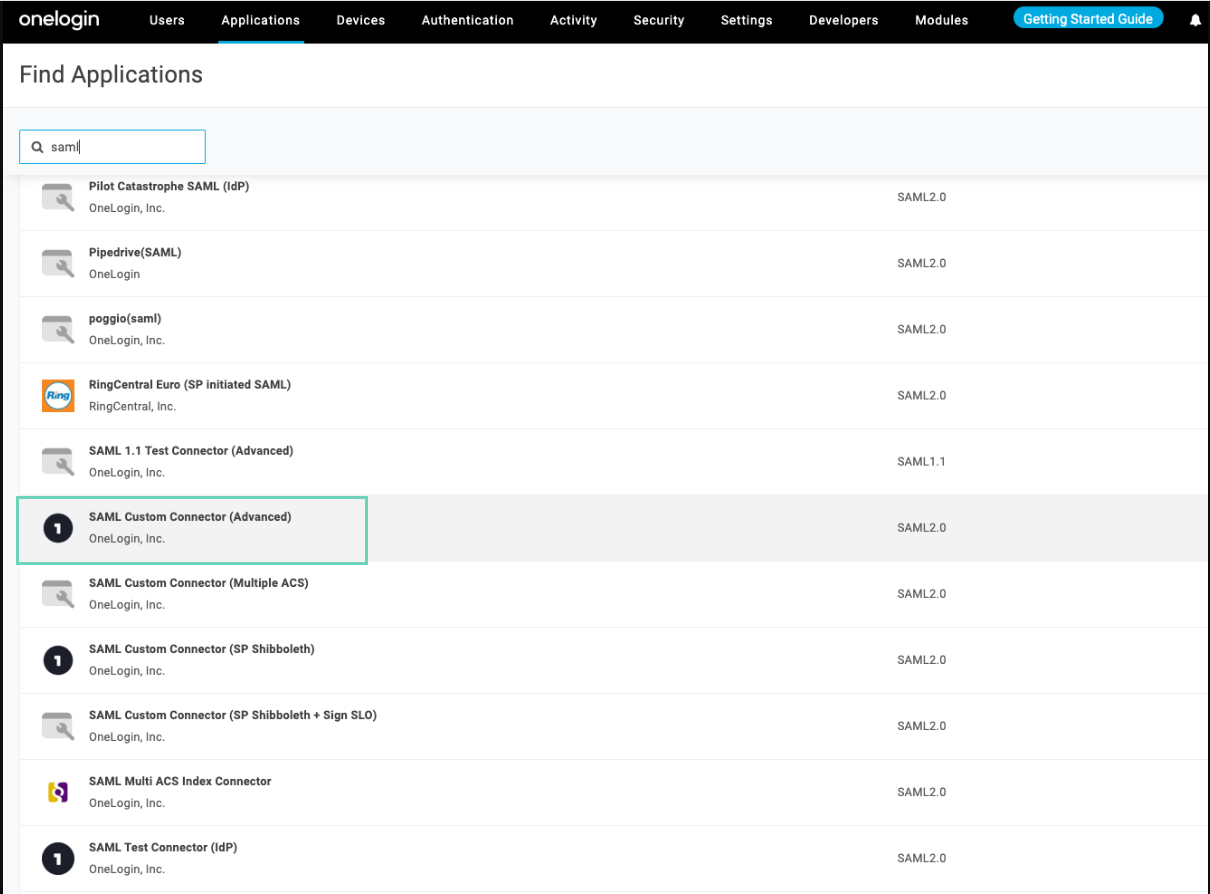
Select SAML Custom Connector (Advanced) in the list of applications.
-
Enter a name for the application and click Save.
- Go to the Configuration page.
- Enter Audience (EntityID). You must enter the same value in Tango portal SAML configuration as well.
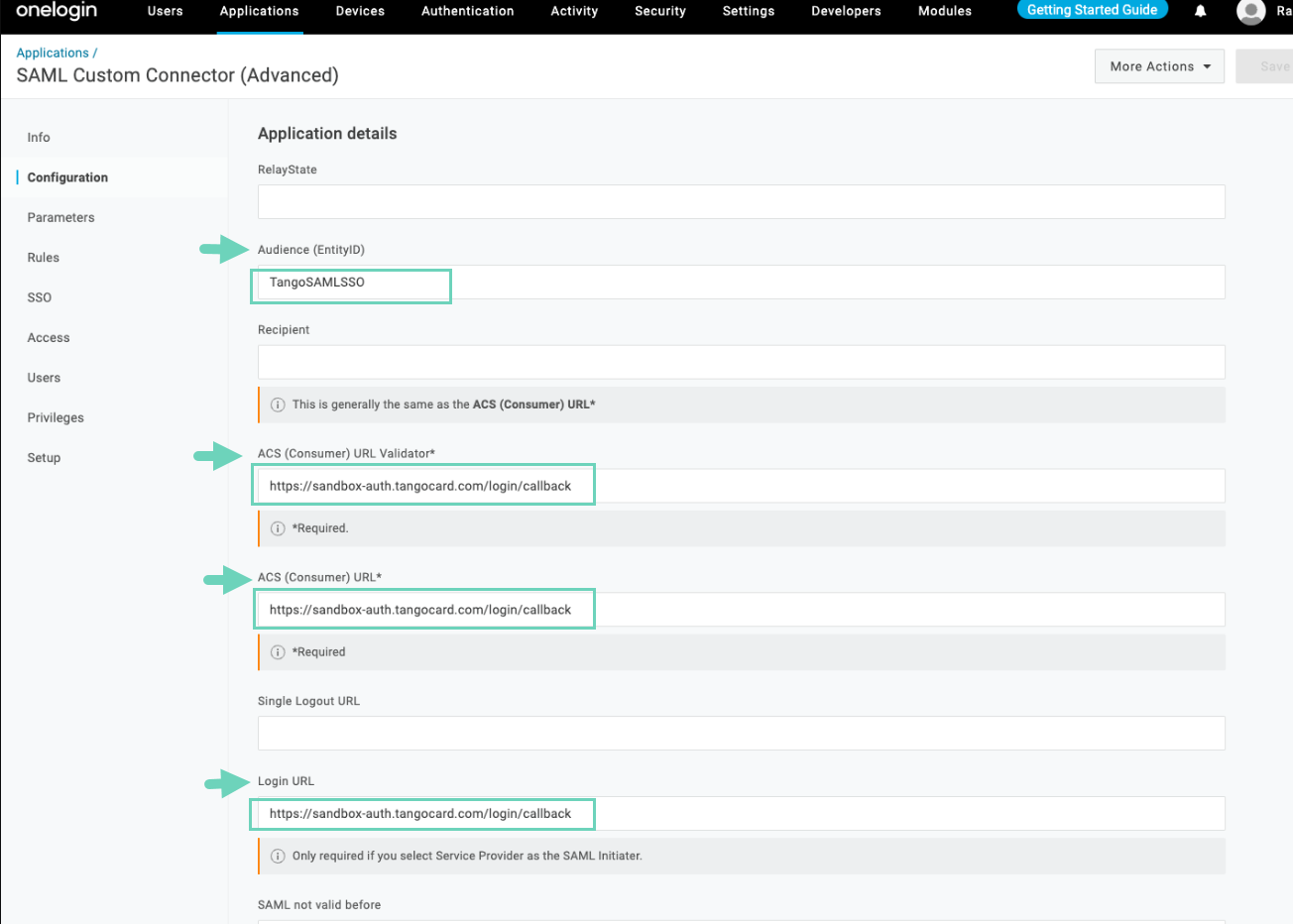
- Copy Single Sign-On URL from Tango Portal and paste it in the following fields:
-
Scroll down and enter the following values, then Save.
|
Field
|
Value
|
|---|
|
SAML initiator
|
Service Provider
|
|
SAML nameID format
|
Unspecified
|
|
SAML issuer type
|
Specific
|
|
SAML signature element
|
Assertion
|
|
Encrypt assertion
|
Leave this option unchecked
|
- Go to the Parameters page.
- Make sure Configured by admin is selected.

- Click
 to add the following SAML Custom Connector Fields one-by-one:
|
Attribute
|
Value
|
|---|
|
given_name
|
First Name
|
|
family_name
|
Last Name
|
|
email
|
Email
|
|
username
|
Username
|
|
email_verified
|
OneLogin ID
|
- For each field, make sure you select the checkbox Include in SAML assertion.
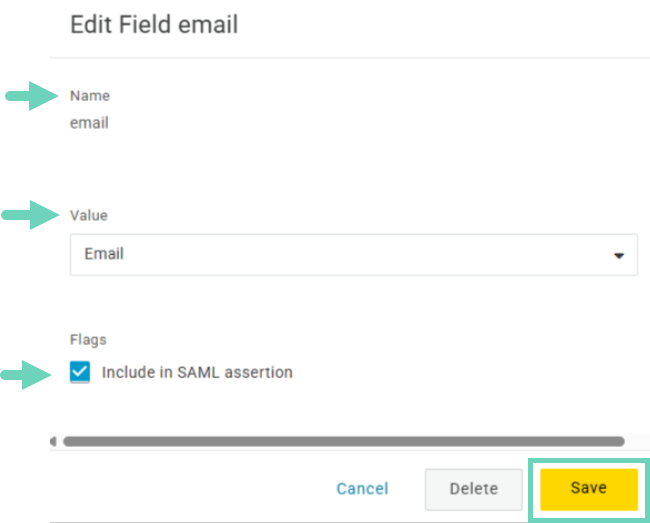
- Click Save.
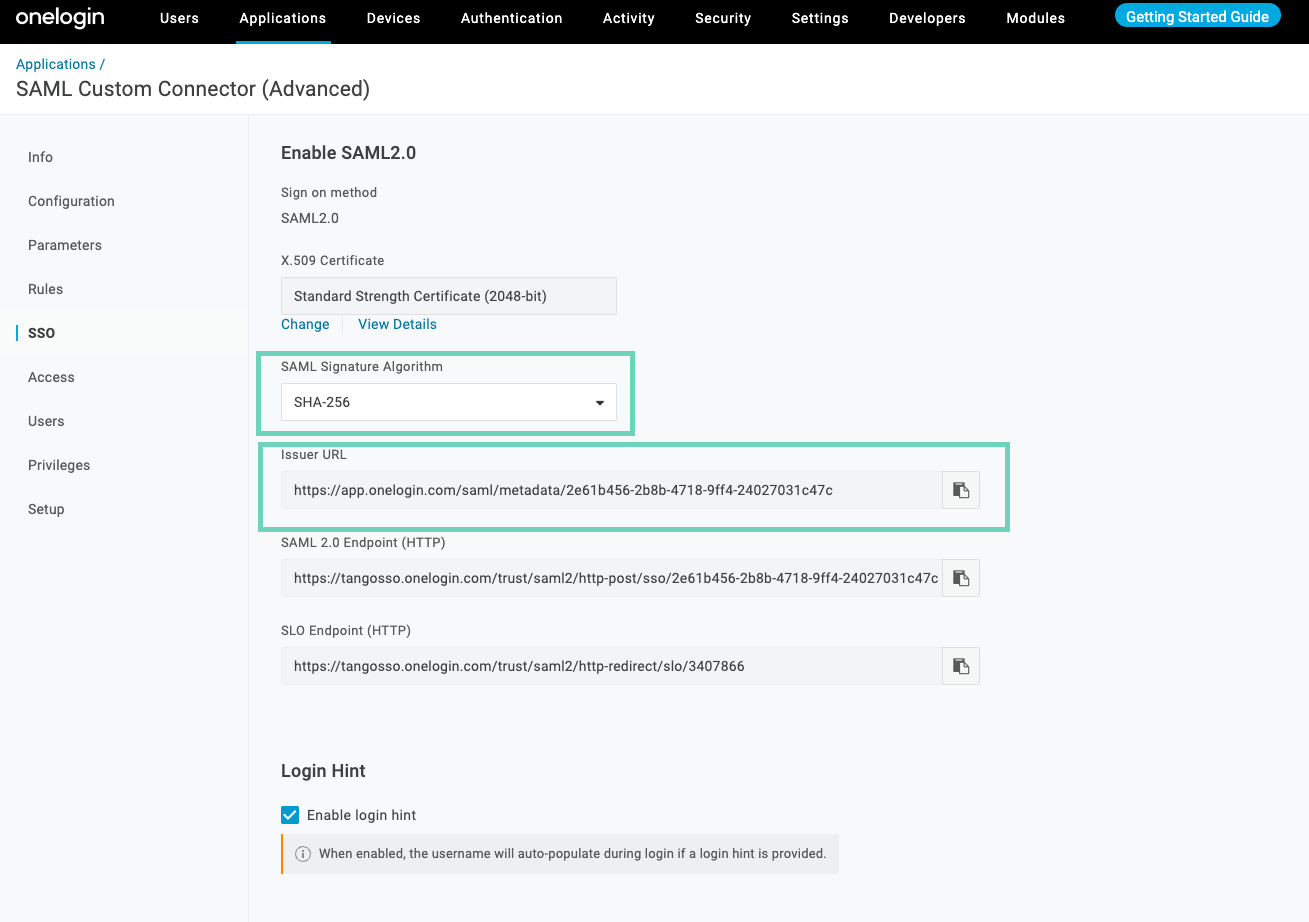
- Go to the SSO page, select SAML Signature Algorithm as “SHA-256”.
-
Copy the Issuer URL (Metadata URL) and paste it in Tango portal SAML configuration page.
- Continue the SSO configuration in Tango Portal. See how to Add SSO connection in Tango portal.
More resources