Closed Release:
This feature is available for a limited number of users and specific use cases only.
Create filtered versions of existing Choice Products (Reward Link®, Promo Link™, and Global Choice Link) by excluding specific brands from the available catalog. This feature allows you to create custom filters for your Choice Products directly through the Tango portal, eliminating the need to contact internal teams.
Benefits
Here are some of the advantages of creating filters:
-
Self-service management: Create and edit brand filters directly in the Tango portal without contacting internal teams or waiting for support.
-
Consistent recipient experience: Save filters and reuse them across future orders to ensure recipients always see the same brand selection.
-
Access control: You can define the level of access for each filter at the account, group, or platform/org-wide level.
-
Compliance control: Exclude brands that don't align with your policies, regulations, or contractual obligations.
-
Flexibility: Adjust filters at any time as your program requirements, recipient demographics, or brand availability change.
-
Faster order workflows: Skip manual brand selection on every order by applying a pre-configured filter in one click.
Required permissions
To create or edit brand filters, you must have the Manage filters permission. This permission is enabled by default for the Admin role.
Create a new filter
This feature allows you to create customized versions of Choice Products by including only the brands and locations that meet your program requirements. By saving a filter, you can quickly reuse it for future orders and ensure a consistent recipient experience every time.
To create a new choice product filter:
-
Sign in to the Tango portal.
-
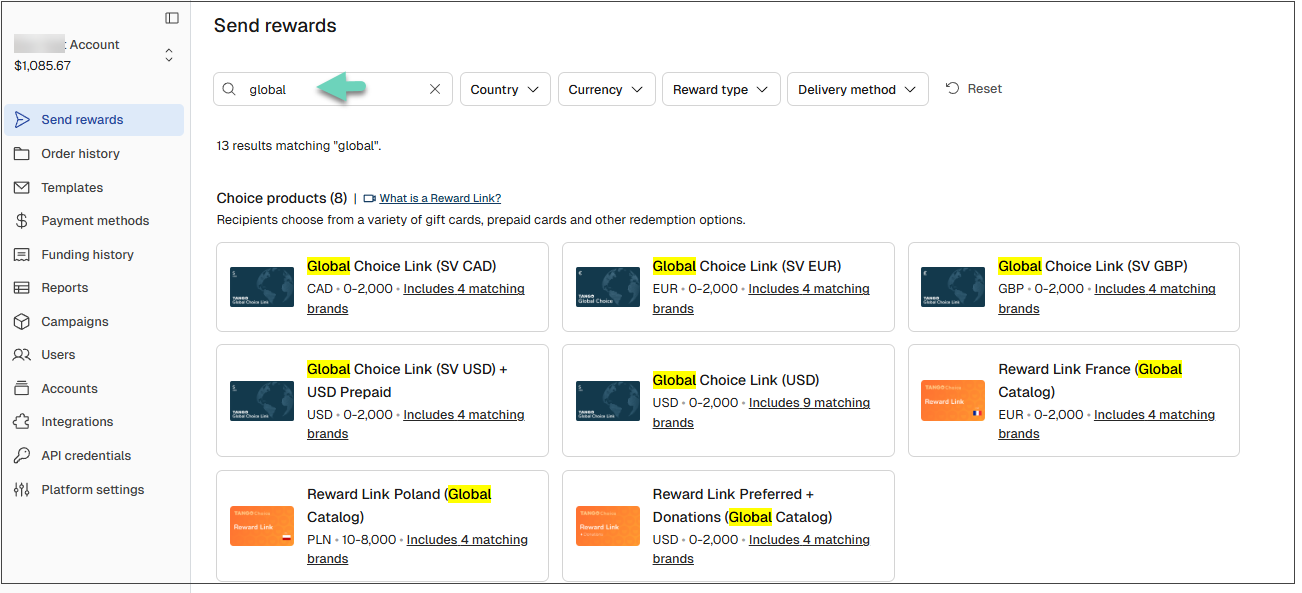
Click Send rewards.
-
Select an existing Choice Product UTID from your catalog. You can filter to narrow down your search if needed.
-
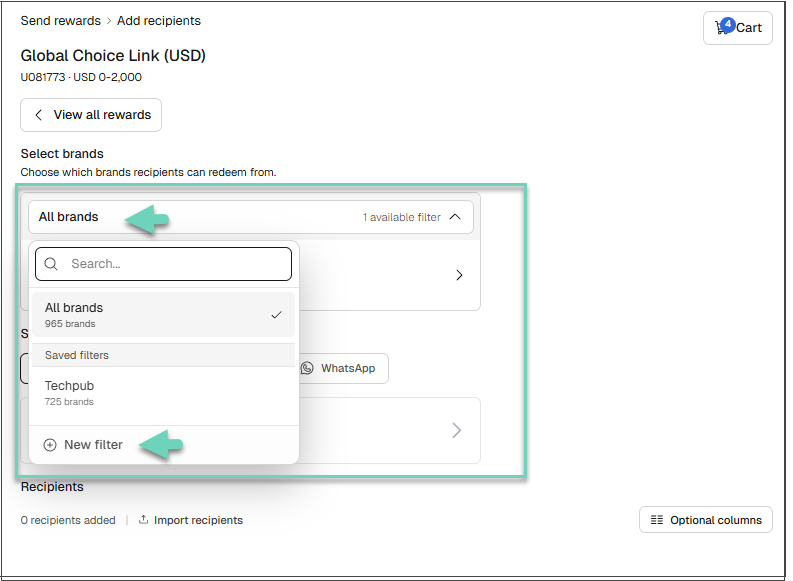
Click All brands.
-
Click New filter.
-
Configure the brands to include in the filter:
-
Click Save filter.
After Saving:
-
Your new filter appears in the Saved filters list.
-
Other users in your organization can use the filter when placing orders.
-
The filter can be edited later if changes are needed.
Edit a brand filter
You can update an existing filter at any time to add or remove brands from the parent UTID, adjust available locations, or revise filter details. Editing a filter helps ensure your reward offerings remain aligned with changing business requirements, compliance needs, or recipient preferences.
To edit an existing filter:
-
Sign in to the Tango portal.
-
Click Send rewards.
-
Search for and select the parent catalog such as Choice Product UTID.
Note:
Not all Choice Products support brand filtering. Only products labeled as Reward Link®, Promo Link™, or Global Choice Link with a configurable brand list will display the All brands option.
-
Click New filter under Select brands.
-
Go to the Saved filters tab and select your saved filter to open.
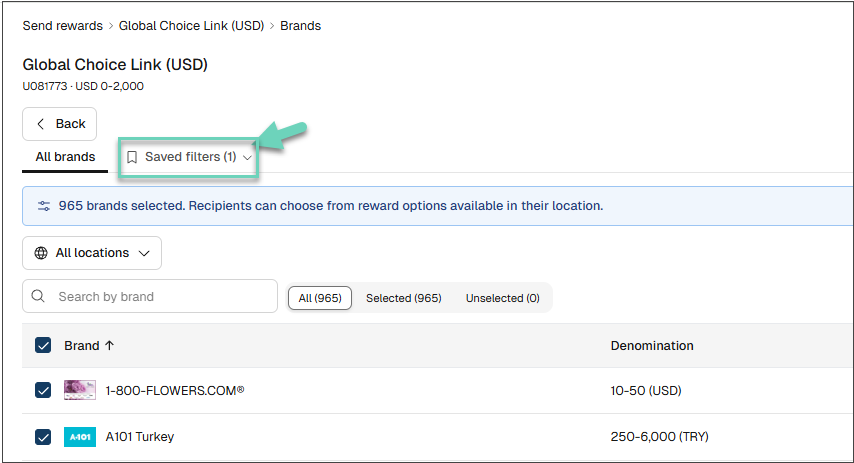
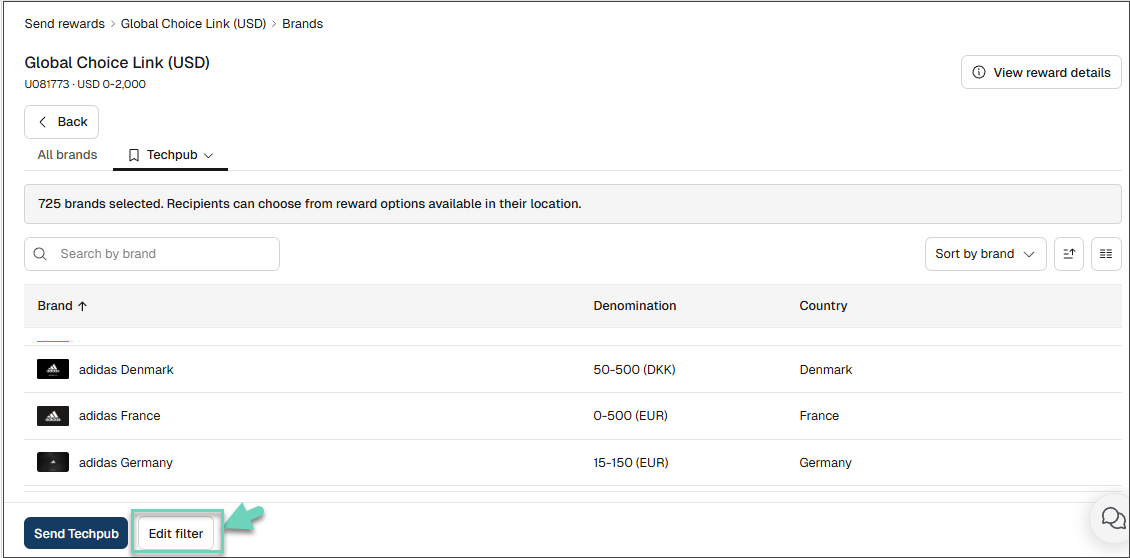
- Click Edit filter.
- Make the required changes to brands and/or locations.
Under Filter details, make sure to include a Display Name and a short description of how this filter should be used.
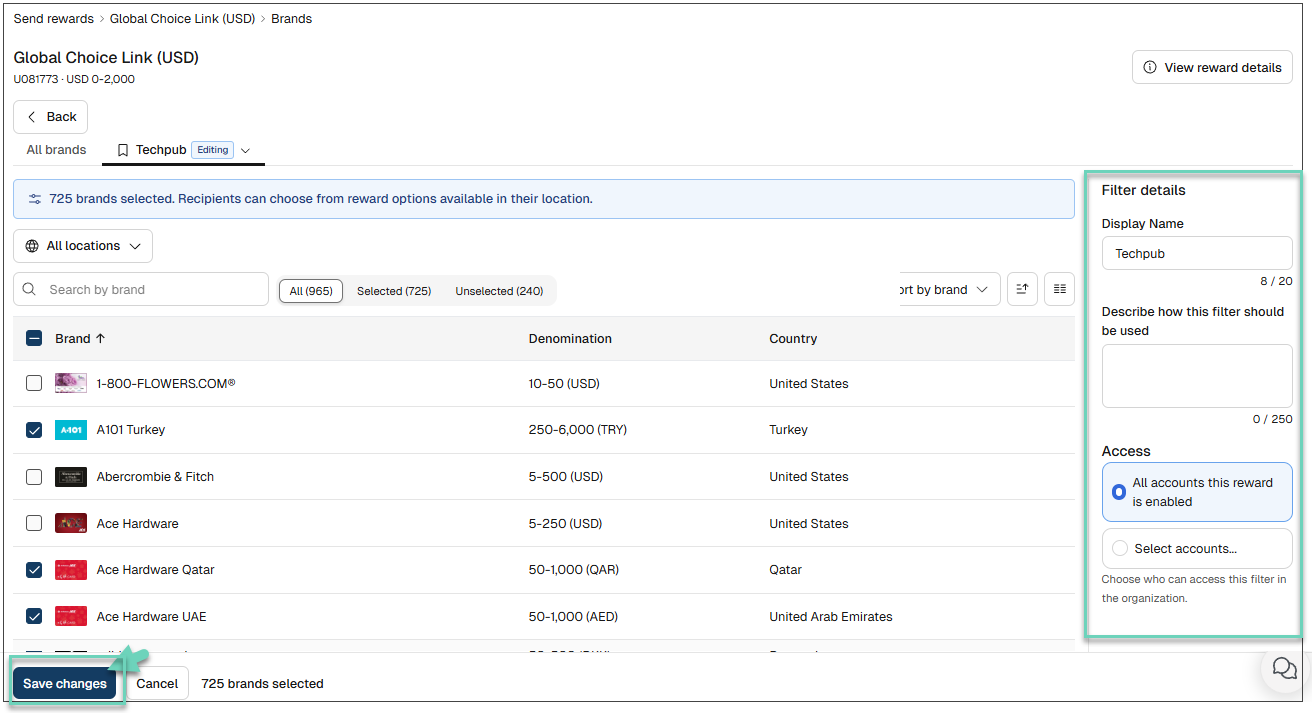
- Click Save changes.