Tango supports QR code for instant, in-person reward distribution without requiring recipients' email addresses or phone numbers. When you select the QR code as the delivery method for an eligible reward order, Tango generates a unique QR code for that reward. To present the reward in person, simply display the QR code that the recipient can scan with their smartphone to redeem the reward.
Note:
-
The selected unique Tango reward ID (UTID) must support QR code delivery.
-
If QR code delivery is enabled for your platform, it is available to all accounts in your organization.
-
Recipient email addresses and phone numbers are not required.
-
QR code rewards cannot be scheduled for future delivery.
-
If an expiration date applies, the QR code redemption link expires on the date shown in the order confirmation.
-
Only Choice products, such as Reward Link®, are eligible for resend, cancellation, or reissue when delivered by QR code.
Before you begin
Deliver a reward with QR code
When you select the QR code delivery option for a reward order, Tango generates a unique QR code for that reward.
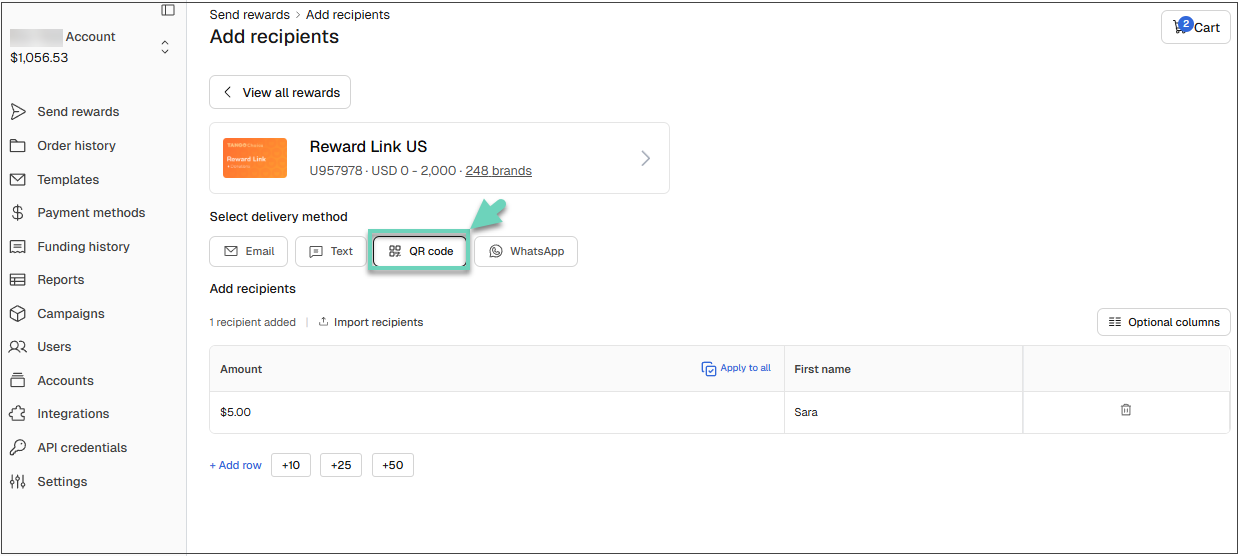
To deliver rewards with a QR code:
-
Follow the instructions at Send digital rewards by email,
-
Select QR code as the delivery method.
This option appears only for rewards that support QR code delivery.
How recipients can redeem a QR code reward
After an order with a QR code is placed, Tango generates a unique QR code and a redemption URL for the reward line item.
To redeem the reward by recipients:
-
Display the QR code on your mobile device or provide a printed copy to the recipient.
-
The recipient scans the QR code using their smartphone camera.
-
The recipient taps the link that appears.
-
The redemption page opens in the recipient's mobile browser, where they can redeem the reward.
To view a reward’s redemption credentials and display its QR code, go to the Order history page in Tango. QR code appears only for successful orders that used QR-code delivery; failed orders have no QR code. To view reward credentials see Manage reward orders with Tango | View reward credentials. To print QR codes, see Manage reward orders with Tango | Print reward credentials with QR codes.
More resources: