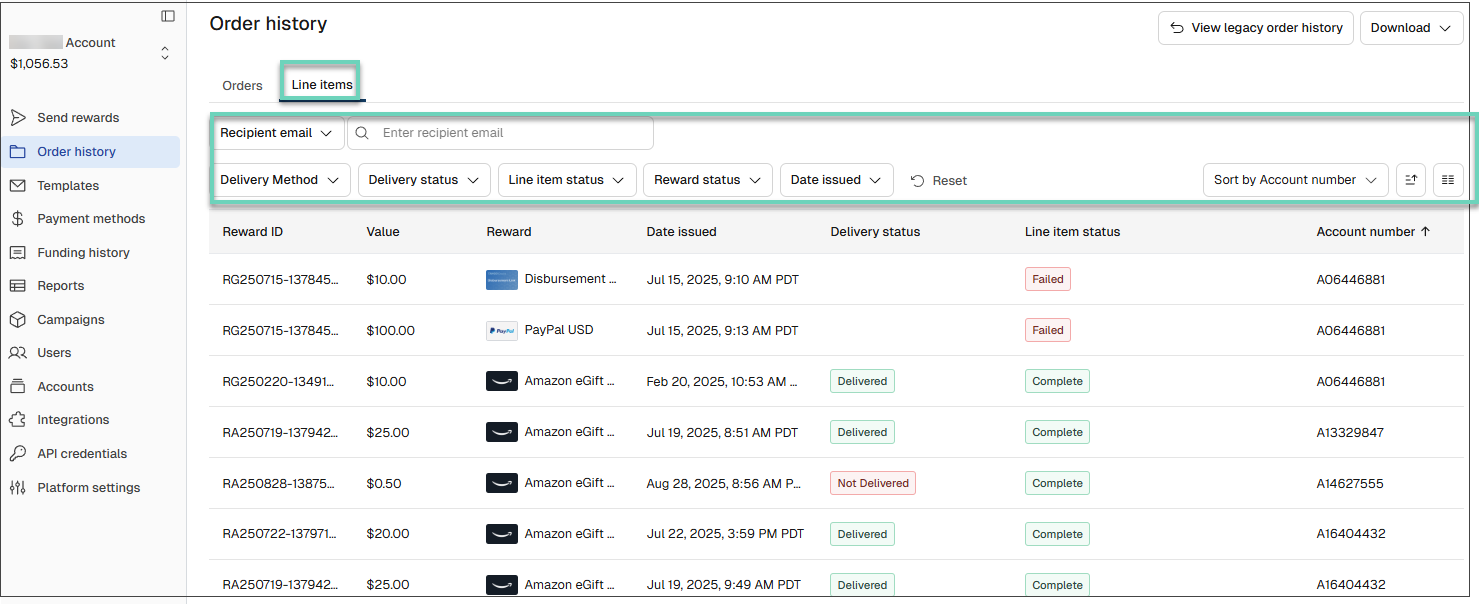
The Line items page in the Tango portal displays every reward sent in your Tango orders. You can search for specific line items, filter by recipient, status, and other criteria, and view line item history and details. To open the Line items page, go to Order history > Line Items in the Tango portal.
To mange your line items such as freeze, cancel, reissue, resend rewards, view and print QR codes, see Manage line items in Tango orders. To download line item data, see Download line items data.
To search and filter line items:
-
Sign in to the Tango portal.
-
Click Order history in the left menu. The Orders tab opens by default.
-
Click the Line Items tab.
-
Select a search category such as Recipient email or any of the following categories. Use the table below to choose the most appropriate search category:
|
Search Category
|
Purpose
|
|---|
|
Account number
|
Search for a line item based on the account number.
|
| Campaign |
Search by campaign name. Campaign is an optional string (up to 100 characters) used in the Tango API to categorize orders for various campaigns.
|
|
Campaign ID
|
Search for a line item by the unique campaign ID associated with the reward or order.
|
|
Campaign name
|
Search for a line item by the campaign name associated with the reward or order.
|
|
Currency code
|
Search by the three-letter currency code for the reward value, such as USD or CAD.
|
|
Date issued
|
Search or filter line items by the date the reward was issued.
|
|
Delivery status
|
Search for line items by delivery status, such as Delivered, Not Delivered, Pending, Shipped, or No Value.
|
|
ETID
|
Search by Template ID, the unique template ID used for digital reward delivery.
|
|
External reference ID
|
Search by the External reference ID for rewards sent via the Tango API. This optional unique string (up to 100 characters) helps cross-reference orders between your system and Tango and helps prevent accidental order duplication.
|
|
From name
|
Search by the sender name shown in the reward email.
|
|
Last resend date
|
Search or filter line items by the most recent date the reward email was resent.
|
|
Line item status
|
Search for line items by fulfillment status, such as Complete, Pending, Failed, or Canceled.
|
|
Notes
|
Search by the line item’s note message.
|
|
Order ID
|
Search by order ID, a unique Tango-generated ID attached to each order.
|
|
Order notes
|
Search internal notes entered for the entire order at checkout in the Tango portal. For rewards sent via API, the value entered for the “Notes” field appears here.
|
|
Order source
|
Search by the source used to place the order, such as the Tango portal or API.
|
|
Purchase order number
|
Search by purchase order (PO) number, an optional number used for your internal tracking.
|
|
Quantity
|
Search by the quantity of rewards included in the line item.
|
|
Reason
|
Search by the reason associated with the line item, such as the reason for a cancellation, failure, or reissue.
|
|
Recipient email
|
Search for a line item by recipient email address.
|
|
Recipient first name
|
Search for a line item by recipient first name.
|
|
Recipient last name
|
Search for a line item by recipient last name.
|
|
Recipient phone number
|
Search for a line item by recipient phone number.
|
|
Reissued from Reference ID
|
Search by the reference ID of the original reward that this reward was reissued from.
|
|
Reissued to Reference ID
|
Search by the reference ID of the replacement reward that this reward was reissued to.
|
|
Remaining balance
|
Search by the unused balance remaining on the reward.
|
|
Reward
|
Search for a line item by reward name.
|
|
Reward ID
|
Search for a line item by the reward ID. This is the unique Tango-generated ID attached to each reward. It also includes the order ID. For example, RG230322-404886-42 is an order ID, and RG230322-404886-42-1 is a reward ID.
|
|
Reward status
|
Search for line items by reward status, such as Processing, Active, Frozen, Canceled, Refund Pending, or Expired.
|
|
Send email
|
Search by whether Tango sent the reward email to the recipient.
|
|
Sender
|
Search by the sender’s email address.
|
|
Ship to name
|
Search by the recipient name used for mailed reward shipments.
|
|
Shipping address
|
Search by the shipping address used for mailed rewards.
|
|
Subtotal
|
Search by the line item subtotal before any applicable fees or adjustments.
|
|
To name
|
Search by the recipient name shown in the reward email.
|
|
UTID
|
Search by UTID, the unique Tango identifier for the reward catalog item.
|
|
Value
|
Search by the reward value or denomination.
|
-
Enter the full value in the search box and press enter or click the magnifying glass  . You may get multiple pages of results. If needed, scroll the page horizontally to see all displayed columns.
-
Click Reset to remove all filters and view the full list of rewards.
Note:
-
You must enter the full value you are searching for (for example, the entire email address or full phone number).
-
Make sure the correct search category is selected; if Recipient email is selected and you type a name, no results are returned.
-
A space before or after the email address will return no results.
-
Search is not case-sensitive.
Customize columns and pagination
-
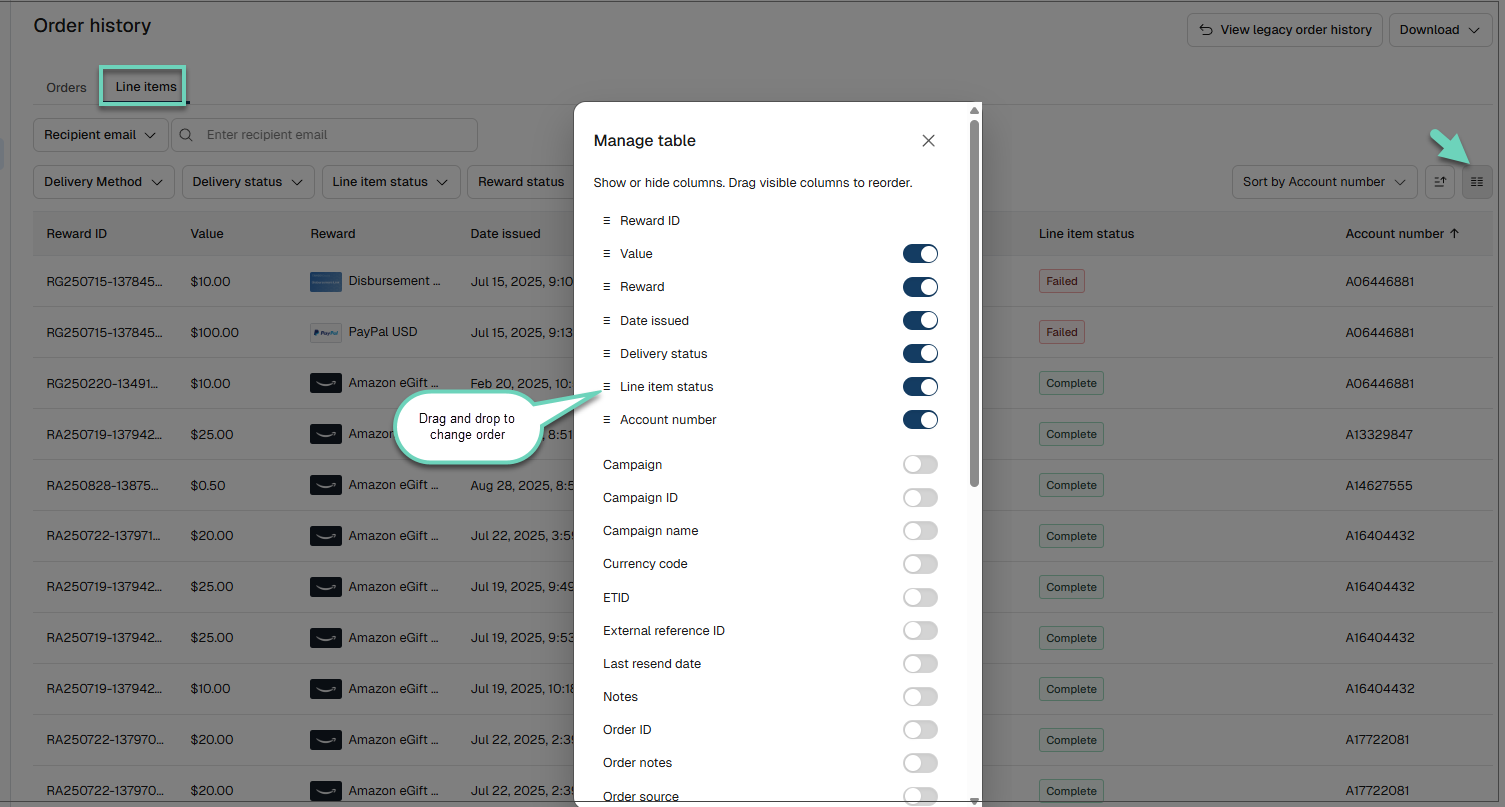
Click the hamburger menu :hamburger-menu: in the table's upper-right corner to select columns.
-
Drag and drop the columns to rearrange their order.
-
Scroll the page horizontally to see all visible columns.
-
Use Rows per page at the bottom to select 100, 200, or 500 rows per page, then use the page arrows to move between pages.
Filter by delivery method and status
-
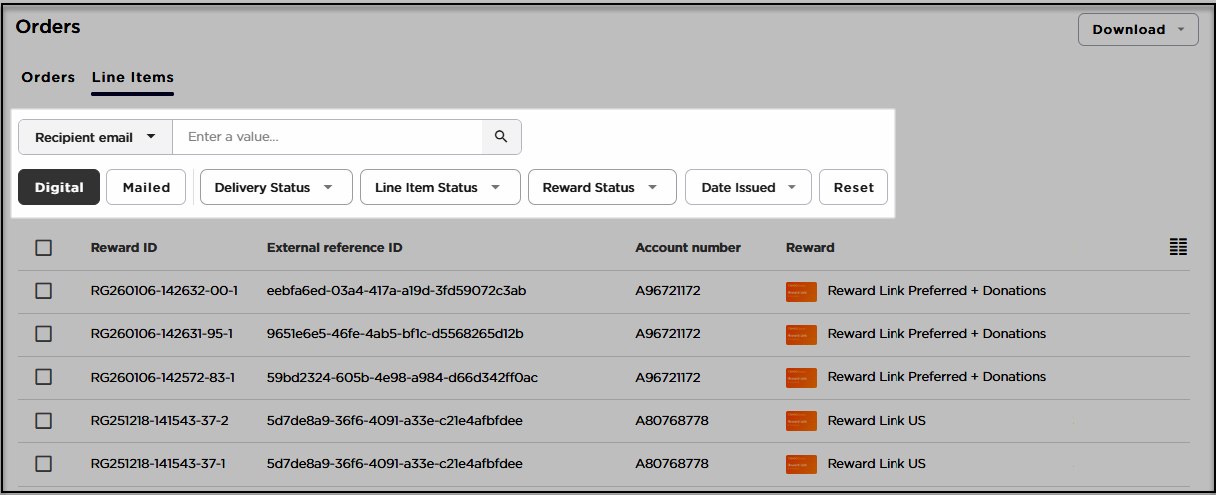
Filter by the delivery method such as Digital and Mailed.
-
Filter by Delivery status. Use the table below to choose the most appropriate search category:
|
Delivery
|
Purpose
|
|---|
|
Shipped
|
Your order has been packed and shipped. It’s in transit to the delivery address.
|
|
Delivered
|
Rewards that were successfully delivered to the recipient’s inbox.
|
|
Pending
|
Rewards that are currently being processed by Tango. It will be processed within one business day. Orders placed on Friday afternoon or over the weekend may be processed on the following Monday. The order status will change to “Complete” after delivery.
|
|
Not Delivered
|
Rewards that were not delivered because the email was bounced, blocked, or dropped. We recommend requesting a different email address from the recipient and resending the reward.
|
|
No Value
|
Rewards not currently have a status for delivery.
|
Filter by line item status
Use Line item status to see rewards based on fulfillment outcome. Use the table below to choose the most appropriate search category:
|
Line item status
|
Purpose
|
|---|
|
Complete
|
Rewards that were successfully provisioned by Tango.
|
|
Pending
|
Rewards that are currently being processed by Tango. It will be processed within one business day. Orders placed on Friday afternoon or over the weekend may be processed on the following Monday. The order status will change to “Complete” after delivery.
|
|
Failed
|
Rewards that were not able to be sent. When it happens, your account will be refunded for the value of the reward. Place a new order to ensure your reward is still sent.
|
|
Canceled
|
Rewards that were canceled. Funds have been refunded to your account. Place a new order if needed.
|
Filter by reward status
The Reward status field does not populate until the order is fully processed. See Order statuses in Tango. Use the table below to choose the most appropriate search category:
|
Reward status
|
Purpose
|
|---|
|
Processing
|
This reward is still processing. The status will update to “Active” when it’s ready for use.
|
|
Active
|
Rewards that are active and available for redemption, as long as they are not expired or fully redeemed.
|
|
Canceled
|
Rewards that are canceled and cannot be redeemed.
|
|
Refund Pending
|
Rewards that have been canceled and are pending refund processing.
|
|
Expired
|
Rewards that are expired. For help managing expired Promo Links, see Reissue Promo Links™.
|
Filter by date issued
-
Click Date issued.
-
Select a date range for when the reward was issued. For a single day, click the same date twice.
-
Click Reset to clear all filters and return to the full list of rewards.
To mange your line items such as freeze, cancel, reissue, resend rewards, view and print QR codes, see Manage line items in Tango orders. To download line item data, see Download line items data.
More resources