Sending rewards is faster and easier with our recipient import feature. Create your recipient list in Excel or Google Sheets, then import it into the Tango portal. Upload a spreadsheet (.csv or .xlsx) to avoid manual entry.
With Import recipients, you can import multiple recipients per reward (UTID), unlike bulk order files, which allow multiple rewards in one file. See how you can Send bulk digital and Printed Reward Link® rewards with Tango.
Note:
-
You can import up to 1,000 recipients per reward. You can import multiple recipient files or add individual recipients before proceeding to checkout or adding the reward to your cart.
-
To import recipients for multiple rewards, add each reward and its recipients to the cart before checkout.
To import the recipients list:
-
Sign in to the Tango portal.
-
Click Send rewards from the left menu.
-
Select the reward you want to send.
-
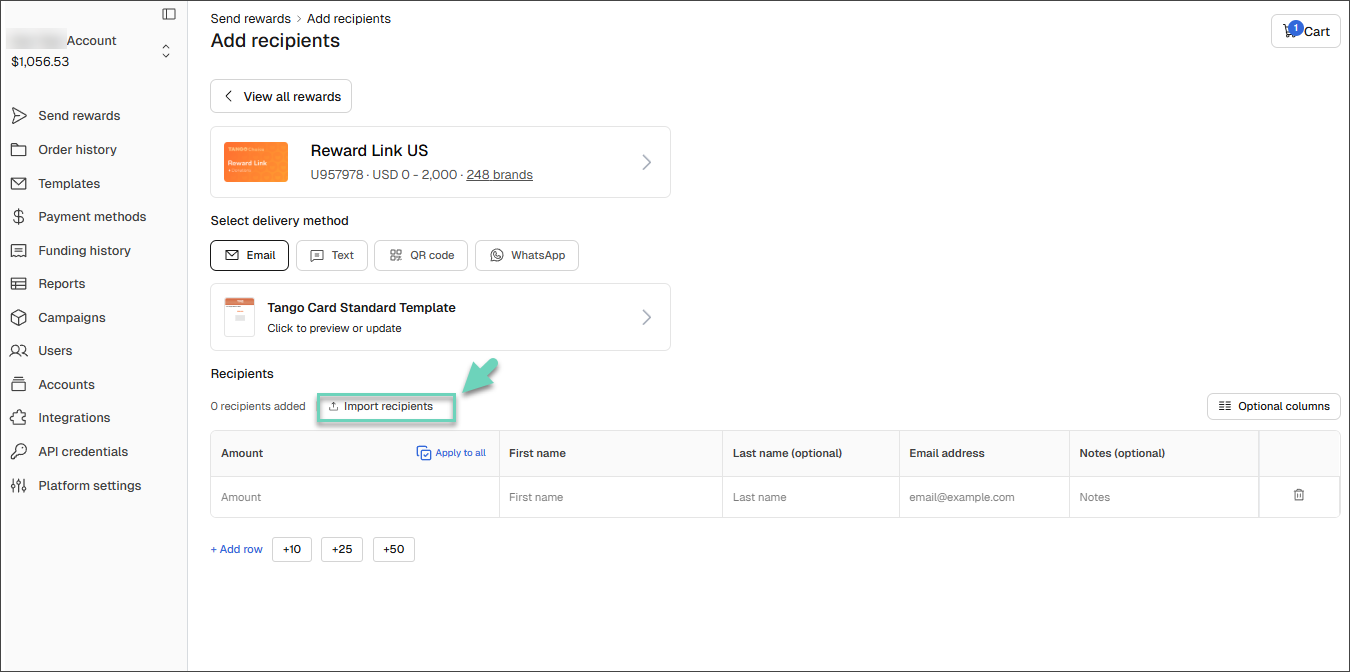
Click Import recipients and select a .csv or .xlsx file from your computer containing your recipient information.
-
The first row of your import file must be a header row with column names. Your file must include at least a first name and either an email address or phone number for each recipient. Supported columns include reward amount, first name, last name, email address, phone number, and notes.
-
Only include columns you intend to use. You can omit irrelevant columns during the mapping step—for example, skip the phone number column if delivering by email.
-
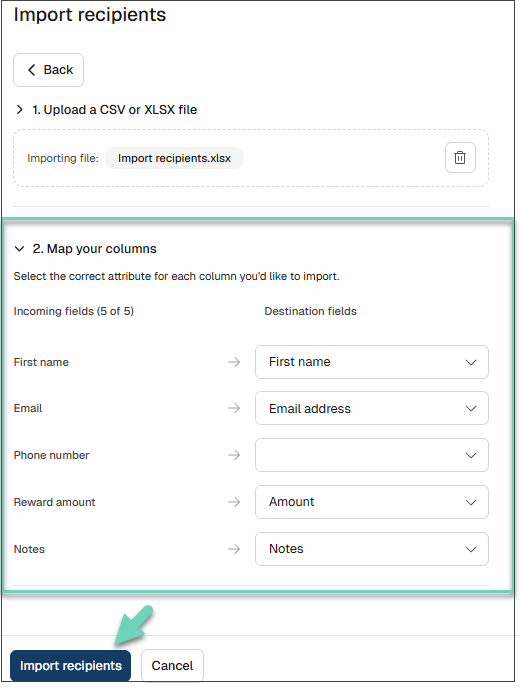
Under Map your columns, use the dropdowns to map your columns, such as First name, Email, and Phone number.
-
The system detects the fields in your file and prompts you to map each incoming field to a destination field in the Tango portal.
-
Blank fields indicate that the file contains no value or that no corresponding destination field was selected.
-
Reward amount is required.
-
Click Import recipients to confirm the import. Your recipient list will populate in the portal.
-
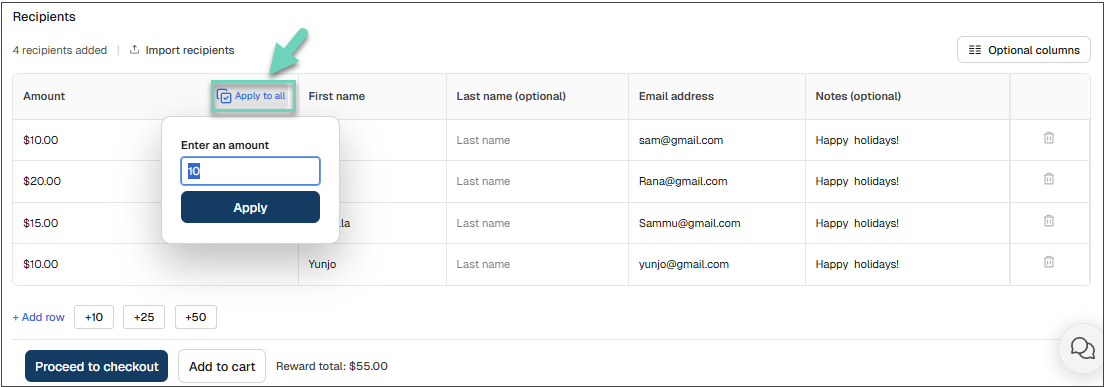
Review the recipient list. Importing data appends new rows to your recipient table. Remove any blank rows at the top after import.
-
Edit the reward amount if needed or click Apply to all to apply a single reward amount to all recipients. Set the reward amount in the portal before adding the reward to your cart or proceeding to checkout.
-
Proceed to checkout or add the reward to your cart. A red label indicates missing information and prompts you to fix it before proceeding. You can edit the error field directly from the UI.
-
Review your cart. You can check out all new and existing items at once. Go to your cart to edit or delete any items you no longer need.
Follow the remaining instructions on how to send rewards. See Send digital rewards by email for more information.
More resources: