To connect HubSpot to the Tango portal, you need a HubSpot account with admin privileges. Learn how to initiate setup and connect to HubSpot. After setup begins, authorize Tango in HubSpot by signing in and reviewing the requested CRM. At the end, return to the Tango portal to confirm that the HubSpot connection is successful and that the Tango API key is connected and confirmed.
Initiate setup
Start the HubSpot integration from the Tango portal and begin setup. Confirm the Tango API key for the connection.
To initiate setup:
-
Sign in to the Tango portal.
-
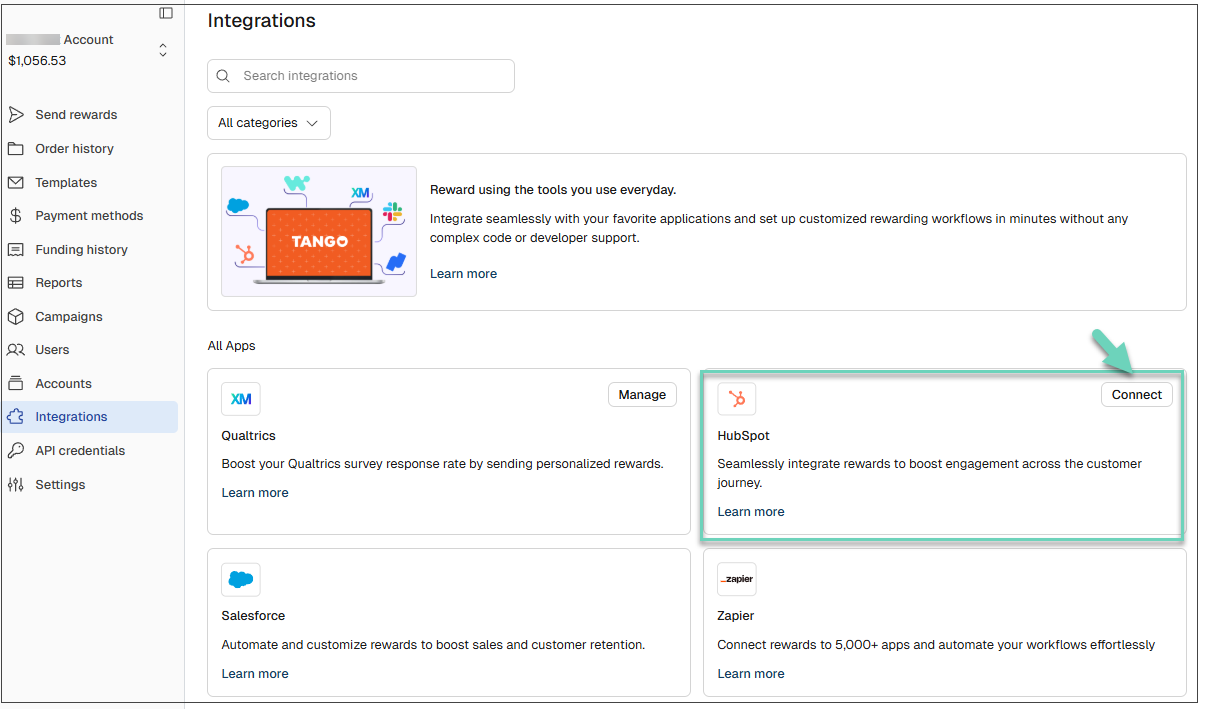
Click Integrations from the left menu.
-
Locate or search for the HubSpot integration app.
-
Click Connect.
-
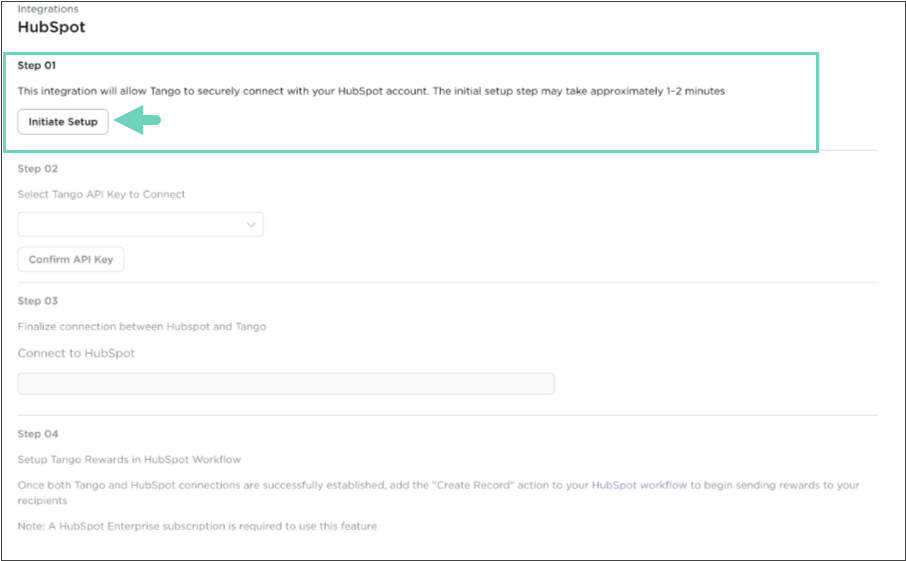
Click Initiate Setup. The process may take up to 1–2 minutes. You can safely leave this page and return later to complete the next steps. Your progress is saved automatically.
-
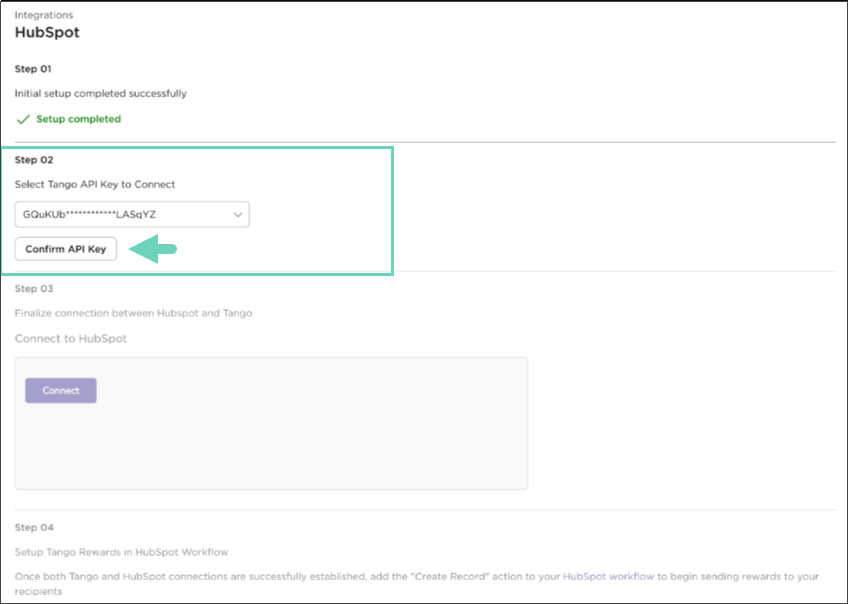
Select the relevant Tango API key.
-
Click Confirm API Key. If you have not created an API key before, see Manage Basic Auth API keys in Tango.
-
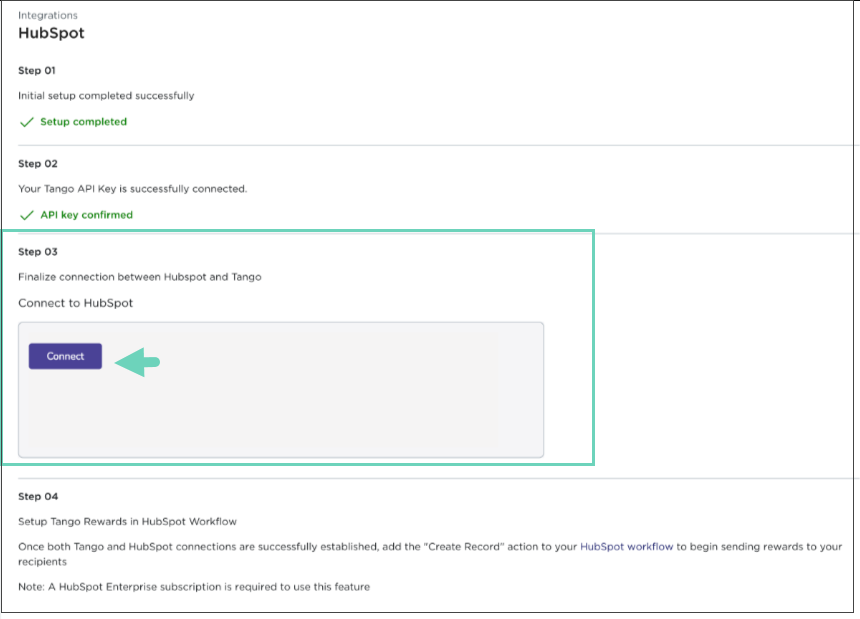
Click Connect to open the Connecting Tango to HubSpot page.
Authorize Tango in HubSpot
Sign in to HubSpot and approve the requested access so Tango can connect to your HubSpot account.
To authorize Tango in HubSpot:
-
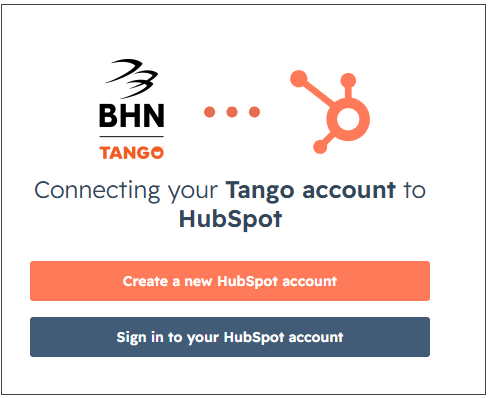
In HubSpot, click Sign in to your HubSpot account.
-
Enter your HubSpot username and password.
-
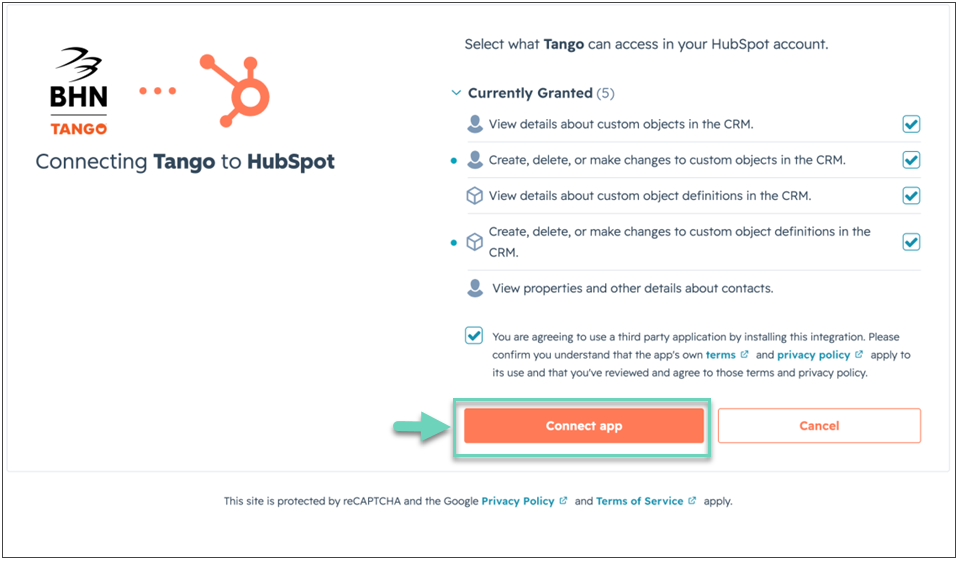
Review the access scopes displayed by HubSpot. The screen lists the CRM and custom-object permissions requested by Tango.
-
Click Connect app to approve the requested access and complete the HubSpot authorization.
Note:
Review and approve the requested HubSpot scopes before selecting Connect app.
Confirm the connection in Tango
Return to Tango to verify that HubSpot is connected and the selected Tango API key is active.
To confirm the connection in Tango:
-
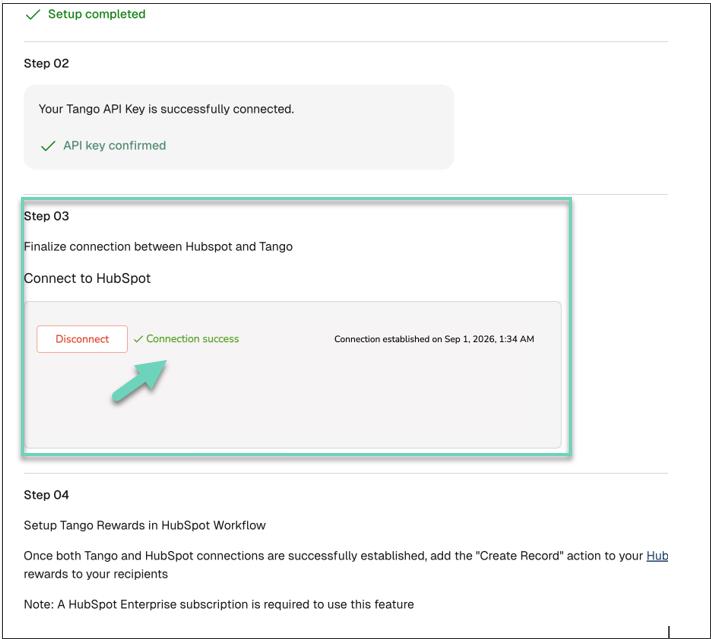
Return to the Tango portal and confirm that the connection is successful. A green success message on the Integrations page indicates that HubSpot is connected. The page should also show that the Tango API key is connected and confirmed.
You have established the connection to Tango and are now ready to create a workflow.
-
To open more information, click Learn More.
-
Find your Tango platform name and API key by navigating to Integrations > API credentials > API keys. See Manage Basic Auth API keys in Tango.
What’s next?
Next, create a HubSpot workflow that uses the Tango integration to trigger reward delivery. In HubSpot, add the Tango workflow action, select the connected Tango platform and API key, then configure the reward details and any required recipient fields before testing and turning on the workflow.
More resources