We recommend setting up a HubSpot workflow to send your team an internal email notification whenever a reward fails to send. This helps you catch and resolve errors quickly. For additional help, contact HubSpot support.
Create the workflow in HubSpot
Start by creating a blank Reward-based workflow in HubSpot.
To create the workflow:
-
Log in to your HubSpot account.
-
Navigate to Workflows > Create workflow > From scratch.
-
Choose Reward-based on the left.
-
Select Blank workflow, then click Next in the top right.
Set up the error trigger
Configure the workflow to trigger when the reward Error property has a value.
To set up the error trigger:
-
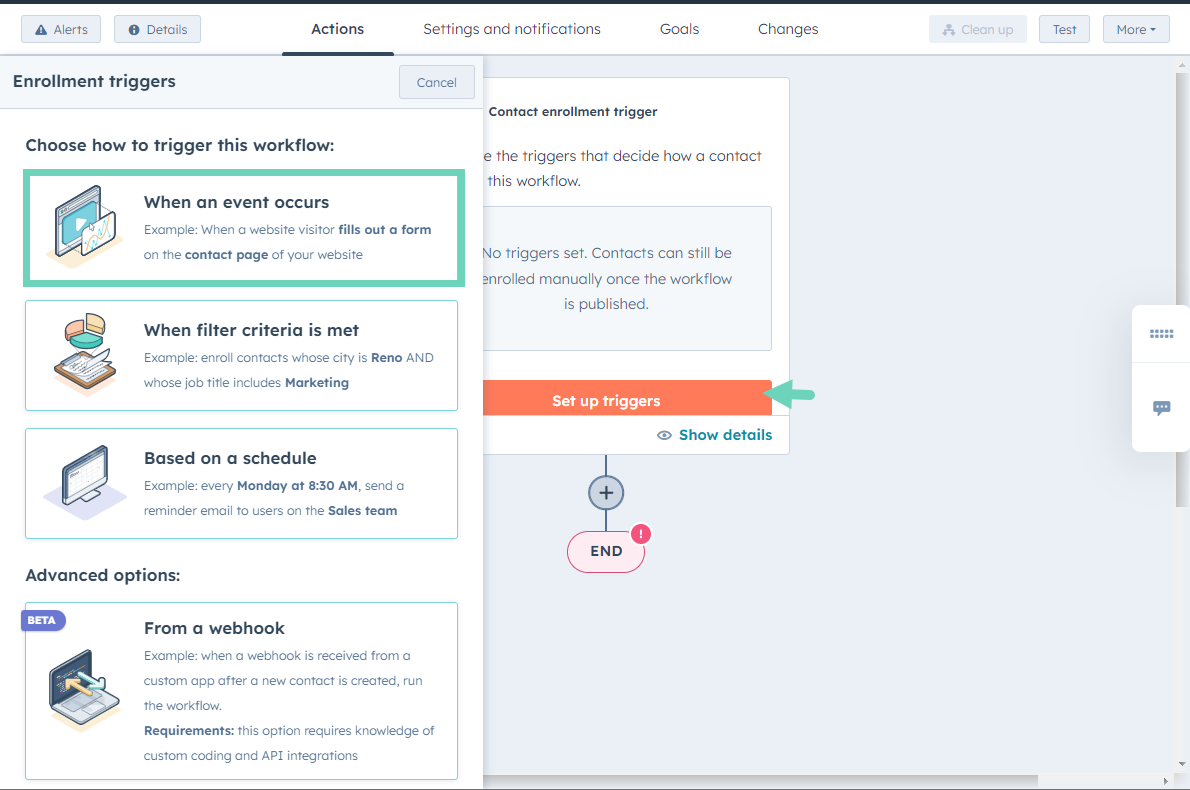
Click Set up triggers > When an event occurs.
-
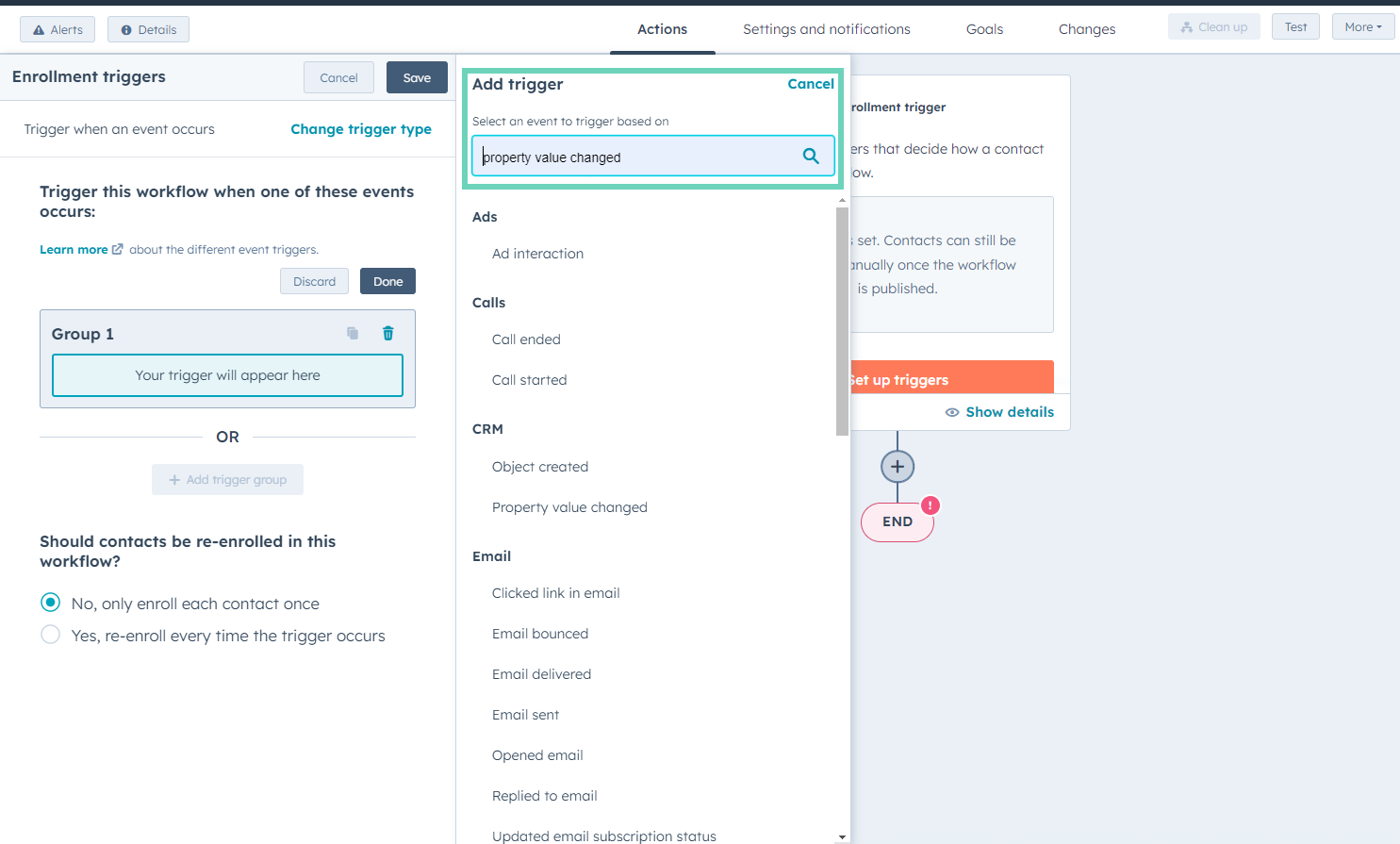
In the Add trigger box, search for and click Property value changed.
-
Once the Edit trigger panel opens, choose Error under Property name.
-
In the Edit trigger panel, choose is known under New value Error.
-
Click Done.
Add an internal email notification action so stakeholders are alerted when a reward error occurs.
To configure the email notification:
-
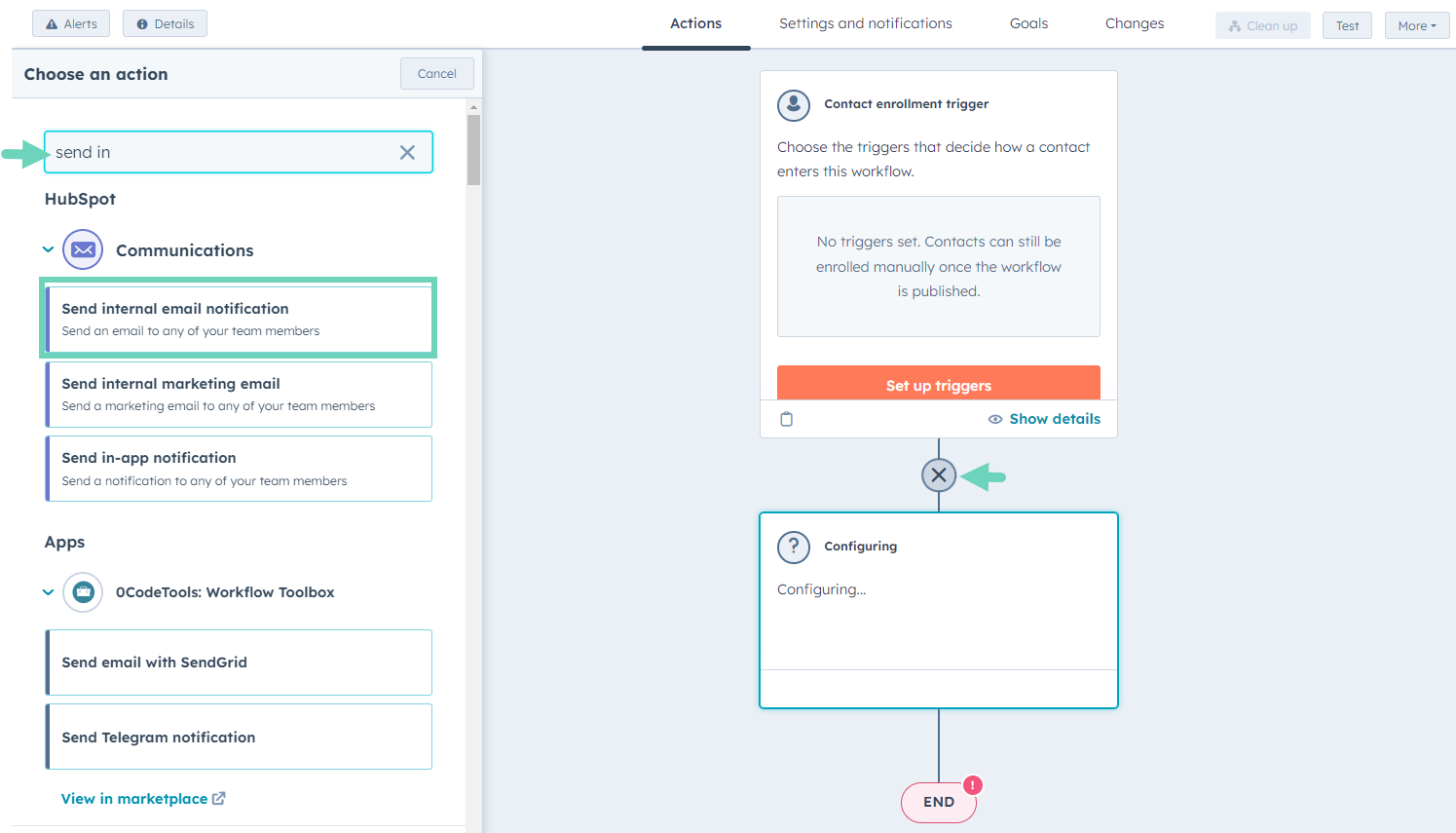
Click  inside the workflow to open the Choose an action menu.
-
Search for Send internal email notification, then click to open it.
-
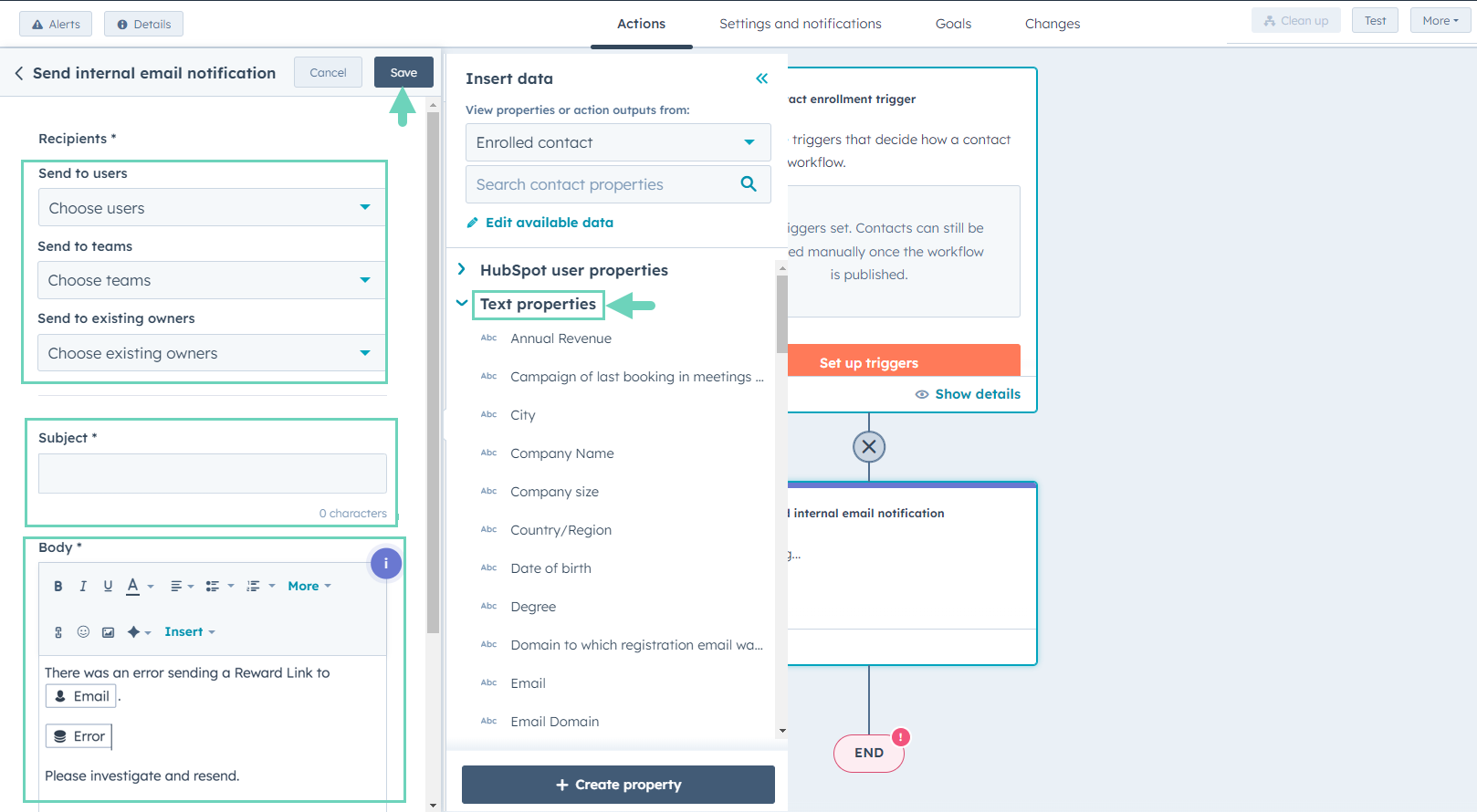
In the email notification:
-
Under Recipients, select your email and other relevant stakeholders at your organization.
-
Enter a Subject line, such as “Reward sending error”.
-
Type a message for the Body of the email notification.
-
Click to add Text properties, such as Email and Error, from the drop-down list.
-
Click Save to confirm the email notification settings.
-
Click Save to save all workflow changes.
More resources