Manage up to two active Qualtrics API keys simultaneously in the Tango portal. When you deactivate an API key, any integration using that key stops working until you update it with a new key. Common reasons to deactivate an API key include:
-
Rotating keys regularly as a security best practice
-
Suspecting that an API key has been compromised
-
Removing access when people with API access leave your company
Deactivate Qualtrics API keys
Use these steps when you need to remove an existing Qualtrics API key from your Tango account.
Note:
Deactivating an API key breaks your integration. If you’re still using that integration, you need to generate a new API key by clicking Generate API key. Deactivation cannot be reversed.
To deactivate Qualtrics API keys:
-
Sign in to Tango portal with the right permissions.
-
Click Integrations on the left menu.
-
Find Qualtrics and click the Manage button.
-
On the Qualtrics page, click Integration settings.
-
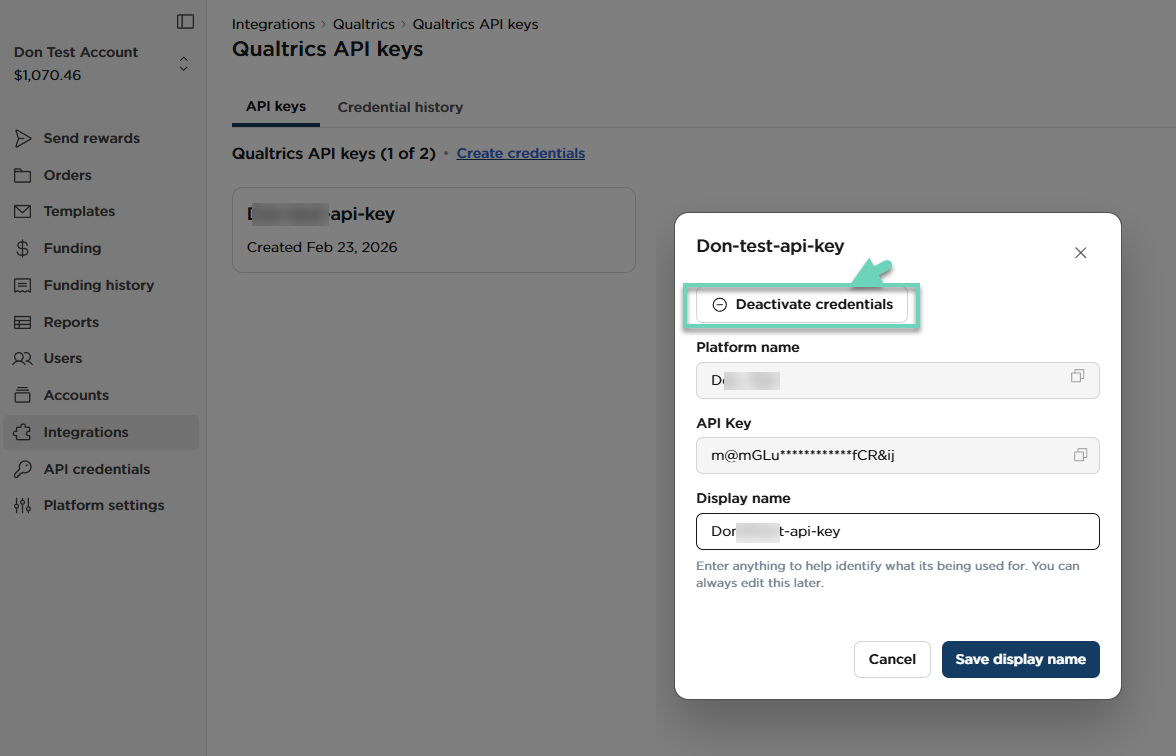
In the API key section, click the API key box, then click Deactivate credentials.
-
Click Save display name to close the window.
A warning message appears, notifying you that:
-
Deactivation cannot be undone.
-
Existing integrations may stop working until a new API key is configured.
-
Your app will stop working if it relies on the deactivated key.
Generate new Qualtrics API keys
New API keys are recommended for your platform when an API key has been compromised, or you no longer use the integration connected to your account. You can have up to two active API keys at the same time. You cannot reactivate a revoked API key, but can generate a new key and update the integrations that used the original key.
To generate new Qualtrics API keys:
-
Sign in to Tango portal with the right permissions.
-
Click Integrations on the left menu.
-
Find Qualtrics and click the Manage button.
-
On the Qualtrics page, click Integration settings.
-
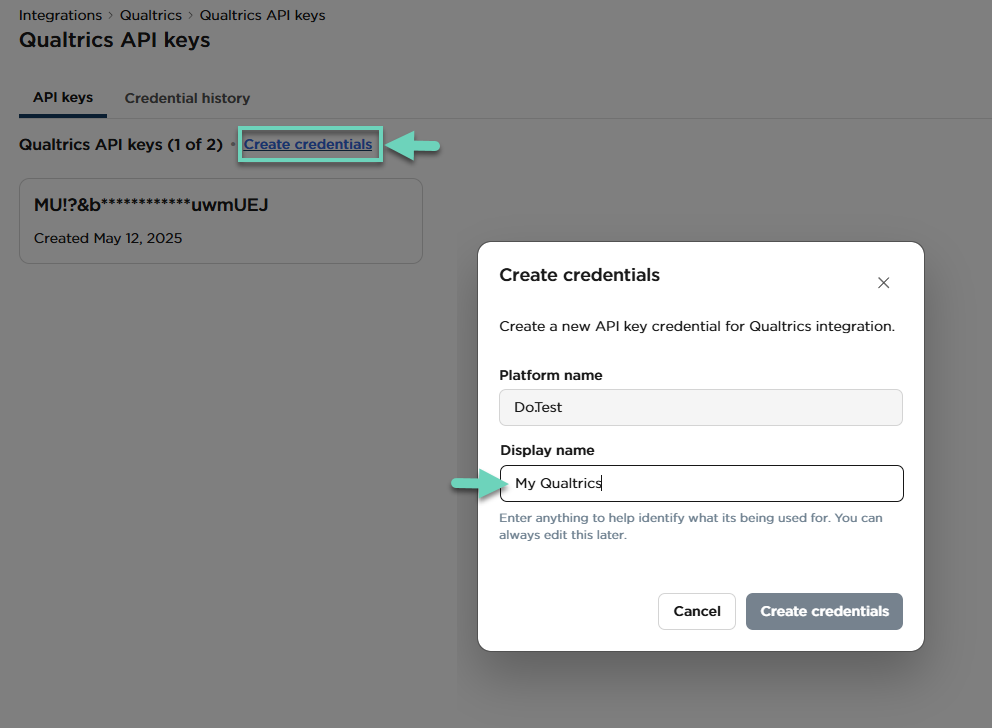
Click Create credentials.
-
Enter a Display name, then click Create credentials. An API key is generated and added to the page. An email notification will be sent to all users who have Qualtrics API manage/admin permissions. If you did not initiate or expect this change, log into your account and review your Qualtrics API key audit log or contact us at success@rewardsgenius.com.
View Qualtrics API key history
Use the credential history to see when keys were created, updated, or deactivated and by whom.
To view Qualtrics API key history:
-
Sign in to Tango portal with the right permissions.
-
Click Integrations in the left menu.
-
Find Qualtrics and click Manage.
-
On the Qualtrics page, click Integration settings.
-
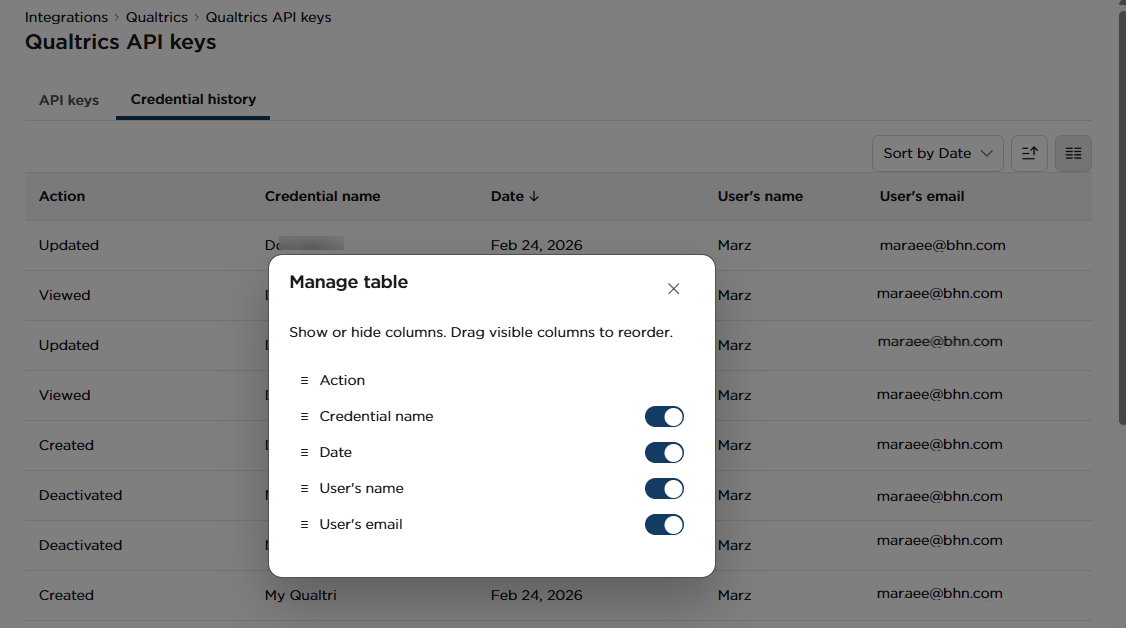
Go to the Credential history tab. The Credential history table shows details for each key, including:
|
Field
|
Description
|
|---|
|
Action
|
Indicates whether the key has been created or viewed
|
|
Credential name
|
Shows the key partially masked
|
|
Date
|
Indicates the date and time the API key has been generated
|
|
User's name
|
Indicates the Tango portal user’s name who has created or viewed this key
|
|
User's email
|
Indicates the Tango portal user’s email address
|
-
Click the Hamburger menu to show or hide table columns.
-
From the Filter by drop-down, select API keys to narrow the results.
More resources