After creating an incentive in the Tango portal, you need to connect your Tango incentive to your Qualtrics account. To do this, you must:
a: Create a workflow in Qualtrics for the survey that will trigger rewards.
b: Get your Qualtrics API Keys and Platform Name from the Tango portal.
c: Connect Tango to Qualtrics using the above credentials.
d: Configure email collection to collect participant emails and link the correct Tango incentive.
See how to Update your Qualtrics task with Tango.
Required permissions for this step
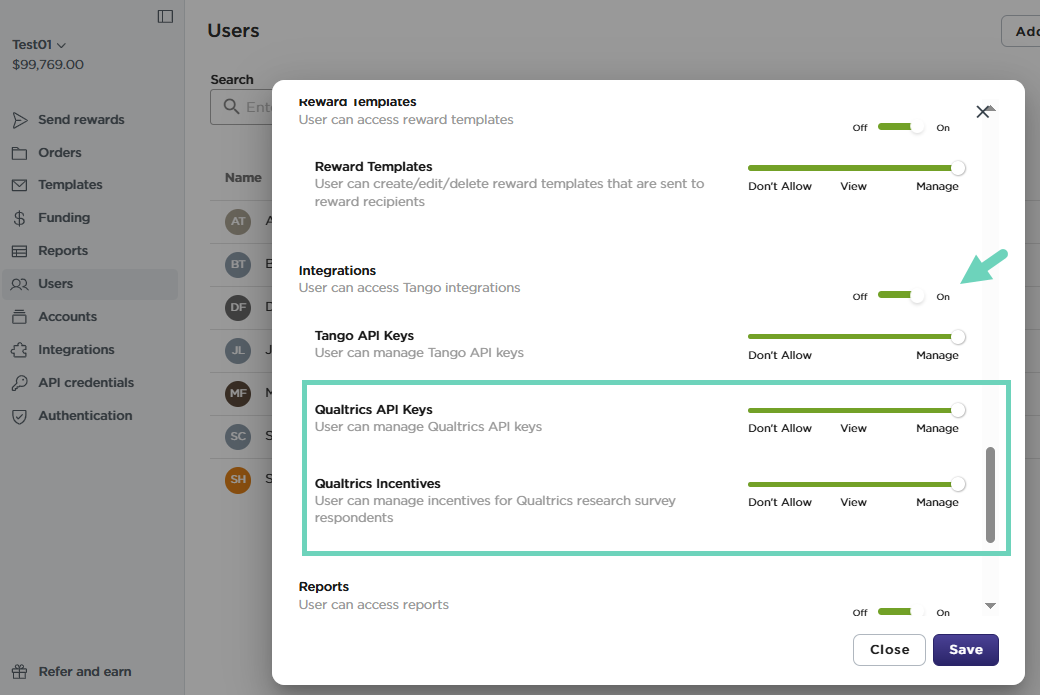
- To generate or disable the API keys, you must have Manage permissions for Integrations > Qualtrics API Keys. This access also allows you to copy and paste the keys into the Qualtrics Workflow when linking to the Tango platform.
- If the Qualtrics API Keys have already been generated on the platform, you must have View permissions for Integrations > Qualtrics API Keys to view or copy and paste the key in the Qualtrics Workflow when connecting to their Tango platform.
Best practices for fraud prevention:
-
Share survey links only via closed channels (e.g., direct email to known participants, private panels).
-
Do not post survey links tied to Tango incentives on public channels (e.g., social media, open forums, public web pages).
-
Publicly accessible links increase the risk of unauthorized responses and fraudulent incentive claims.
Workflows in Qualtrics allow you to automate sending rewards. When you create a workflow for your Tango incentive, you are asking Qualtrics to send a reward whenever a survey response is received. Each Qualtrics survey that sends Tango rewards must have its own workflow. In the workflow, you define: Which survey triggers the reward, which question collects the email address, and which Tango platform you’re connecting to.
To create a workflow in Qualtrics:
- Log in to Qualtrics.
- Go to Workflows.
- Click Create a workflow.
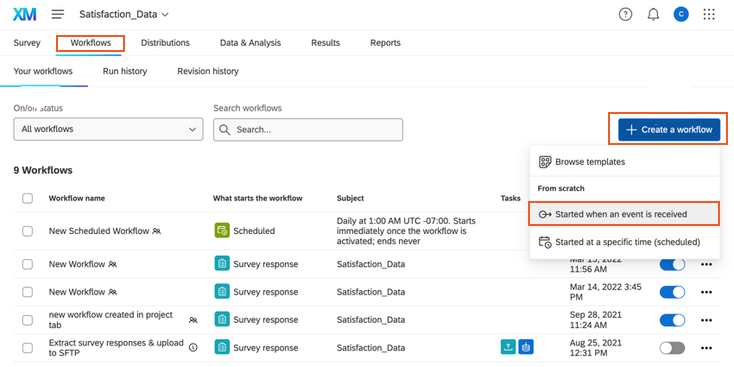
- Select Started when an event is received as the trigger type.
The second option, Started at a specific time (scheduled), doesn’t trigger sending rewards with Tango in Qualtrics. - Enter a name, and select a location for your survey.
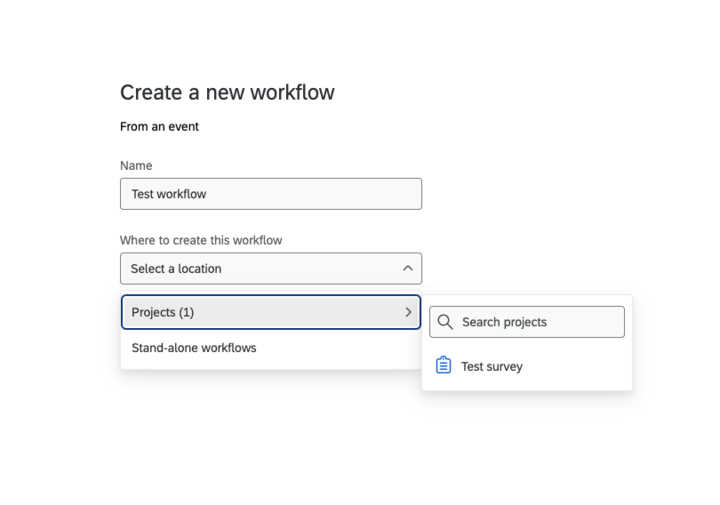
- Select Survey Response as a Trigger for your Workflow. For Survey response, choose the Qualtrics survey whose responses should trigger rewards.
- Click Finish.
- In the next screen, click the + plus sign and choose Add a task.
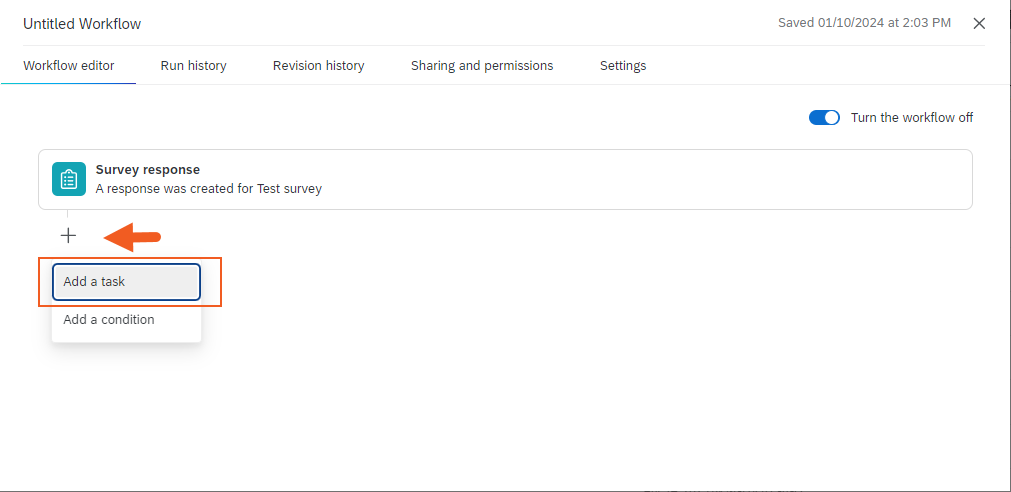
- Select Tango as an extension. It connects to your Qualtrics incentive. If you’re connecting your Tango Platform to Qualtrics for the first time, select Add a user account.
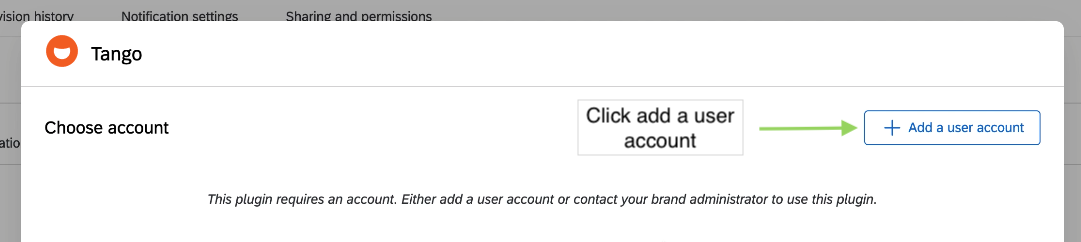
Once you create a workflow, you need to connect Tango to Qualtrics using the Platform Name and Qualtrics API Key from the Tango portal. To access the Qualtrics platform from Qualtrics, you may need to generate API keys if you haven't done so already. When a new key is generated, it is immediately available for use. You can have up to two active keys at any time.
You must have Manage permissions for Qualtrics API Keys under Integrations section to generate or deactivate the API keys, or to copy and paste them into the Qualtrics Workflow when connecting to the Tango platform. If Qualtrics API Keys have already been generated on the platform, a user with View permission is able to view and copy and paste the key into the Qualtrics Workflow.
To get Qualtrics API keys from Tango portal:
- Sign in to the Tango portal.
- Click Integrations on the left menu.
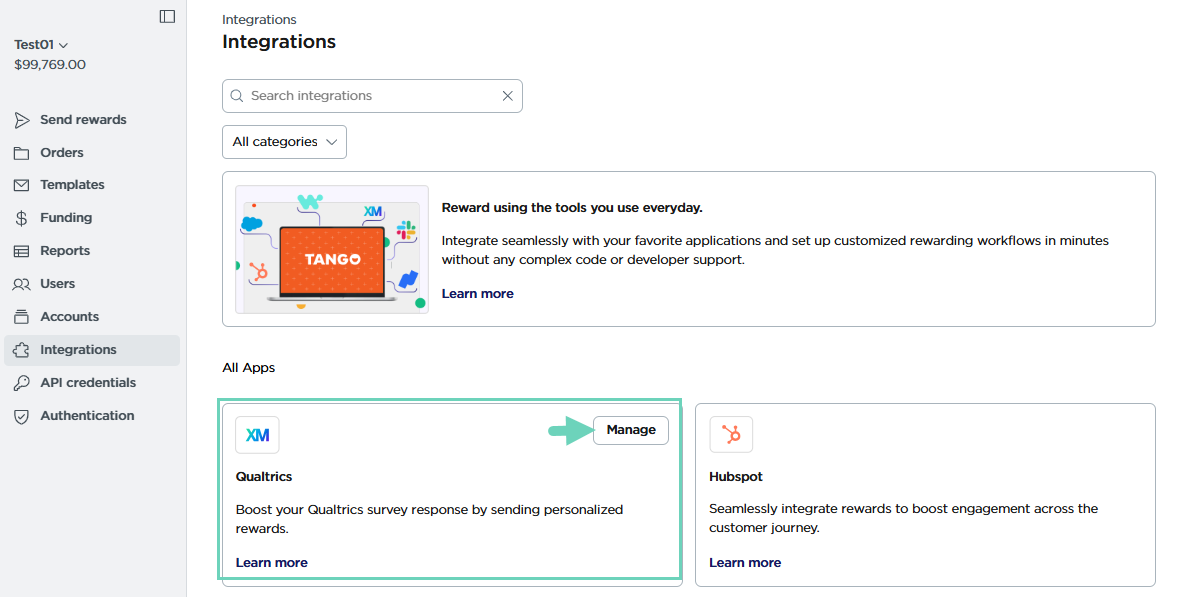
- Find the Qualtrics app and click Manage.
- On the next page, click Integration settings.
- Click Create credentials to obtain a new API key.
- Enter a Display name to help identify what its being used for. You can always edit this later.
- Click Create credentials.
The new Qualtrics API key will be available for your use. A banner appears and an email notification will be sent to your email address. You can have maximum two keys active at any time. - Click the API key box to copy the Platform Name and API Key.
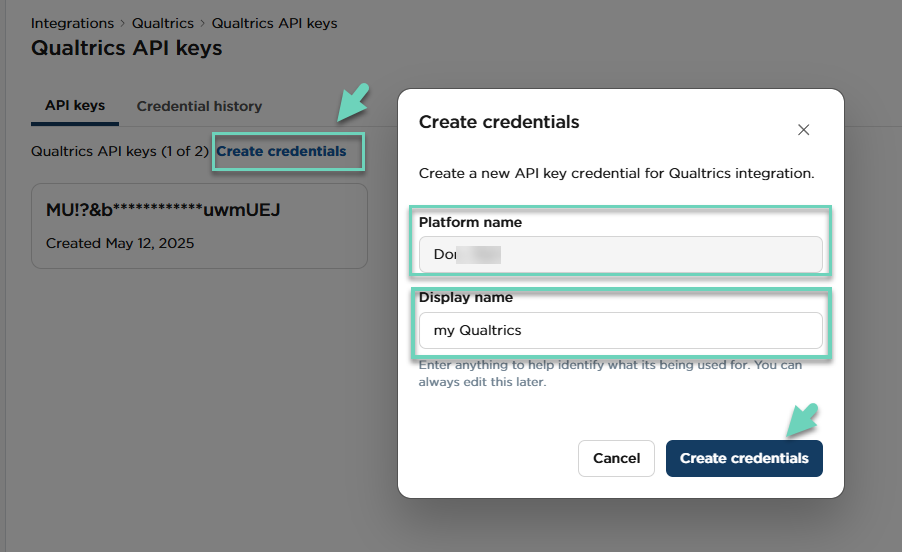
Use the Platform Name and API Key from Tango to connect the Tango extension in your Qualtrics workflow.
To connect Tango to Qualtrics:
-
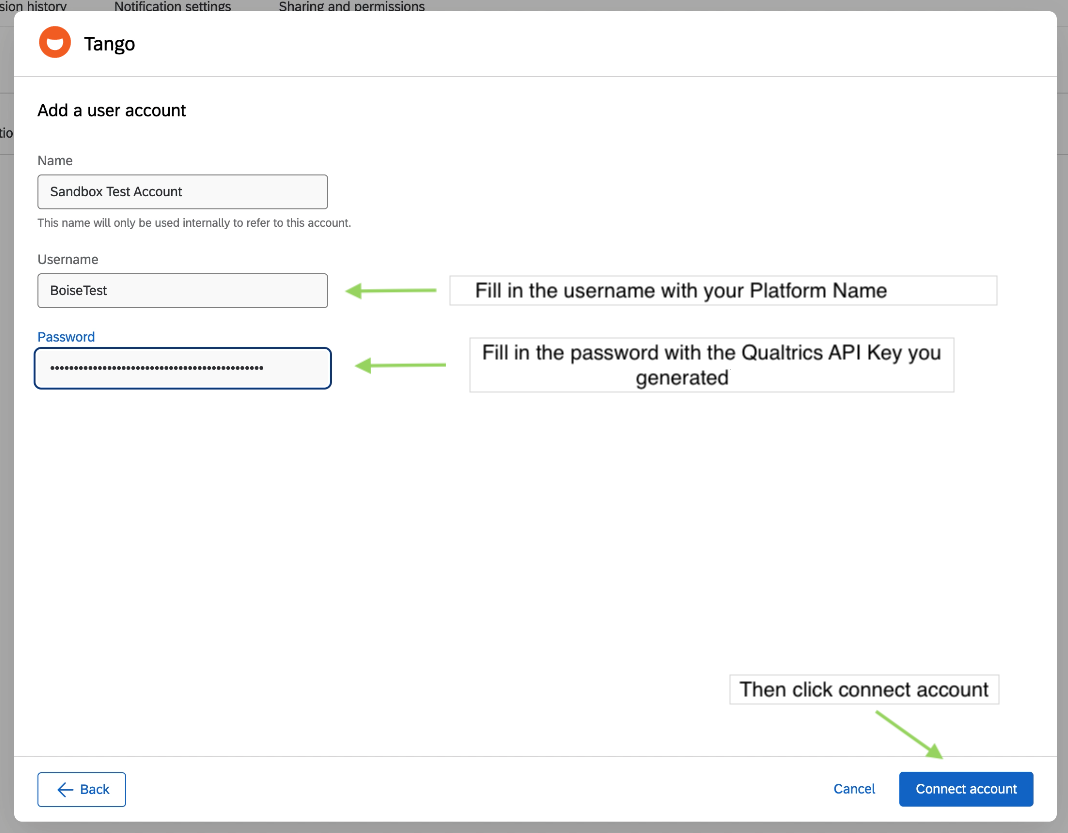
In your Qualtrics workflow, when adding the Tango extension, choose Add a user account (if not already connected).
-
Enter the following:
-
Click Connect account.
You have now connected the account for the Tango task in your workflow.
-
Choose how you’ll collect Respondent Email addresses in your Qualtrics survey.
-
When building the survey to collect participant email addresses, it is crucial to eliminate the option for anonymous responses.
-
This is essential if you want participants to receive a reward, as all rewards are sent via email.
Note:
-
The email address is the only data point Tango receives as part of the Qualtrics integration to fulfill incentives and validate responses.
-
If additional validation measures are not put in place (for example, unique invitation links or panel IDs), it’s possible that a recipient could complete a survey with a different email address and still receive an incentive.
-
Enter the Tango Incentive Reference ID from the incentive you built in Tango during installation. See Step 1: Install Tango as a third-party extension in Qualtrics.
-
Review the incentive details and click Save. Your incentive is ready to go. To review and test your configuration, see Manage Qualtrics API keys.
What's next?
Now that you have connected your Tango incentive to your Qualtrics, you can manage and modify it by following our instructions in Step 4: Manage Qualtrics survey incentives in Tango.
More resources