By creating a Qualtrics incentive in Tango, you offer a Tango Choice Product to your participants in return for taking your survey. In order to take advantage of the Qualtrics integration and build incentives with Tango, you must have:
-
Manage permissions for Qualtrics Incentives.
-
Access to the relevant Qualtrics group or account.
-
Sufficient balance for the incentives.
Learn how to Set user permissions and access level.
Best practice:
Fraudulent activity is on the rise, and survey links are often leaked to unintended audiences. To protect your survey integrity and prevent fraudulent reward claims:
-
Use unique, non-guessable survey links.
-
Enable authentication or token-based access.
-
Limit responses to one response per IP and device.
-
Use Qualtrics settings to prevent duplicate submissions.
-
Monitor metadata, collect and review IP addresses, device fingerprint, and cookies.
-
Flag repeated patterns across different recipient emails.
-
Avoid real-time reward issuance to reduce the risk of exploitation, unless necessary.
-
Consider issuing rewards asynchronously via bulk orders after validating responses.
Create Qualtrics incentive in Tango
Use this process to create a Qualtrics incentive in Tango and define how survey participants receive rewards.
Note:
Tango Choice products (Reward Link®, Promo Link, and Disbursement Link) are available to send for Qualtrics incentives and can be redeemed for dozens of direct brand gift cards. If you’re interested in customizing the brands available through your Reward Link for a Qualtrics incentive, contact your Customer Success Manager (CSM) or success@tangocard.com. Learn how to Customize your Reward Link if you want to select specific brand rewards for your survey participants to redeem.
To create a Qualtrics incentive in Tango:
-
Sign in to the Tango portal with the right permission.
-
Click Integrations on the left menu.
-
Find the Qualtrics app and click Manage.
-
On the next page, click Add incentive on the top right. Make sure your account has sufficient balance for the incentives.
-
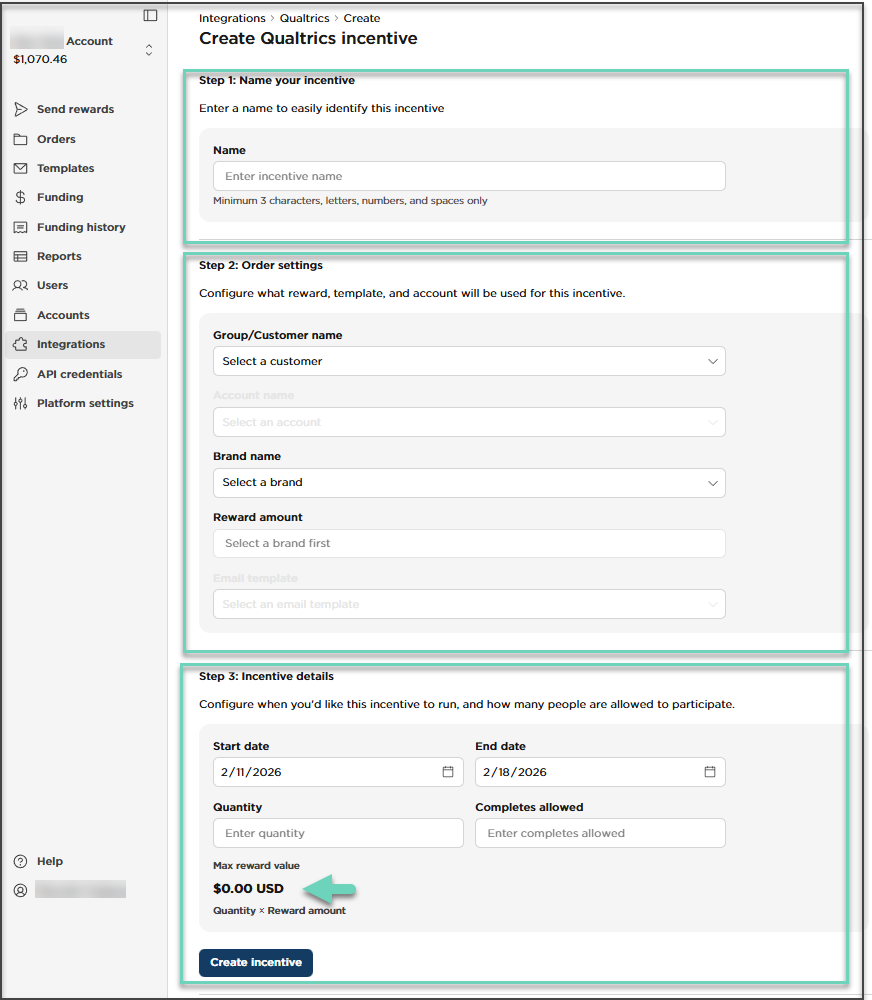
Fill out all fields on the Create Incentive page:
|
Step
|
Description
|
|---|
|
Name your incentive
|
Create a name for your incentive, this field uses alphanumeric characters and spaces. Name must have minimum 3 characters, letters, numbers, and spaces only.
|
|
Order settings
|
-
Group/Customer name: Select the group or customer that the incentive belongs to.
-
Account name: Select the account from which funds will be drawn for rewards sent with this incentive.
-
Brand name: From the drop-down menu, choose a Tango Choice product (Reward Link®, Promo Link, and Disbursement Link) available in your Tango catalog to be delivered to participants upon survey completion.
-
Reward amount: Enter the reward value to send for each completed survey.
-
Email template: Select the email template to use when sending rewards with this incentive. Only the email templates available for the chosen account can be used with this Qualtrics incentive.
Note: You can only see the accounts, groups, and ETIDs in the drop-down list that are in your Access Level.
|
|
Incentive details
|
Set how many times a unique participant can complete the survey and receive a reward.
We recommend leaving this value at 1.
|
-
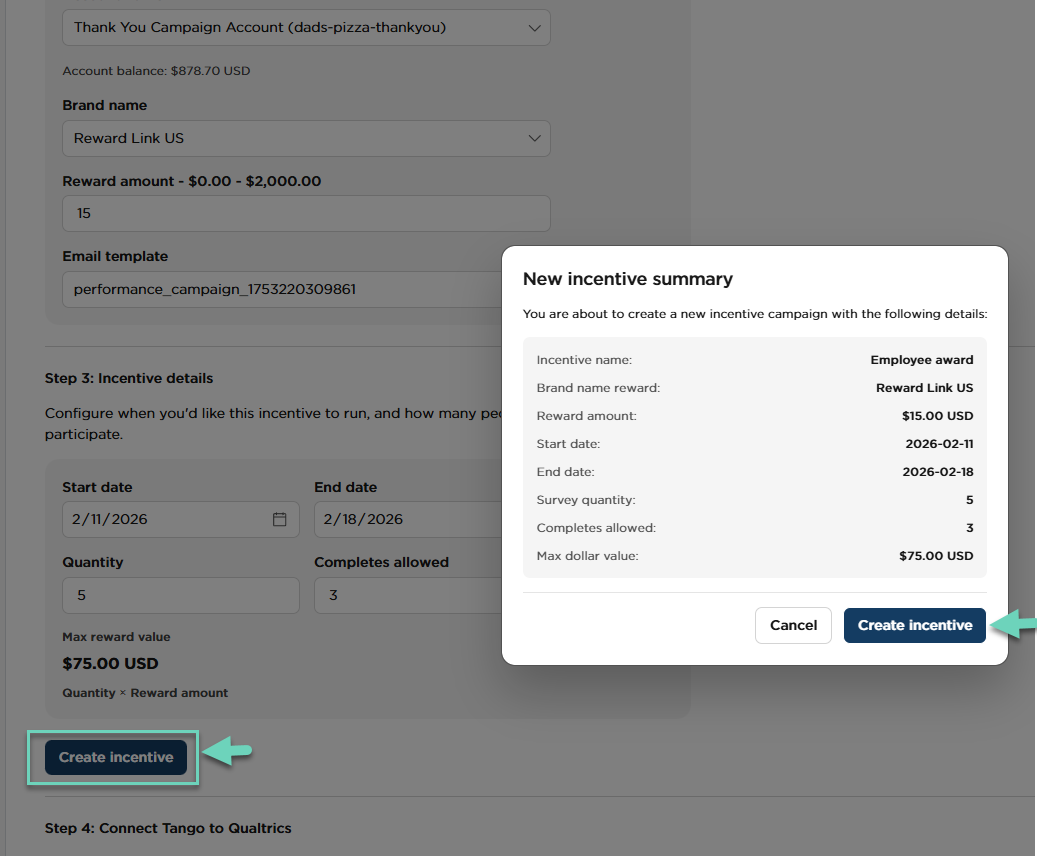
Click Create Incentive.
-
Review the new incentive summary and click Create Incentive again to confirm.
-
On the incentive details page, click to copy the External ID. You’ll use this in Qualtrics.
-
Click Finish.
You are back to the Qualtrics page listing all incentives.
What's next?
The next step is to connect your Tango incentive to your Qualtrics account. Follow our instructions in Step 3: Connect Tango incentives to Qualtrics.
More resources: