Install or upgrade the Tango app in Salesforce to send and automate digital rewards directly from your Salesforce environment. This guide walks Salesforce admins through downloading the app, installing it for the first time, or upgrading an existing Tango package so your integration is ready to use.
If you have installed the Tango app (v1.17 or older) before, you must upgrade it to take advantage of our latest features. The upgrade process may take up to five minutes. Salesforce will send you an email notification upon successful installation.
Note:
-
If this is your first time installing the Tango app in Salesforce, follow: Install the Tango package for the first time (admins only).
-
If you already have Tango v1.17 or older installed, follow: Upgrade an existing Tango package (v1.17 or older).
Download the Tango app
Follow the instructions below to download the Tango app:
-
Go to Salesforce AppExchange Marketplace.
-
Search for Tango for Salesforce: Send digital gift cards directly to your recipients’ inbox and select the app.
-
Click Get it Now and follow the prompts to install.
-
Click Log in and choose Salesforce.
You must be a Salesforce admin to install or upgrade. For username and password, contact your company admin. For further information on package installation in Salesforce, check Salesforce documentation.
Install the Tango package for the first time (admins only)
If you are installing the Tango app for the first time, follow the steps below:
-
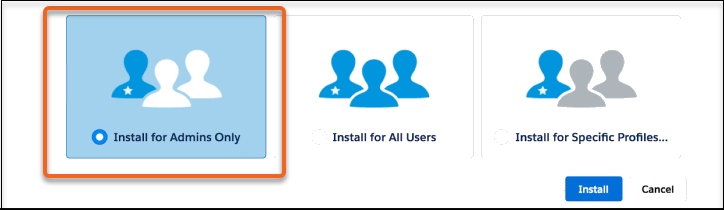
In the installation prompt, select Install for Admins Only.
-
Select the checkbox to Approve Third-Party Access. It allows data to be sent back and forth between your Salesforce instance and Tango.
-
Click Continue to start the package installation. Salesforce will send you an email notification upon successful installation.
Upgrade an existing Tango package (v1.17 or older)
If you already have Tango v1.17 or older, upgrade to the newest version. Follow the steps below:
-
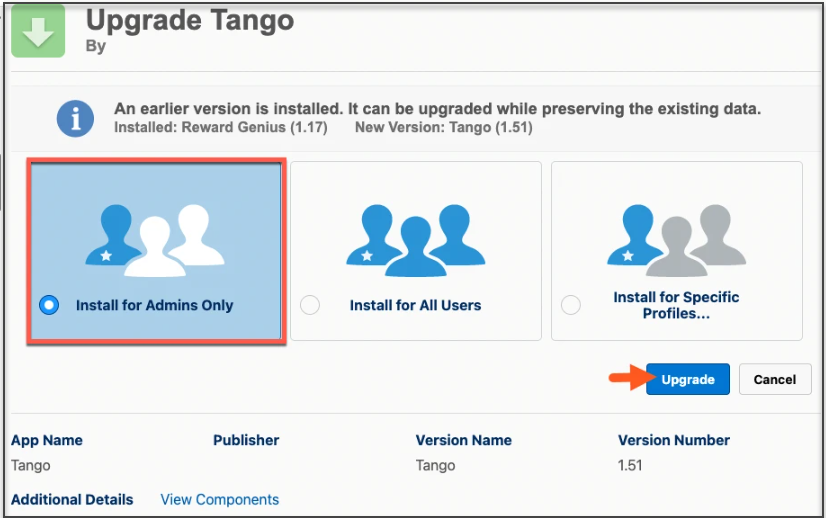
In the installation prompt, select Install for Admins Only and click Upgrade.
-
After the upgrade completes, run the following script manually to update your existing manual Programs so that rewards are sent immediately for Programs with Default Status New or Pending.
a. In Salesforce, click the Setup gear icon in the top-right corner.
Click Developer Console.
c. In Developer Console, click Debug in the top menu.
d. Select Open Execute Anonymous Window.
e. Copy and paste this script into the Enter Apex Code window:
List<rewardsgenius__Program__c> programsToUpdate = [SELECT Id, rewardsgenius__Immediate__c
           FROM rewardsgenius__Program__c
           WHERE rewardsgenius__Type__c = 'Manual' AND
            (rewardsgenius__Default_Status__c = 'New' OR rewardsgenius__Default_Status__c = 'Pending')];
for (rewardsgenius__Program__c program : programsToUpdate) {
	program.rewardsgenius__Immediate__c = true;
}
update programsToUpdate;
f. Click Execute.
g. In Salesforce, go to a list view for all Tango Programs and verify the Immediate Delivery column is set to True for manual Programs with Default Status New or Pending.
Note:
-
Automatic programs still work but are deprecated for Flow Apex programs.
-
Copying and pasting the code block in messaging platforms can cause Salesforce errors due to apostrophes. Delete and re-add the code in the script window to fix this.
-
After the upgrade, update the Tango logo and app colors:
a. In Salesforce, click Setup in the top-right corner.
b. In the Quick Find box, search for App Manager and select it.
c. In the App Manager, locate Tango card setup.
d. Click the drop-down arrow on the right and select Edit.
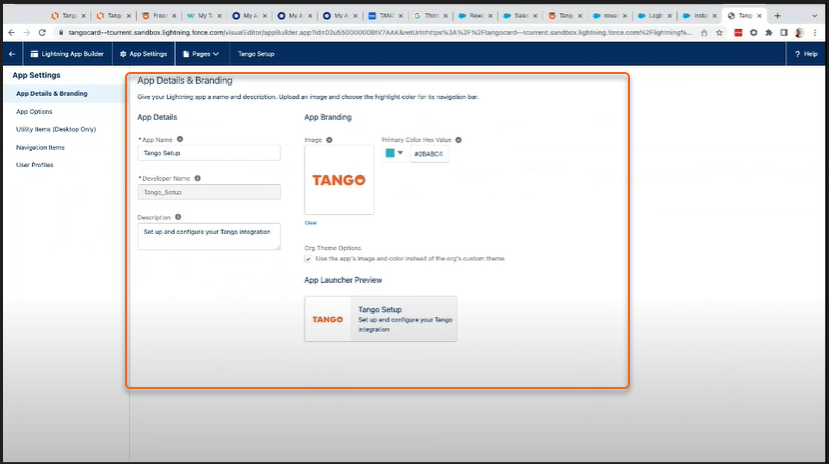
e. On the App Details & Branding tab, enter Tango Setup for App Name.
f. Update the Description to “Set up and configure your Tango integration”.
g. Under Logo, click Clear to remove the old Tango logo.
i. Under Branding, set Primary Color (Hex value) to #F15C22 (Tango orange).
What’s next?
Your next step is Step 2: Assign Tango permissions in Salesforce.
More resources: