As the Salesforce administrator, you are responsible for assigning Tango permissions to users in your org. The Tango app includes three permission sets that control what each user can do within Tango features in Salesforce:
|
Permissions
|
Purpose
|
|---|
|
Tango setup permissions
|
Tango Setup Permissions grant permission to set up and configure the Tango app, customize the application, and schedule the Salesforce jobs. Only a few users typically need this permission set, and setup is usually needed once. See full instructions in Tango setup permissions.
|
|
Tango rewards permissions
|
Tango Rewards Permissions grant Send and Resend access in the Tango Rewards app. Tango Rewards Permissions can be cloned and renamed to create read-only or resend-only access. Most Tango app users will have this permission assigned. See full instructions in Tango rewards permissions.
|
|
Tango program permissions
|
Tango Program Permissions grant permission to create manual and automatic programs. Assign Tango Program Permissions only to users who are responsible for managing Tango programs. See full instructions in Tango program permissions.
|
Tango Setup Permissions enable users to set up and configure the Tango app, customize the Tango application, and schedule the Salesforce jobs. See Step 6: Set up a job schedule in Salesforce. The Salesforce admin assigns Tango Setup Permissions to Salesforce user(s) who manage the Tango platform, and have access to the API keys for platform integration. This user is not necessarily the Salesforce System Administrator. The default Tango Setup Permissions permission set is not editable. The Salesforce admin must clone the Tango Setup Permissions permission set to edit and assign it to users.
Note:
The default permissions are not editable. The Tango setup permissions must be cloned in order to edit and assign to users.
To assign Tango setup permissions:
Step 1: Clone Tango setup permissions
-
Log in to your Salesforce account as a Salesforce admin.
-
Navigate to Setup in the top-right corner.
-
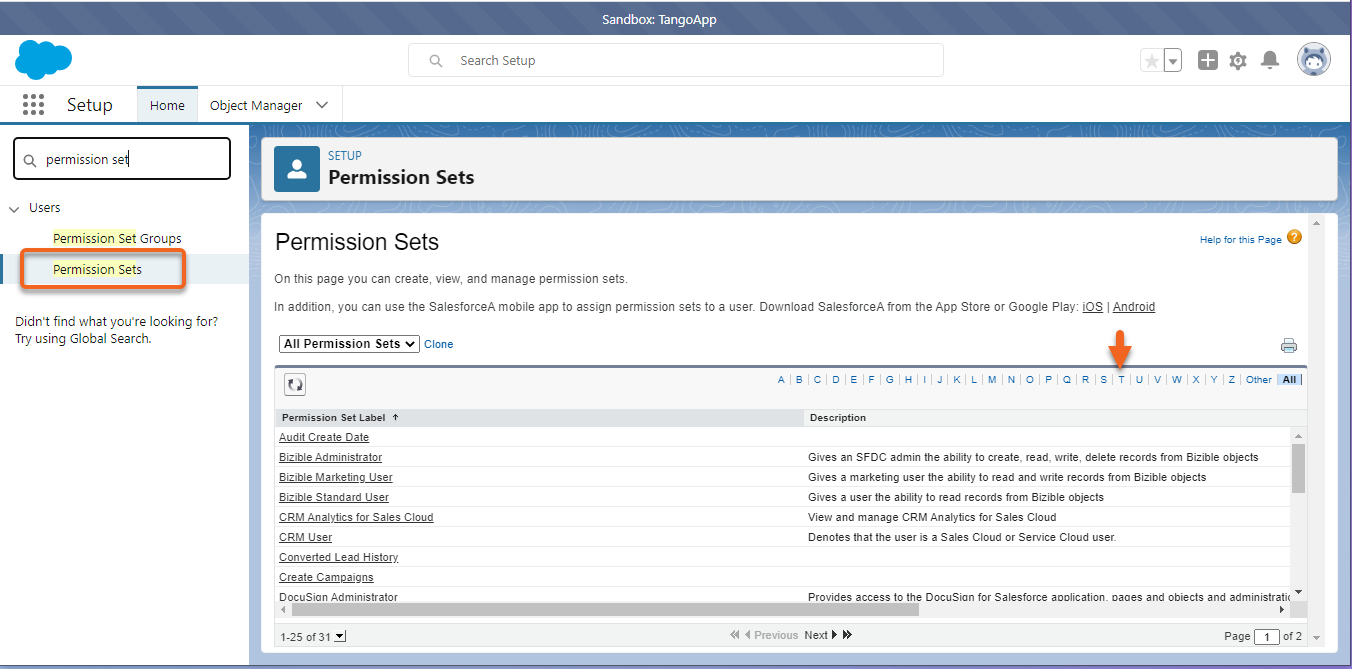
Type Permission Sets in the Quick Find Search box.
-
In the Permission Sets, click T in the alphabet row to quickly find Tango Setup Permissions.
-
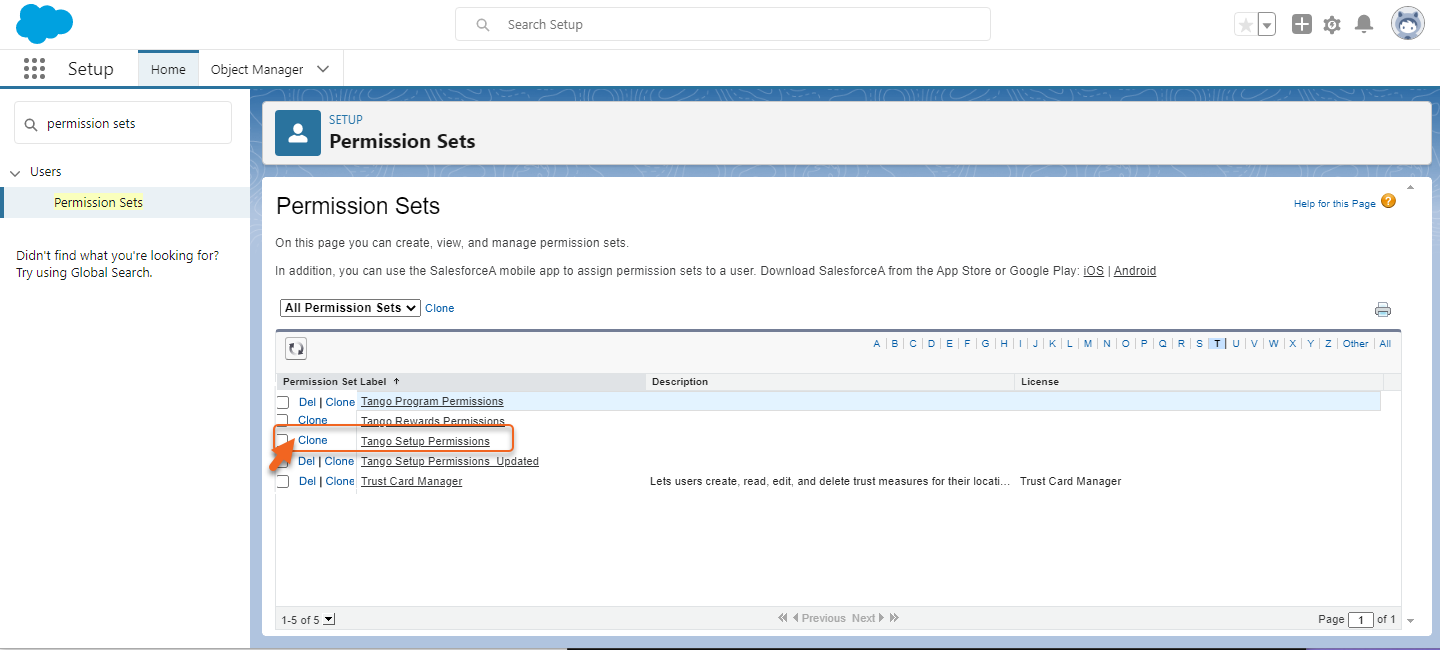
Click Clone next to Tango Setup Permissions.
-
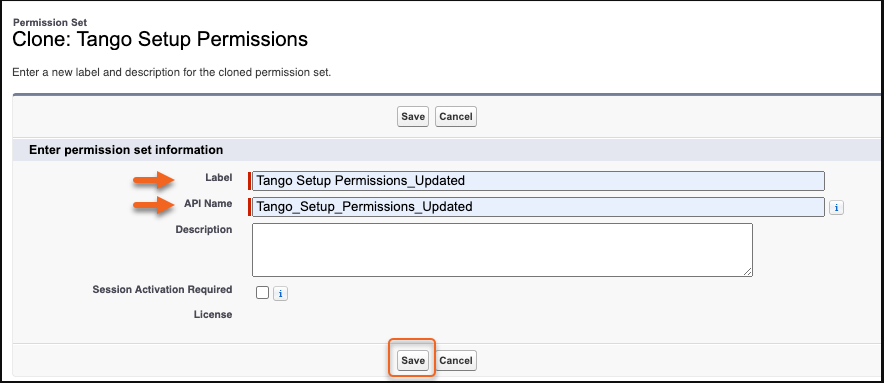
Enter a Label and API Name such as “Tango Setup Permissions-updated”.
-
Click Save. You have now cloned and renamed Tango Setup Permissions.
Step 2: Edit system permissions to allow customization
-
Click on the newly cloned Tango Setup Permissions link (for example: “Tango Setup Permissions_Updated”.
-
Scroll down the page to the System section.
-
Click System Permissions.
-
Click Edit.
-
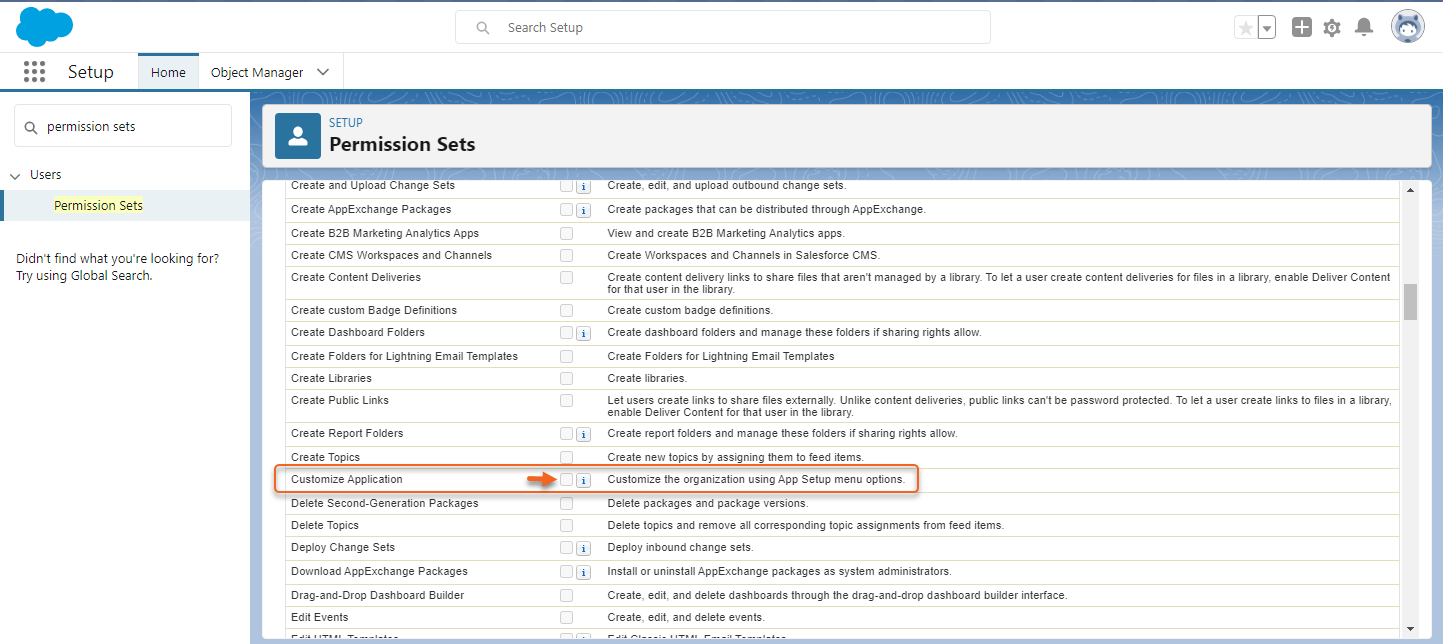
Scroll down and select the Customize Application checkbox. This option allows you to customize your organization using app setup menu options.
-
Click Save.
-
Click Save again to confirm. You have allowed customization for the cloned Tango Setup Permissions permission set.
Step 3: Assign setup and configuration rights to users
-
In the cloned Tango Setup Permissions page, click Manage Assignments.
-
Under Current Assignments, click Add Assignment in the top-right corner.
-
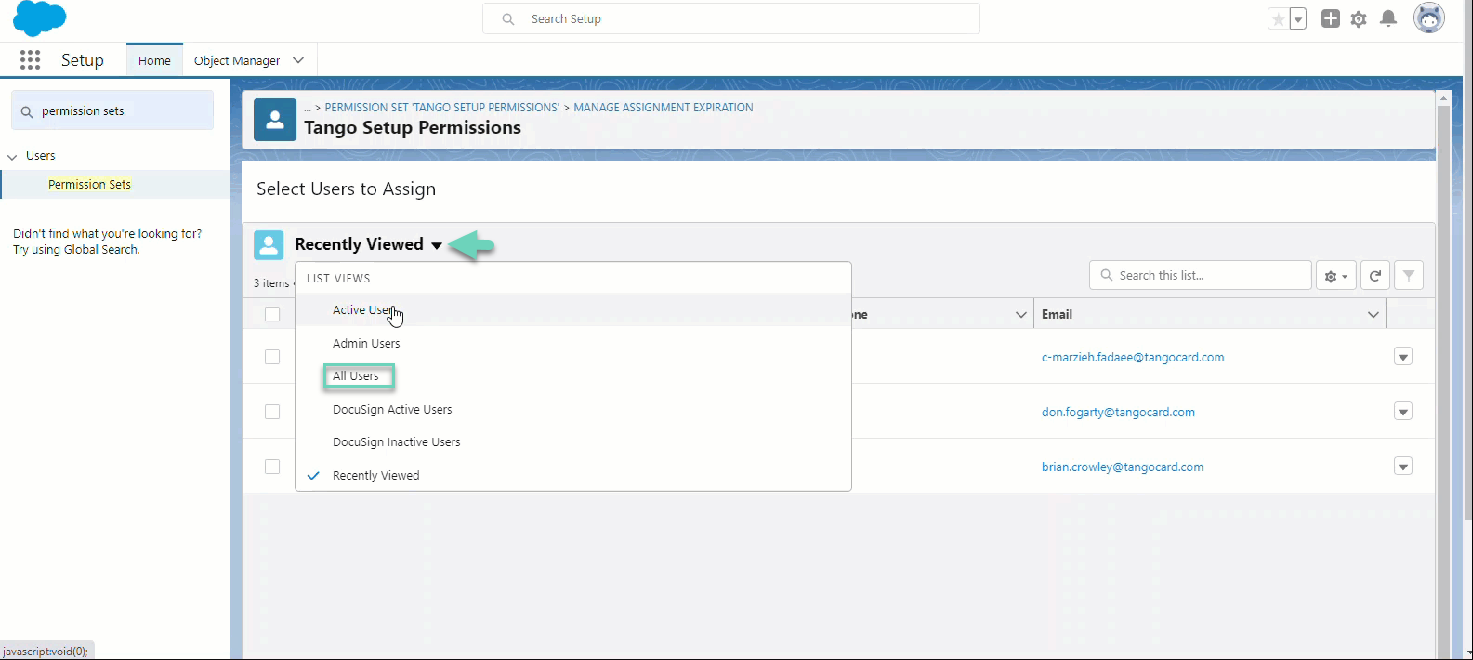
Click the drop-down arrow next to the Recently Viewed, and select All Users.
-
Select the checkboxes next to the users who need Setup permissions.
-
Click Next.
-
Click Assign. The assigned Salesforce users can now set up and configure the Tango app and schedule rewards delivery.
-
Click Done.
Tango rewards permission set allows Salesforce users to send and resend rewards This access is granted in the Tango Rewards app. The Salesforce admin assigns the Tango Rewards Permissions to any Salesforce user who needs to send or resend rewards through the Tango app. To edit permissions, you must clone the Tango Rewards Permissions to give users read-only (view) or resend-only (no Send) access.
To assign Tango rewards permission:
Note: In order to edit permissions, you must clone Tango Rewards Permissions. Once cloned, you can modify and give users read-only or resend-only permissions. Determine your business needs before proceeding to modify this permission set.
Step 1: Assign users Tango rewards permissions
-
Log in to your Salesforce account as a Salesforce admin.
-
Navigate to Setup in the top-right corner.
-
Type Permission Sets in the Quick Find Search box.
-
In the Permission Sets, click T in the alphabet row to quickly find Tango Rewards Permissions.
-
Click on the Permission Set Label Tango Rewards Permissions.
-
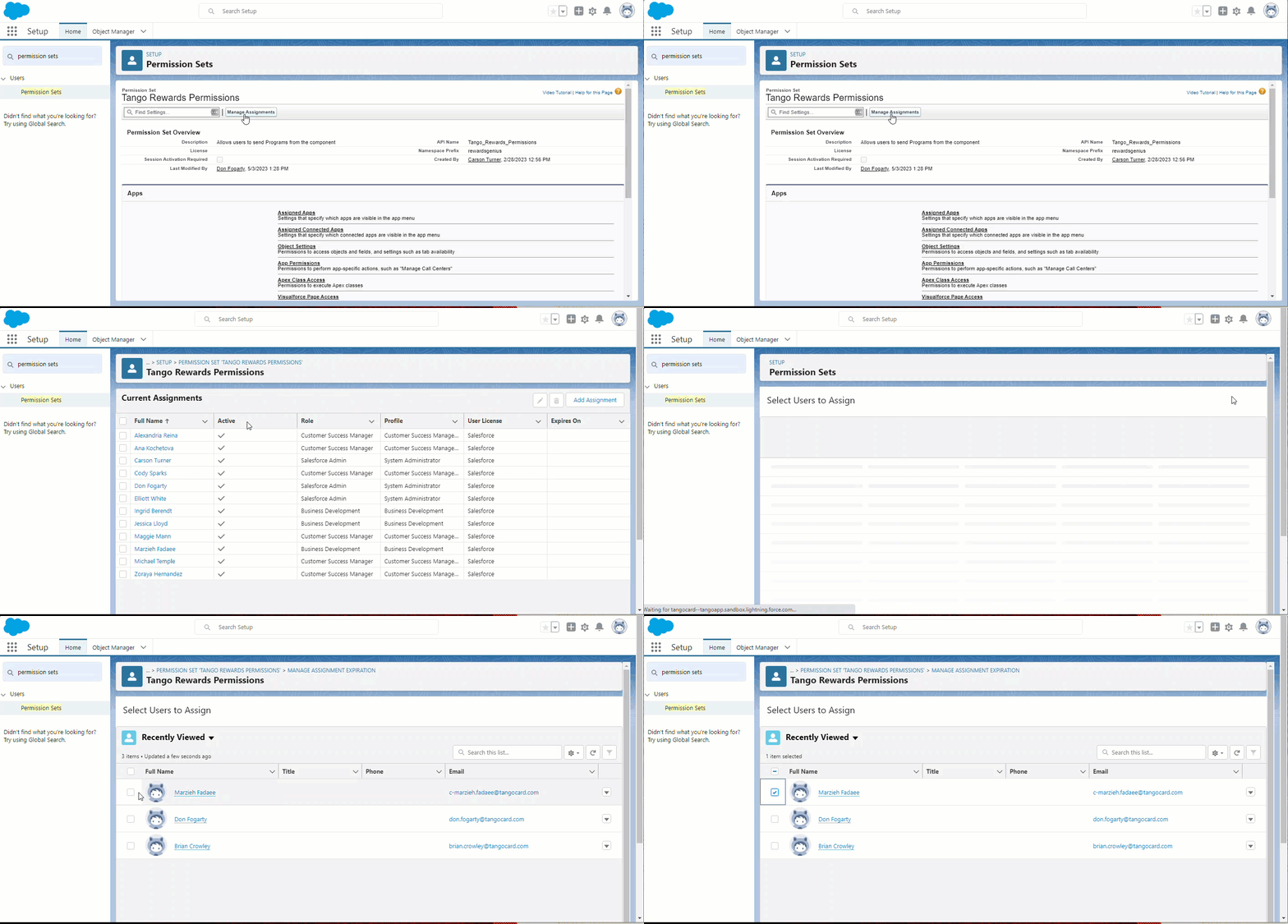
Click Manage Assignments.
-
Under Current Assignments, click Add Assignment in the top-right corner.
-
Select the intended users from the list to assign them these full permission sets to send and resend rewards.
-
Click Next.
-
Click Assign.
-
Click Done.
-
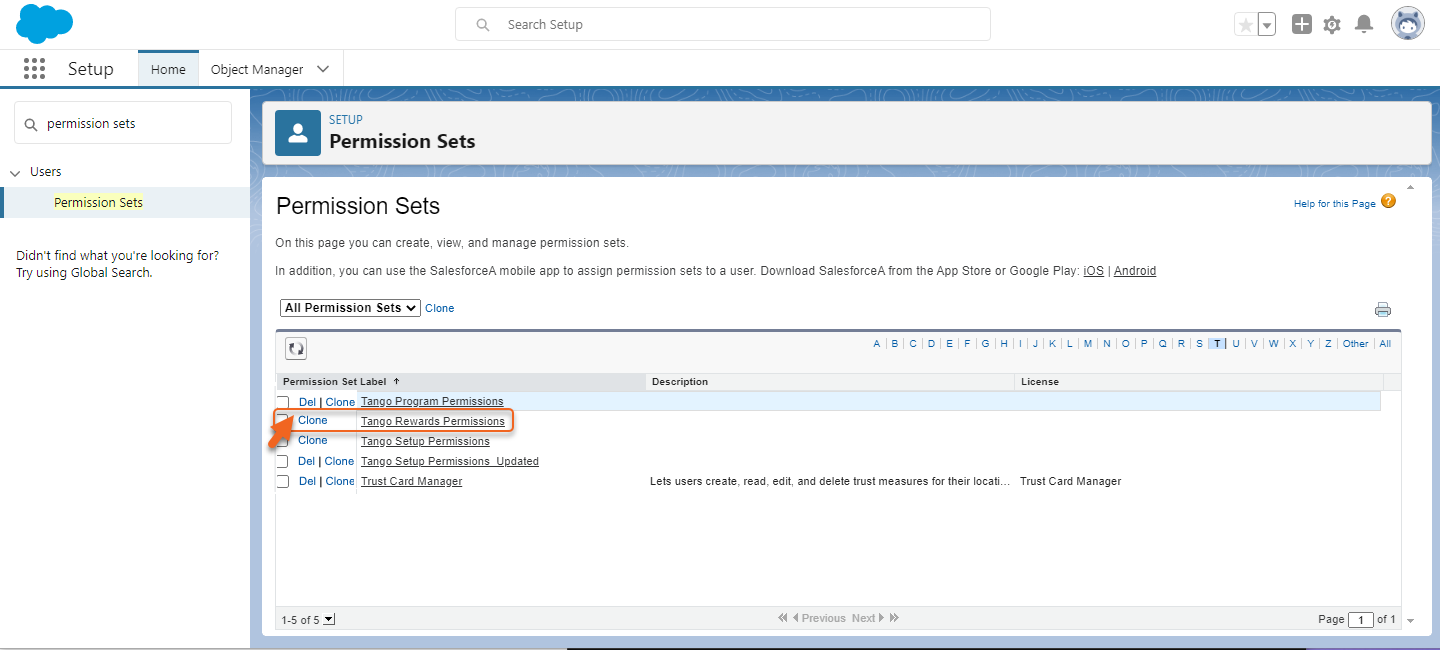
Click Clone next to Tango Rewards Permissions.
-
Enter a Label and API Name. Use a new label and API name such as Tango Rewards read-Only Permissions.
-
Click Save.
-
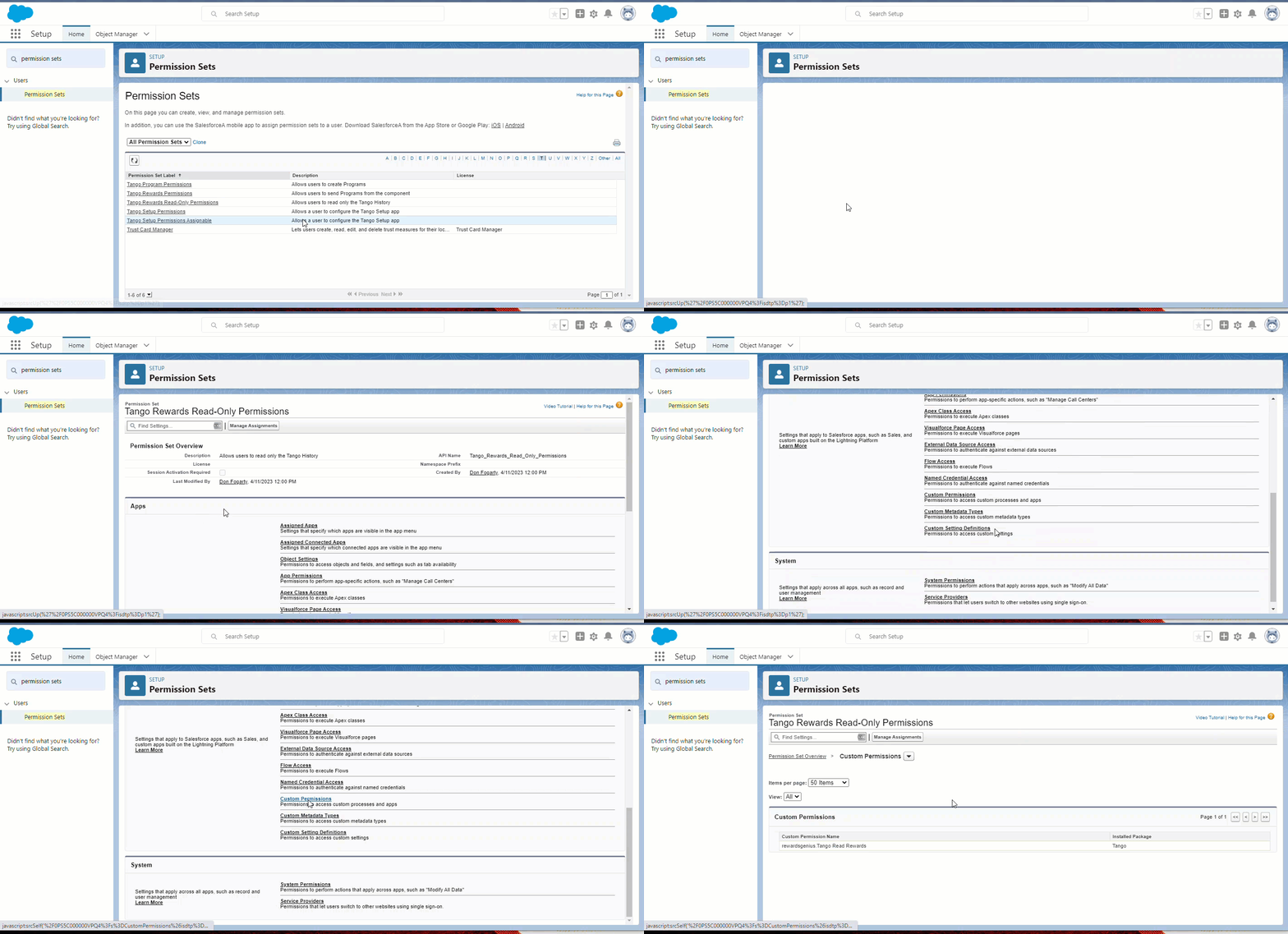
Click the Permission Set Label Tango Rewards Read-Only Permissions and scroll down to Apps.
-
Click Custom Permissions.
-
Click Edit.
-
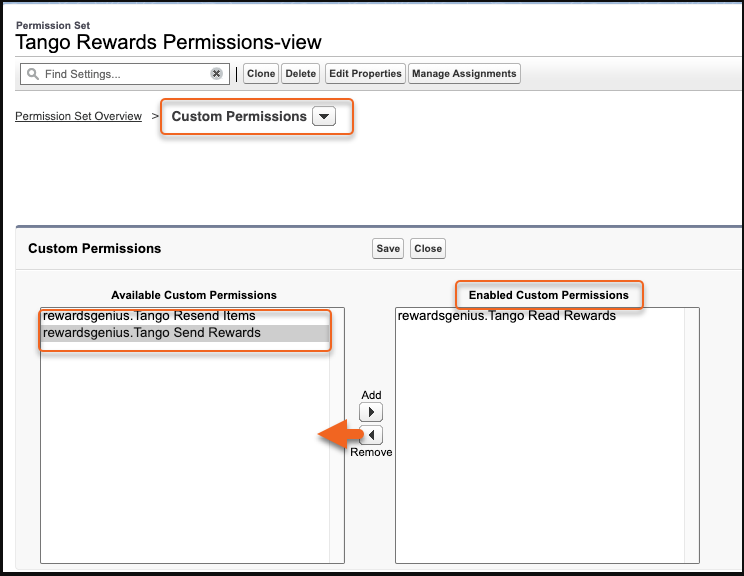
Under Custom Permissions, remove Send Rewards and Resend Rewards from Enabled Custom Permissions.
-
Click Save. The only permission enabled is now Tango Read Rewards.
-
On the Tango Rewards Read-Only Permissions page, click Manage Assignments.
-
Under Current Assignments, click Add Assignment in the top-right corner.
-
Select the intended users from the list to assign them the permission sets.
-
Click Next.
-
Click Assign. The assigned Salesforce users can now use the Tango app with read-only permission.
-
Click Done.
Repeat the steps above with a new clone if you want to create and assign a permission set for resend-only access
Tango Program Permissions grant permission to create manual Tango programs and create automatic Tango programs. The Salesforce administrator assigns Tango Program Permissions to Salesforce users who are responsible for creating and managing manual and automatic Tango programs.
To assign Tango program permissions:
-
Log in to your Salesforce account as a Tango admin.
-
Navigate to Setup in the top-right corner.
-
Type Permission Sets in the Quick Find Search box.
-
In the Permission Sets, click T in the alphabet row to quickly find Tango Program Permissions.
-
Click on the Permission Set Label Tango Program Permissions.
-
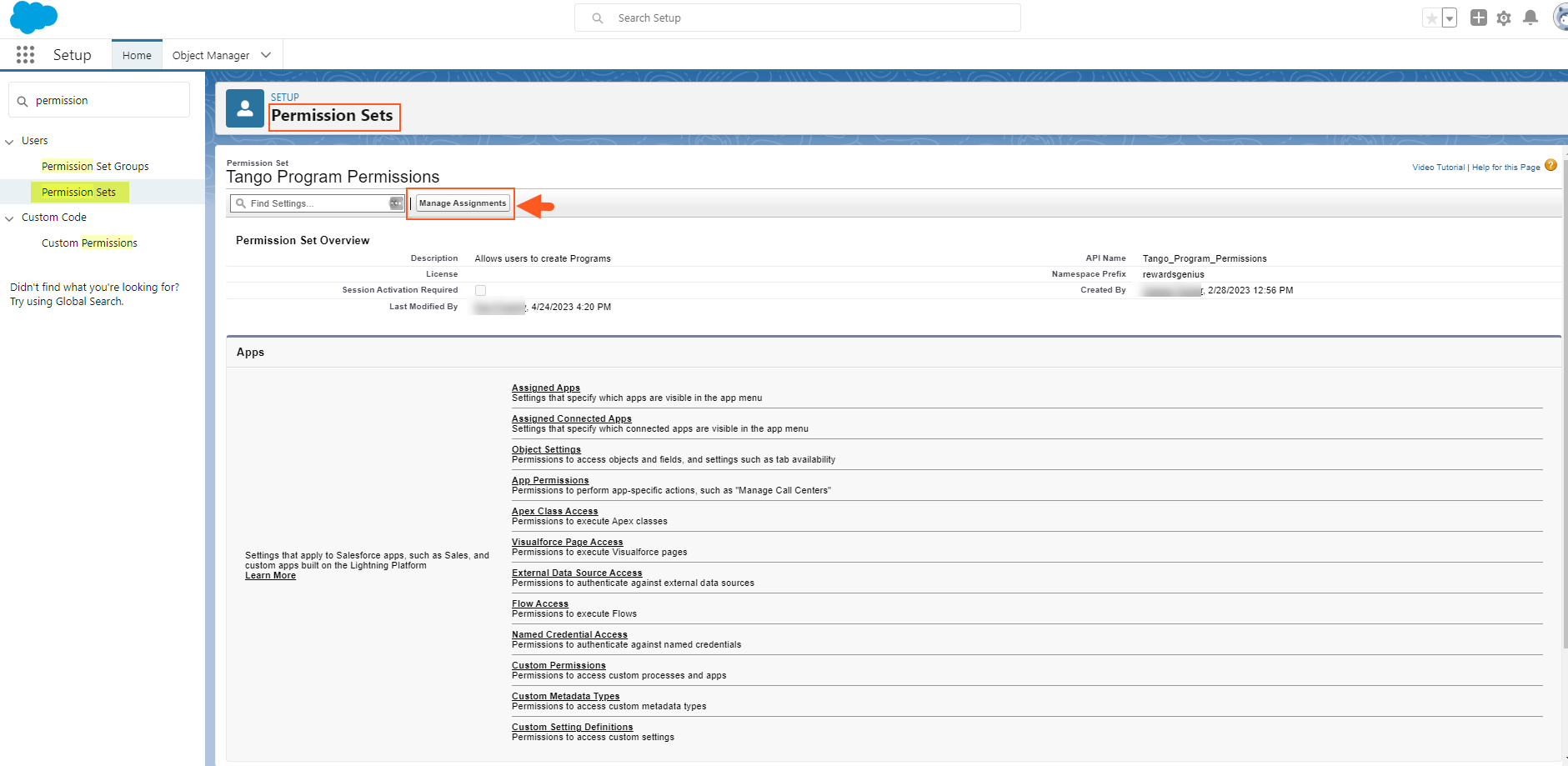
Click Manage Assignments from the Tango Program Permissions page.
-
Under Current Assignments, click Add Assignment in the top-right corner.
-
Select the intended users from the list.
-
Click Next.
-
Click Assign. The assigned Salesforce users have permission to create programs.
-
Click Done.
What’s next?
The next step is Step 3: Set up reward management picklist values in Salesforce
More resources: