A manual program in the Tango app for Salesforce lets users send rewards on demand—such as referral rewards, sales incentives, or rebates—directly from within Salesforce. Use the Program configuration wizard to create and configure a manual reward program, including catalog selection, reward value restrictions, delivery options, and Salesforce object data mapping.
Note:
Automated Tango programs have been deprecated in our newest release of the app and replaced with Salesforce Flow automation. Existing automated programs (using v1.17) still function and can be modified, but does not give the option to send the reward immediately within the program setup. The new automation programs are now built using Flow builder in Salesforce.
Set up a manual program
Follow the instructions below.
To set up a manual program:
-
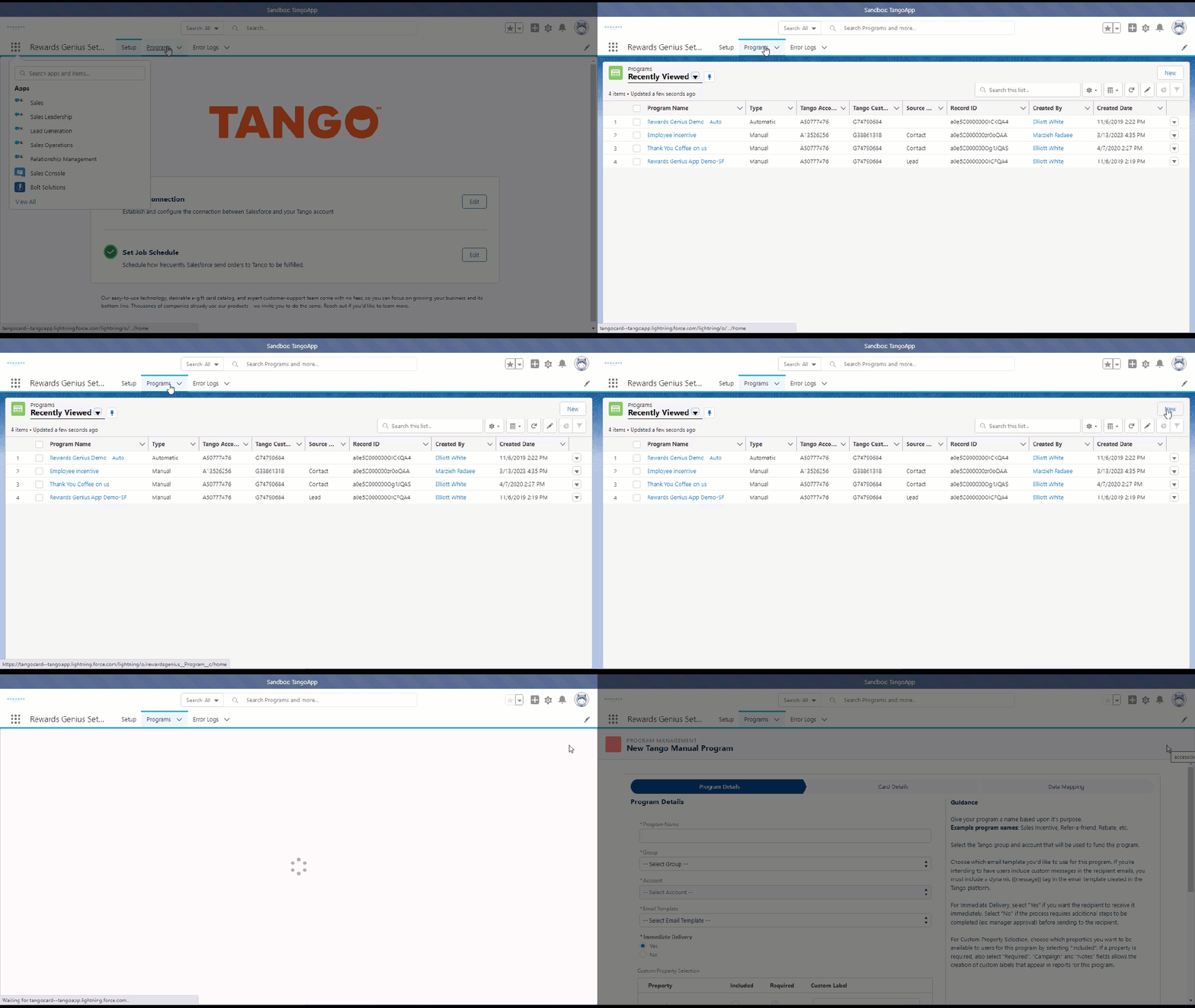
Log in to your Salesforce account with a user who has Tango Program permissions. Contact your company’s Salesforce admin for help with permission set assignment.
-
Open the App Launcher :app-launcher: within Salesforce.
-
Type Tango in the Quick Find Search box and press Enter.
-
In the Tango setup app, go to the Programs tab.
-
Click New to set up a new manual program.
Program details
In the new Program Details tab:
-
Enter a Program Name based on its purpose such as Sales incentive, refer-a-friend, rebate, etc. Users see the program name when selecting a reward.
-
Select the Tango Group and Account that is used to fund the program.
-
Choose the Email Template you will use for this program. If you want users to include custom messages in the recipient emails, you must include a dynamic {{message}} tag in the email template created in the Tango platform. Refer to our document to see how you can create a custom email template.
Under Immediate Delivery:
-
Select Yes if you want to send rewards to your recipient immediately when a user submits them.
-
Select No if the process requires additional steps such as manager approval before sending the reward to the recipient. When Immediate Delivery = No:
-
The reward status must be changed from “Approval” to “Pending” by a Salesforce approval process in order for it to be picked up by the batch Tango Queue and sent to the recipient.
-
Reach out to your organization’s Salesforce administrator for approval process and approval queue creation and management.
Note:
-
The recipient will not receive their reward until the reward status is set to “Pending” by the approval process, and the reward is processed by the Tango Job Scheduler.
-
The approval process must set the status from “Approval” to “Pending” after the reward is approved.
-
The approval queue is a component built in the Salesforce org, outside of the Tango app, for rewards that are waiting for approval. To learn more about the approval queue, check out the Salesforce Help to see how you can set up approval paths and queues.
Custom property selection
Under Custom Property Selection:
Note:
For the Campaign and Notes fields, you can create custom labels to meet your business needs. For other fields, the labels cannot be customized.
Card Details and catalog
-
Click Next to open the Card Details page.
-
Select the Currency Code, such as USD or CAD.
-
Under Available Catalog Items:
-
Determine which catalog items can be used for this program. Available items are based on what’s loaded into your Tango catalog. For available options, reach out to your Tango Customer Success Manager (CSM) via <u>success@tangocard.com</u>.
-
Select Any Item (User Chooses) if you prefer to allow senders to choose any item available in your catalog. A range or maximum value can still be enforced.
-
Under Value Restrictions, select a range or fixed amount for reward values.
-
Click Next.
Data mapping (Available Objects)
-
For Available Objects, select the Salesforce object to map data to (for example, Contact or Lead).
Data mapping determines:
-
Which Salesforce object (such as Lead or Contact) the program is available for. Only one object can be selected per program, but you can map multiple programs to the same object.
-
Which object fields map to the required Tango fields.
-
Click Finish.
Note:
-
The Tango app is designed to work with Lead and Contact objects by default, so the data mapping is configured automatically for these objects.
-
If you are using a different object, ensure the necessary reward recipient fields exist on that object: First Name, Last Name, and Email Address.
After you create the program
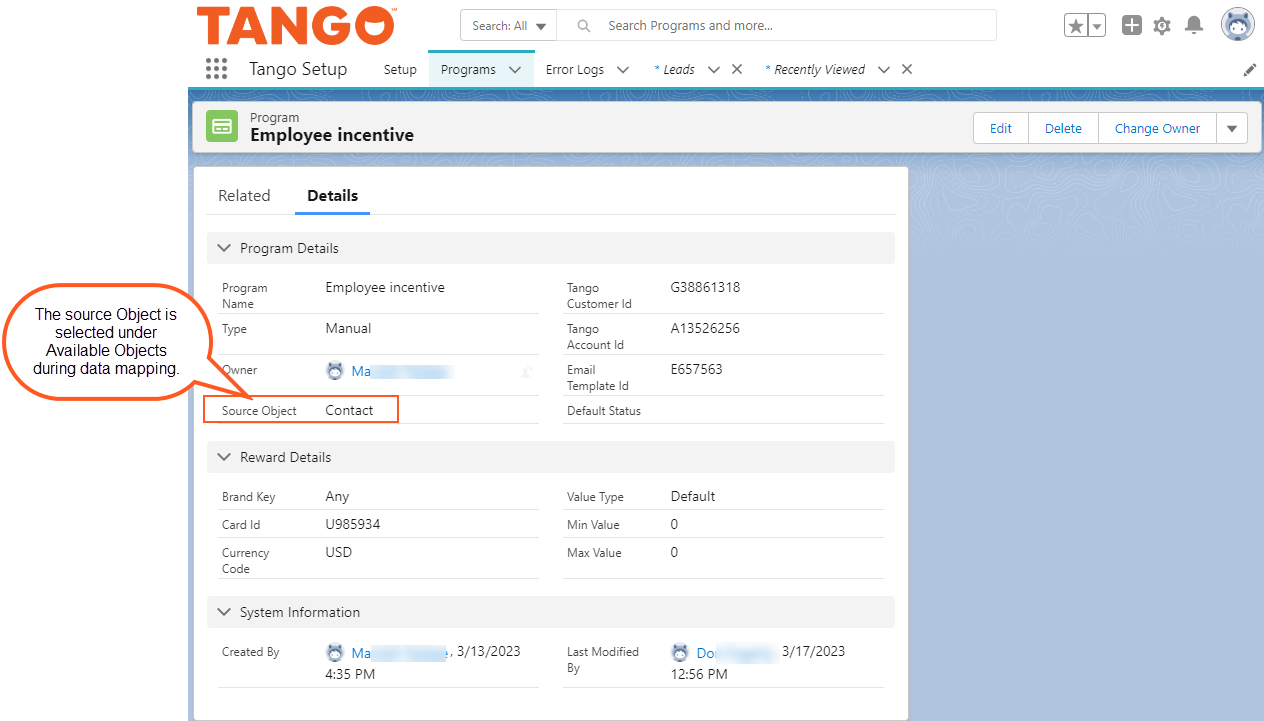
The newly created manual program appears under the Programs list in Salesforce. In the program’s Details tab, you can see information such as:
For Lead and Contact objects, data mapping is configured automatically in the Tango app.
What’s next?
Your next step is Step 8: Set up an automated reward automated program using Salesforce Flows.
More resources: