Set up the Tango job schedule in Salesforce to define how often Salesforce processes Tango orders stored in the queue. Orders created in Salesforce are either sent immediately or held for approval:
-
Orders set for immediate delivery bypass the queue and are sent right away.
-
Orders not set for immediate delivery receive a status of Approval and are not sent until their status is changed to Pending.
Once an order’s status is Pending, the job schedule picks it up and processes it for delivery to the recipient.
Note:
-
Job Frequency controls how often the queue runs to process and send Pending rewards — it is not the same as how often you plan to send rewards to recipients.
-
The job schedule is configured at the Salesforce org level, not per individual user.
-
To modify an active job, deactivate it first, make your changes, then click Activate to turn it back on.
Set up a Tango job schedule in Salesforce
Follow the instructions below.
To set up a job schedule in Salesforce:
-
In the search bar, type Tango Setup.
-
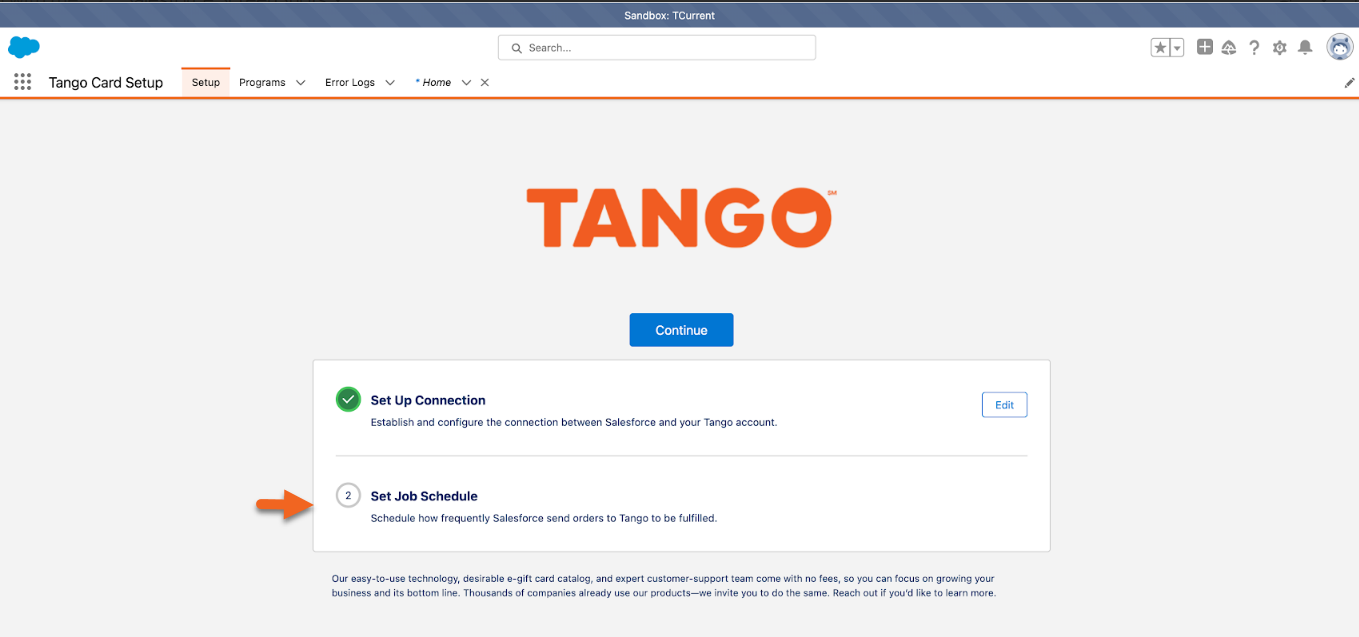
Click to open the Tango app. The job schedule setup window opens.
-
Click Continue.
-
Choose the Job Frequency and Job Start Time that work best for your rewards programs.
-
Click Activate and confirm.
-
If there are other jobs currently scheduled in your Salesforce org, they are listed here.
-
These other jobs may not be associated with Tango, but this list helps you decide when to schedule the Tango job.
-
Click Finish.
What’s next?
Your next step is Step 7: Set up a manual program.
More resources: