| Answer | Once the Tango app is installed and your programs are configured, you're ready to send rewards directly from Salesforce. This guide covers sending rewards manually, resending undelivered rewards, viewing automatic rewards triggered by Flows, and accessing Error Logs.
Note:
This integration only supports email-based reward delivery.
In this document you can learn how to:
Warning:
Do not edit Tango Reward or Error Log records in Salesforce. Editing these records can cause errors or break their link to the Tango database. Tango does not support manual edits to these records.
To send rewards manually, you must have the Tango Rewards permissions.. If you haven't set up permissions yet, see Tango permissions for Salesforce. See Step 2: Assign Tango permissions in Salesforce .
To send a Tango reward manually via Salesforce:
-
Log in to your Salesforce account as a user with Tango send permissions.
-
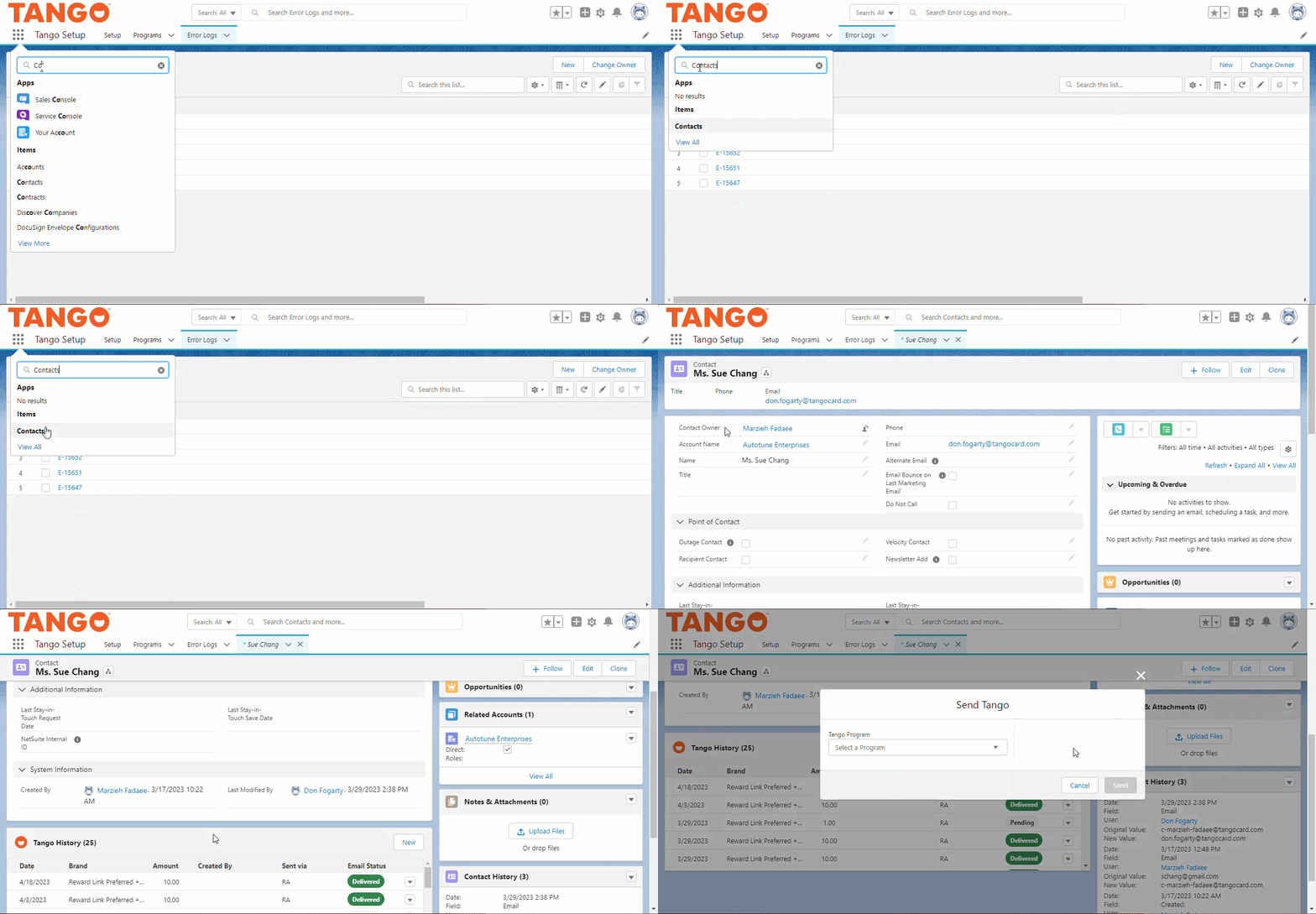
Navigate to App Launcher :app-launcher:.
-
Type Contacts (or another object that has the Tango component) in the Quick Find search box.
-
Open the record that has the Tango app installed and choose a recipient.
-
On the recipient’s record page, go to Tango History.
-
Click New.
-
Select a Tango Program and enter the information.
-
Click Send.
The reward is sent to the recipient’s email address listed on the record. A record of all rewards sent to this recipient is kept in the Tango History widget. For details regarding the email status of the reward, see Order, reward, and email statuses in Tango.
Depending on the location of the Tango History widget on the record’s page layout, you can see information such as date, brand, amount, sender, platform, etc. To see additional details such as card ID, click the drop-down arrow on the right next to the reward. The Transaction History table is only created for Reward Links.
Note:
The recipient may not see the reward immediately if it is awaiting approval in the Salesforce approval queue. The approval queue is a component in the Salesforce org, outside the Tango app, for rewards awaiting approval. To learn more about the approval queue, see the Salesforce document for how to set up approval paths and queues.
Using Tango in Salesforce, you can resend rewards that have not been delivered. To resend rewards, you must have the Tango resend permissions.
Note:
-
You can clone and modify the Tango Rewards permissions to allow for variations of who can view, send, and resend rewards. See Step 2: Assign Tango permissions.
-
You can resend a reward no more frequently than once every 30 seconds.
-
You can resend rewards only to email addresses listed on the record, including alternate addresses.
-
You can resend reward emails only to the original recipient. Redirecting rewards to new recipients violates our Tango Terms and Conditions.
To resend Tango rewards manually via Salesforce:
-
Log in to your Salesforce account as a user with Tango resend permissions
-
Navigate to App Launcher :app-launcher:.
-
Type Contacts (or any object to which you want to add the Tango component) in the Quick Find Search box.
-
Open the Object record for the recipient with an undelivered reward.
-
On the recipient’s record page, go to Tango History.
-
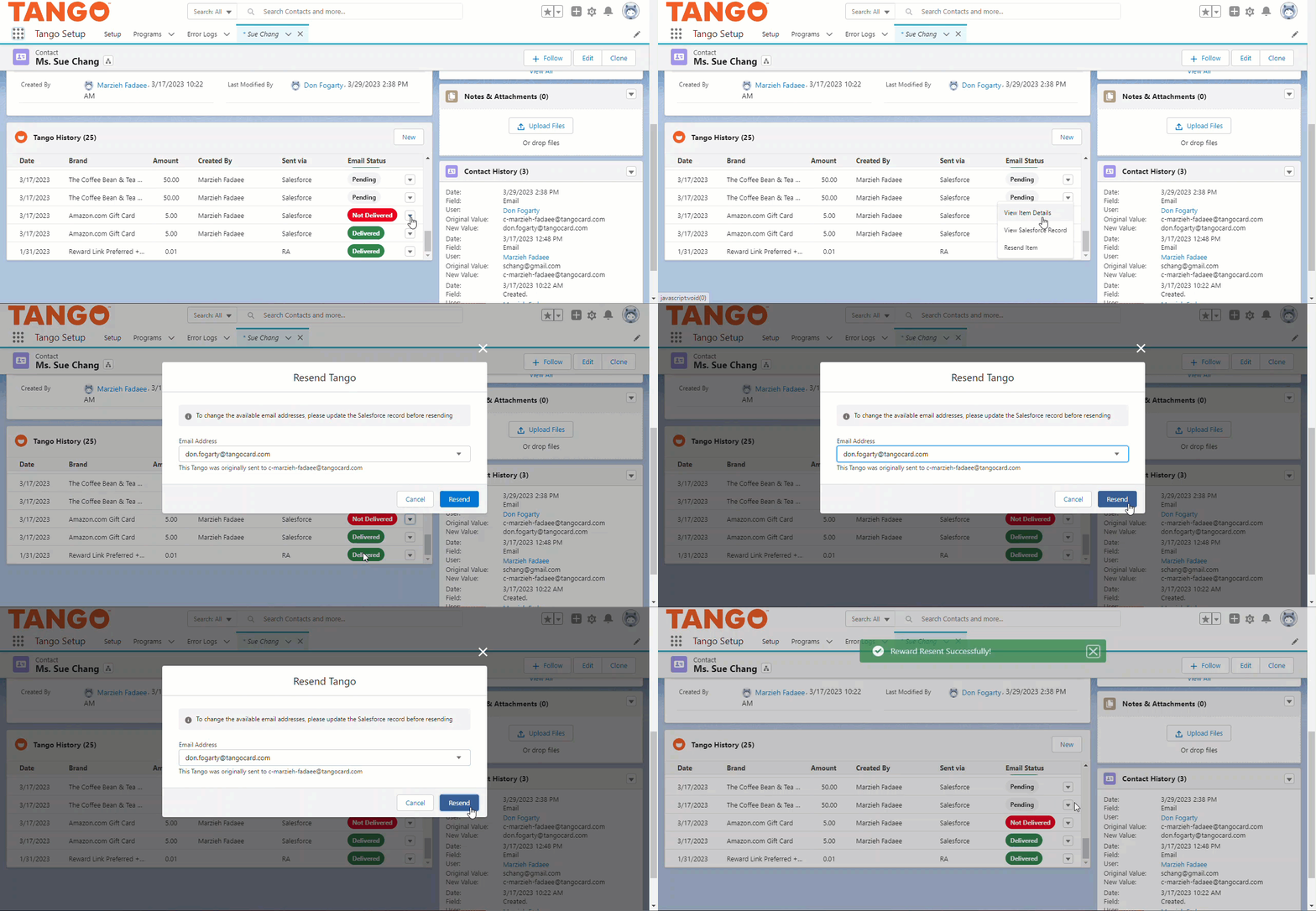
Click the drop-down arrow next to the reward and select Resend Item from the menu.
-
Select the correct email address from the list and click Resend.
-
Refresh the component to see the updated reward status. For details about the email status of the reward, see Order, reward, and email statuses in Tango.
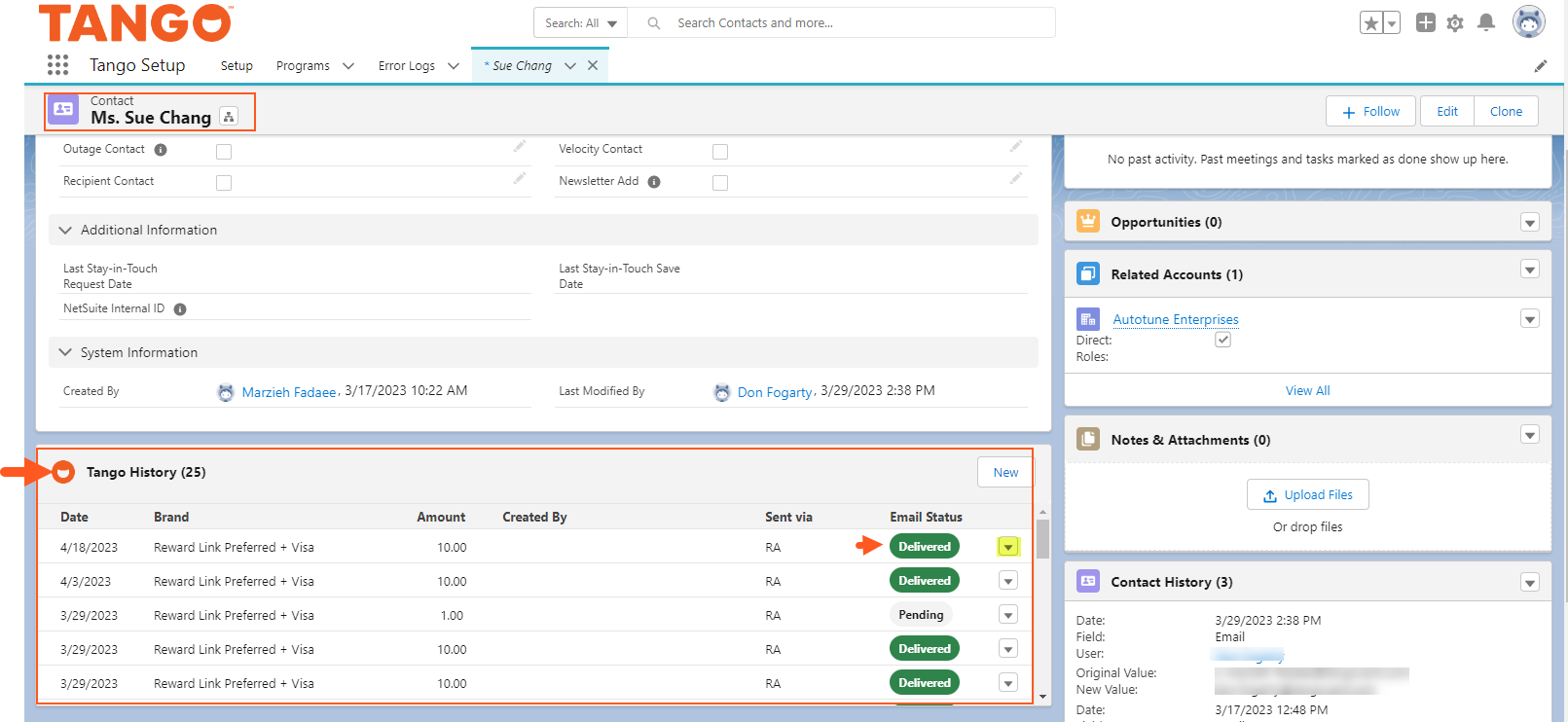
Salesforce Flows allow you to trigger reward sending automatically based on conditions such as deals closed or milestones achieved, without manual intervention. A Salesforce Flow that sends Tango rewards follows the same reward logic as manual sending, reduces human error, and calls the Tango API seamlessly. To check a Tango reward sent via Flow in Salesforce, go to the object with the recipient’s record and view Tango History.
To view a Tango reward sent via Flows:
-
Log in to your Salesforce account as a user with one of the following: Tango Rewards permissions, custom resend permissions, or read-only permissions that allow viewing Tango History.
-
Open the Salesforce object (such as Contacts) that contains the recipient scheduled for an automatic reward.
-
In the recipient’s record, navigate to Tango History and view the reward and its status.
-
If needed, click the drop-down arrow next to the reward and select Resend Item from the menu.
-
Select the correct email address from the list and click Resend
-
Refresh the component to see the updated reward status. For details regarding the email status of the reward, see our email status in Order, reward, and email statuses in Tango.
You can access and view the details of reward errors in Tango Error Logs using Salesforce.
To access Error logs:
-
-
Log in to your Salesforce account as a user with Tango Setup permissions.
-
Navigate to App Launcher :app-launcher:.
-
Search for Tango Setup in the Quick Find Search box.
-
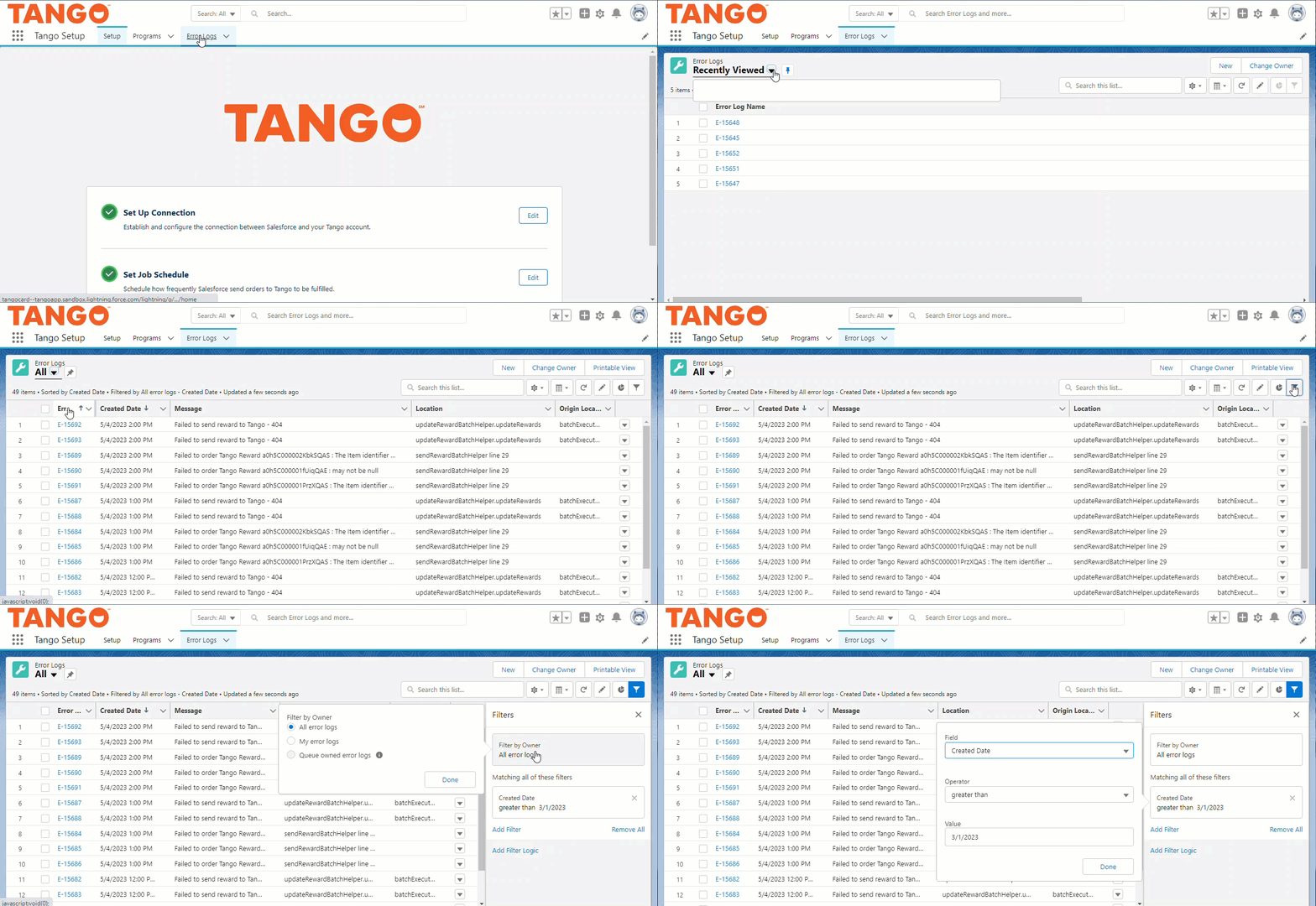
In Tango Setup, navigate to the Error Logs tab. From here, you can:
-
View or create a new Error Log.
-
Select All or Recently Viewed Error Logs.
-
In the All view, filter Error Logs by owner, created date, and more.
Learn how to Manage Tango rewards in Salesforce.
More resources:
|
|
|---|