Use Salesforce Flows to automatically send rewards when specific conditions are met in your CRM—no manual effort required. For example, you can trigger a $50 e-gift card to be sent to a new lead the moment they're converted, using a branded email template.
This article walks you through creating a Record-Triggered Flow in Salesforce and connecting it to the Tango app to send rewards automatically. Your Salesforce admin with Flow Builder expertise will need to complete the setup. To learn more about Flows in general, see Salesforce Flow Builder documentation.
Prerequisites
Before you start, you’ll need:
-
A Salesforce user with permission to build Flows
-
The Tango for Salesforce app installed and configured
-
A custom field on the Lead object (for example, Send_Tango__c) to control when rewards are sent
-
At least one Tango reward configured (for example, Reward Link in USD)
Set up a reward automated program via Salesforce Flows
Follow the instructions below.
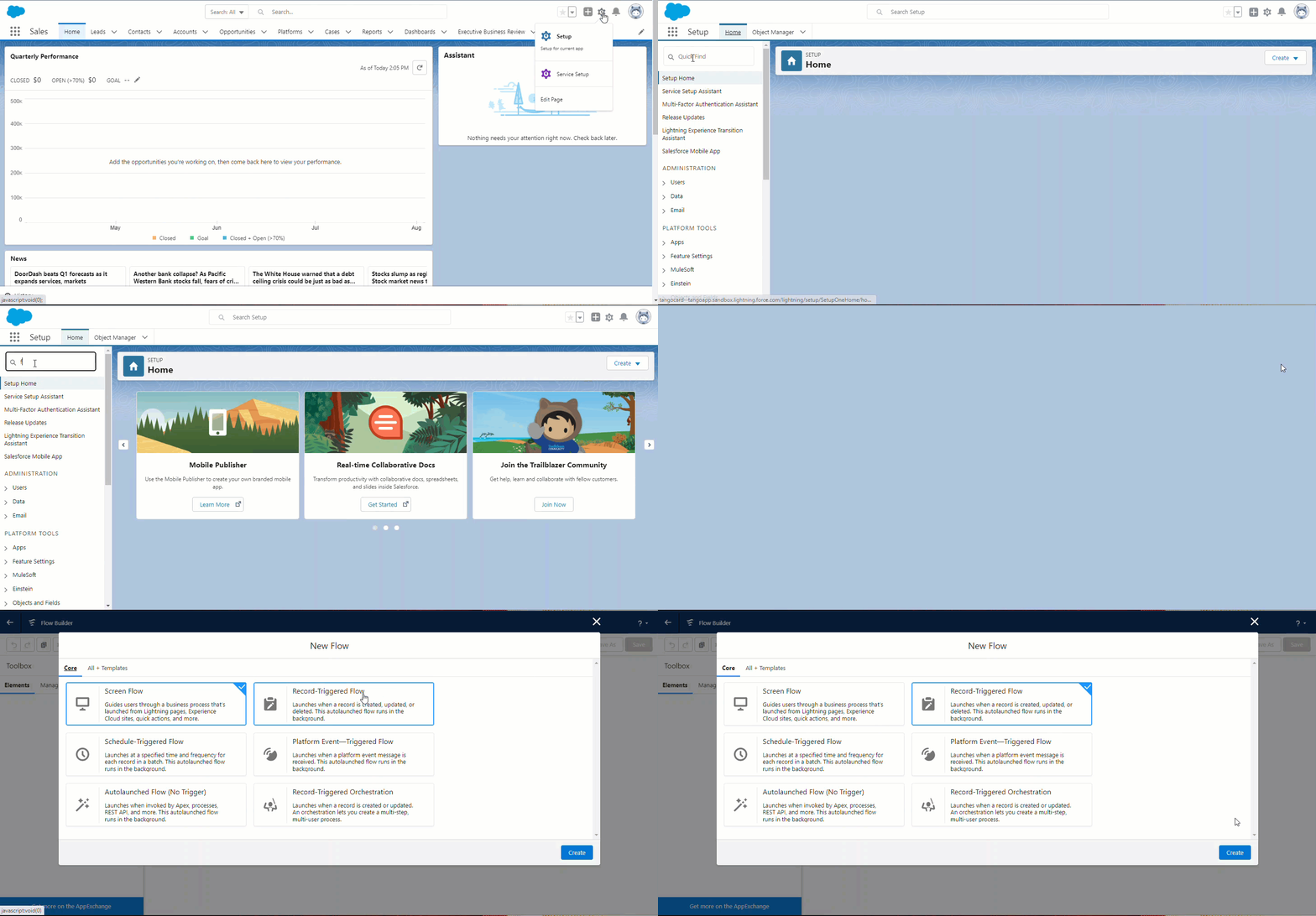
Step 1: Create a new Flow
-
Log in to your Salesforce account as a user who has permission to build Flows.
-
Click Setup >Setup on the top right-hand corner.
-
In Quick Find, search for Flows on the left.
-
On the Flows page, click New Flow to create a new automatic Flow.
Note:
The following steps are provided as an example. To learn how to build Flows in Salesforce, refer to the Salesforce help center.
Step 2: Choose the Flow type
-
Select Record-Triggered Flow from the options. This is the most common type for automated programs, but other Flow types can work too.
-
Click Create.
-
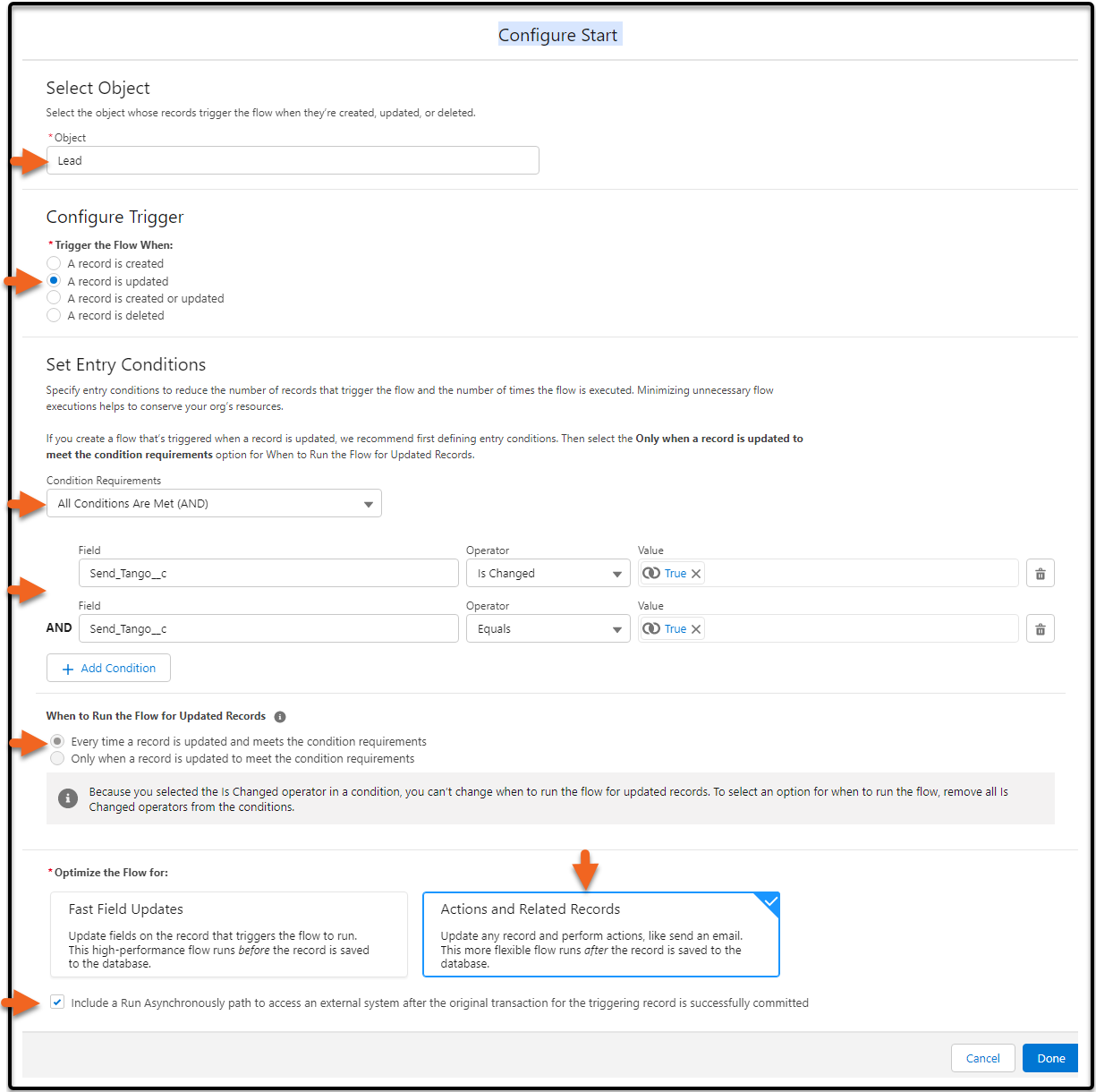
For Object, select Lead. When you create, update, or delete Lead records, the Flow is triggered.
-
Enter values according to the following example configuration.
Note:
The following values are examples only. Adjust the object, fields, and values to match your Salesforce configuration.
|
Field
|
Value (example)
|
|---|
|
Object
|
Lead
|
|
Trigger the Flow When
|
A record is created or updated
|
|
Set Entry Conditions
|
All Conditions Are Met (AND)
|
|
Field*
|
Send_Tango_C - a custom field that was added to the Lead Record that when checked triggers the sending of the reward to the Lead.
|
|
Operator 1*
|
Is Changed
|
|
Operator 2*
|
True
|
|
Value*
|
{!$GlobalConstant.True}
|
|
When to Run the Flow for Updated Records
|
Only when a record is updated to meet the condition requirements.
|
|
Optimize the Flow for
|
Actions and Related Records
|
|
Select the checkbox
|
Include a Run Asynchronously path to access an external system after the original transaction for the triggering record is successfully committed.
|
*Click + Add Condition to add another row for Field, Operator, and Value if your business rules require additional conditions.
-
Click Done. The auto layout appears on a new screen.
Step 4: Add the “Send a Tango” Apex action
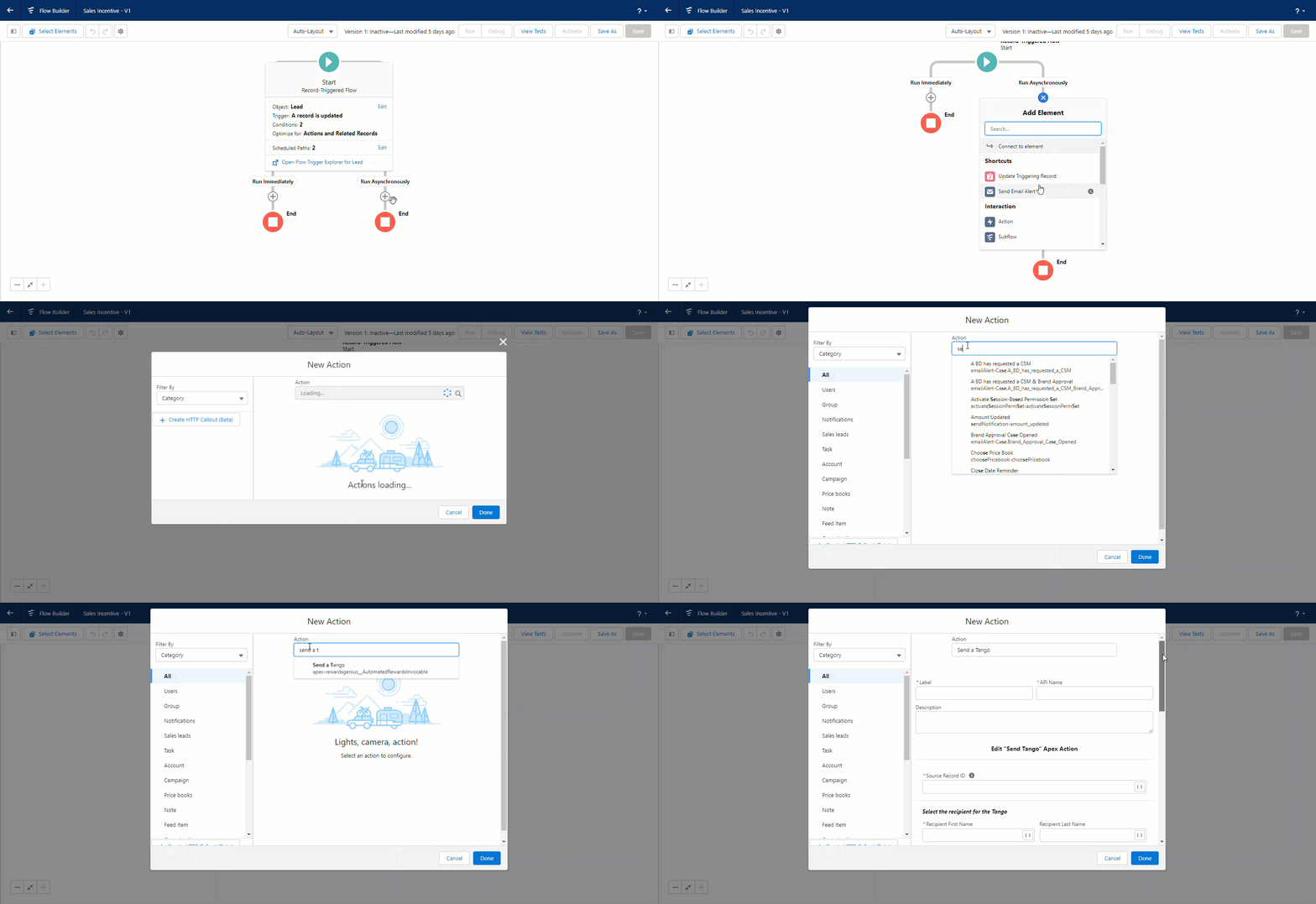
On the next page of the Flow:
-
Under Run Asynchronously in the Flow builder, click + to add a new element.
-
From the Apex Action drop-down, search for and select Send a Tango.
-
Enter values according to the following example mapping. This is an example of Apex action field mapping:
|
Field
|
Value (example)
|
|---|
|
Label
|
Send a lead a Tango
|
|
API Name
|
The API name is automatically populated.
|
|
Description
|
This action sends a lead a Tango reward.
|
|
Source Record ID
|
Enter the salesforce source record ID related to Tango record such as Record Type ID.
Type Record Type ID to get {!$RecordId}.
|
|
Recipient First Name
|
Type FirstName to get {!$RecordFirstName}.
|
|
Recipient Last Name
|
Type LastName to get {!$RecordLastName}.
|
|
Recipient Email
|
Type Email to get {!$RecordEmail}.
|
|
Group
|
Sales
|
|
Account
|
Sales premium
|
|
Email Template
|
Tango standard template
|
|
Campaign, Email Subject, Sender First Name, Sender Last Name, Optional Message, and Notes
|
Optional such as Happy Birthday for subject
|
|
Catalog Item, Currency Code, and Amount
|
Pick Reward Link or Amazon as the catalog item and USD for currency.
|
|
Advanced> Manually assign variables
|
No
|
-
Click Done.
Step 5: Save and activate the Flow
-
Click Save to save the Flow.
-
(Optional but recommended) Click Activate so the Flow can run in production.
Your automated reward program is now ready. It will be triggered next time a Lead record meets your defined rules or processes within Salesforce.
What’s next?
The next step is Step 9: Set up the Tango error logs in Salesforce.
More resources: