The Tango app tracks failed reward orders in an Error Logs view, showing each error's name, date, and message. You can click any entry to see its full details.
As a Salesforce admin, you configure the maximum number of error log entries your organization retains. Once set, all Tango users can access Error Logs from the Tango Setup screen in Salesforce.
To set up the Tango max Error Logs:
-
Log in to Salesforce as a Salesforce admin.
-
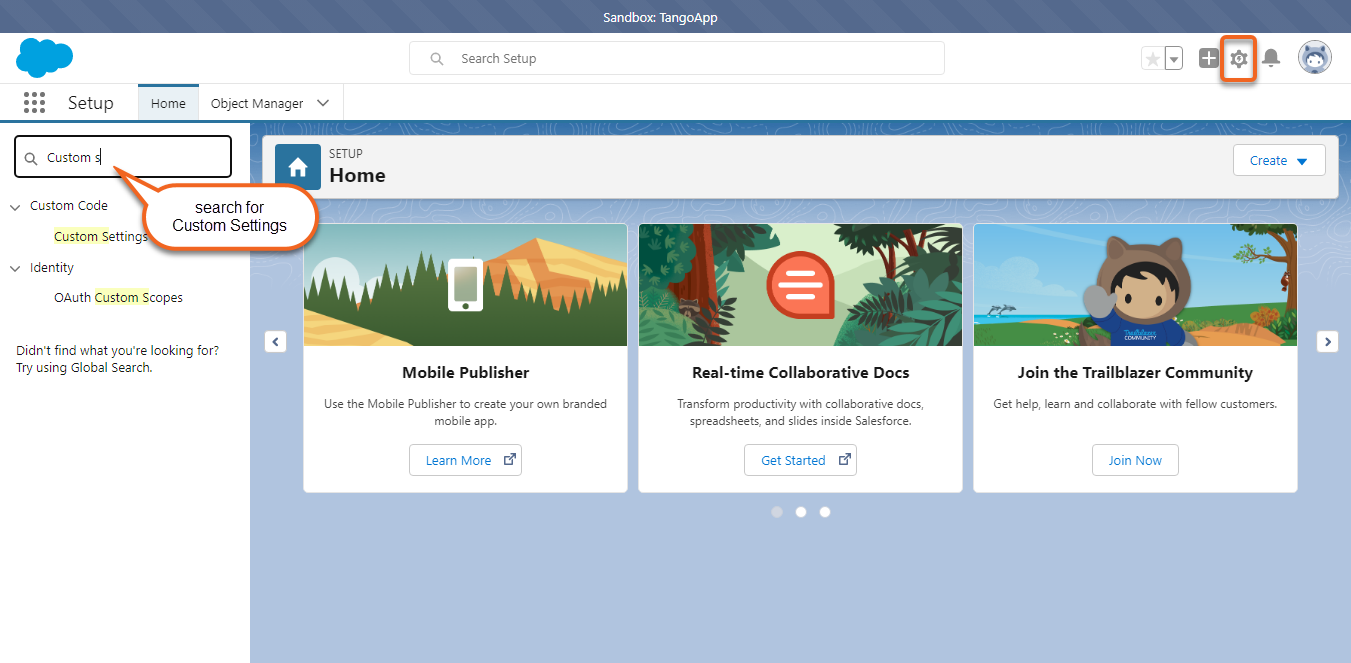
In Salesforce, click Setup :gear: in the top-right corner.
-
In the Quick Find box, search for Custom Settings.
-
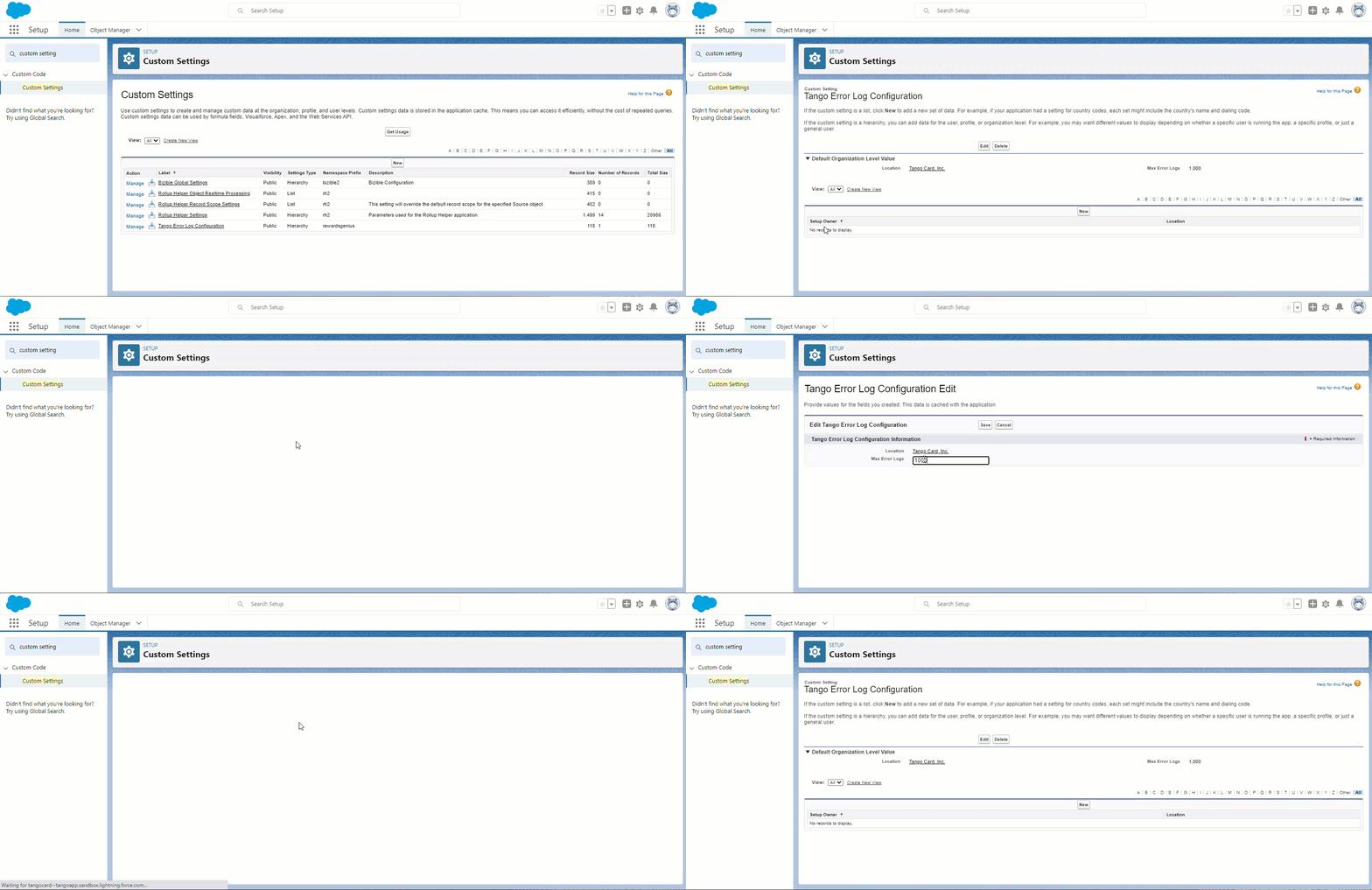
In the list, click Manage next to Tango Error Log Configuration link in the list.
-
In the Tango Error Log Configuration window, click the New button.
After the Tango Error Log Configuration is created, you will see an Edit button instead of New.
-
Enter the number of Max Error Logs to keep for your Tango app. We recommend setting Max Error Logs to 1000. When a new error occurs and the log is already at 1000 entries, the oldest error will be deleted.
-
Click Save.
What’s next?
Congratulations! You’ve completed the installation and set up of Tango app in Salesforce. See how to Send Tango rewards with Salesforce.
More resources: